Wednesday, 22 May 2013

Emmabuntus 2 - The French Revolution

Introduction

One of my favourite things about writing about Linux is when I decide to review one of the smaller distributions.

This week I have had the pleasure of installing, exploring and now reviewing Emmabuntus 2.


What is Emmabuntus?

I am going to quote directly from the Emmabuntus wiki page:
These distributions claim to be simple, open and fair. They are the results of the humanitarian crossing the free culture, to build together distributions for everyone.
Features
  • Distributions based on Xubuntu 12.04
  • Quick setup mode through automation scripts
  • Mode live on USB/DVD
  • Install standalone without internet, everything is installed with the distribution 
  • Installation or not of non free software
  • An additional 60 applications
  • A dock allowing access to all applications
  • 3 languages supported (English, French and Spanish)
Comparing to others similar distributions, Emmabuntüs claims to be easier, more accessible and lighter. However, it offers a wide range of installed softwares and includes a large amount of humanitarian and free softwares/projects weblinks and documents. 
So from reading the WIKI what I have understood is that Emmabuntus is based on Xubuntu 12.04, contains a lot of software and it is easy to setup and navigate.

Read on to find out if this is true or not.


WIKI


Before I start with the review properly I wanted to draw your attention to the WIKI page for Emmabuntus because it is one of the most informative that I have seen.

The WIKI page clearly sets out intentions of the project, has hardware requirements, links to the download and installation instructions.

This should be your first port of call. Don't worry if you ignore this advice though because once you have installed Emmabuntus there is an information folder on the desktop which gives you a second chance to get at the WIKI.

Hardware Requirements

These hardware requirements come straight from the WIKI page:


  • Processor: Intel or AMD
  • Ram: 512 MB minimum, 1 GB recommended 
  • Hard Disk: 20 GB minimum
  • Video Card: nVidia, ATI, Intel, SIS, Matrox
  • Sound Card: Sound Blaster, AC97 or HDA compatible
  • Other: DVD drive or PC can boot from the USB port

How to get Emmabuntus


This is a 3 GB + download.

Installation

Normally I use Unetbootin to burn the distribution to a USB drive and boot into the live session before installing to the hard drive.

As the download was over 3 GB I decided to burn the distribution to a DVD.

Emmabuntus is based on Xubuntu and therefore the installer is a customised version of the Xubuntu installer.

Choose your locale, choose whether to install alongside another operating system or use the whole drive (or custom) and create a user and password. All very standard stuff.

It takes a while to install Emmabuntus but it is easy to see why when you run it for the first time.

First Run

When you boot Emmabuntus for the first time you are asked to choose what you want to appear on the dock at the bottom of the screen.


There are 3 options available. I decided to opt for the "All" option and the result is a mass of icons at the bottom of the screen. 


At this point I was prompted to enter the root password again (unfortunately there was no message to say why which is a bit offputting).

This is where I came across a small issue. When I entered my root password I was denied access. The reason I was denied access was that my keyboard was set up to be French. (Emmabuntus is a French distribution so that isn't so shocking I guess). I had to cancel the request for a root user and change the keyboard layout to English. At this point I had no idea what the reason was for entering the root password.

Rather fortunately I decided to go to bed at this point and I shut down the computer. When I rebooted the next day all became clear as I was again asked to enter the root password and now because I was using a UK keyboard layout my root password was accepted.


A series of questions pop up. The first message box provides a link to a donation page and a petition.

The second question asks whether you want to install the proprietary stuff such as Flash, MP3 codecs and fonts.

The next message asks whether you want to remove the languages that you do not need. I can't help but feel it would be better to change the installer to install the languages you want in the first place and then they don't need to be removed after the event. This would also remove the keyboard layout issue when the distribution is first started.


First Impressions


Emmabuntus is by and large Xubuntu 12.04 with the bells and whistles added. Remember the aim of the project is to provide a fully featured operating system with a wide range of software available but also light.

I guess therefore the lightness is the XFCE desktop. I am a big fan of XFCE as you can tell from my Xubuntu reviews:
Emmabuntus has attempted to enhance upon the Xubuntu system by using the CAIRO dock at the bottom instead of the stock XFCE panel.

The panel at the top is the standard XFCE panel with a menu icon in the top left corner and in the top right icons for the battery, language, audio, messages, networks, notifications and the clock.

The CAIRO dock at the bottom in my case shows a whole host of icons because I chose the "all" option. If I chose the "kids" option or the "simple" option then a smaller subset of icons would have been shown.

The CAIRO dock shows a home icon, a FireFox icon, a communications category icon, an office category icon, audio category icon, video category icon, photo category icon,  disk burning category, interests category icon, education category icon, utilities icon and maintenance icon. There are also icons for changing workspaces, the trash can, shortcuts and power.

Clicking on a category brings up a speech bubble view with a list of applications that belong in the category.

The dock is very stylish but it can get a bit annoying when you accidentally hover over the bottom of the screen whilst trying to navigate to say the bottom of a document in LibreOffice or a the editor within Blogger.

Applications

The thing that is immediately apparent in Emmabuntus is the sheer number of applications that are installed by default. You might want to skim this bit and move to the next section as it is like the competition section of the Gadget Show where they list over 100 prizes.

Communications

  • Thunderbird and Evolution mail clients
  • Chromium and FireFox browsers
  • Pidgin and Empathy messenging software
  • Skype, Ekiga Softphone, Wammu 
  • XChat IRC
  • Filezilla FTP Client
  • Transmission torrent software
  • Ubuntu one
  • Google Docs
  • Dropbox
  • Framapad

Office

  • Abiword
  • Gnumeric
  • LibreOffice
  • Document Viewer
  • Ebook Reader

Audio

  • Rhythmbox, Audacious, Clementine Audio Players
  • Audacity - Audio Editing
  • Radiotray
  • GPodder - Podcasts

Video

  • VLC Player, SM Player
  • Cheese Webcam Viewer
  • Openshot video editor, WinFF
  • Mythbuntu
  • KDenlive

Photo

  • Openshot, FotoXX, Picasa, Digikam
  • GIMP
  • Inkscape

Burn

  • K3B
  • Brasero
  • XFburn

Interests

  • Homebank
  • Geneology
  • Play On Linux
  • Stellarium
  • Supertux
  • Supertuxkart

Education

  • Tuxpaint
  • Tuxmath
  • Tuxtyping
  • Childsplay
  • OOO4Kids
There are lots of other applications installed that I haven't listed here but you get the idea. If all that isn't enough WINE is installed as well so you can run Windows programs as well.
Installing Applications


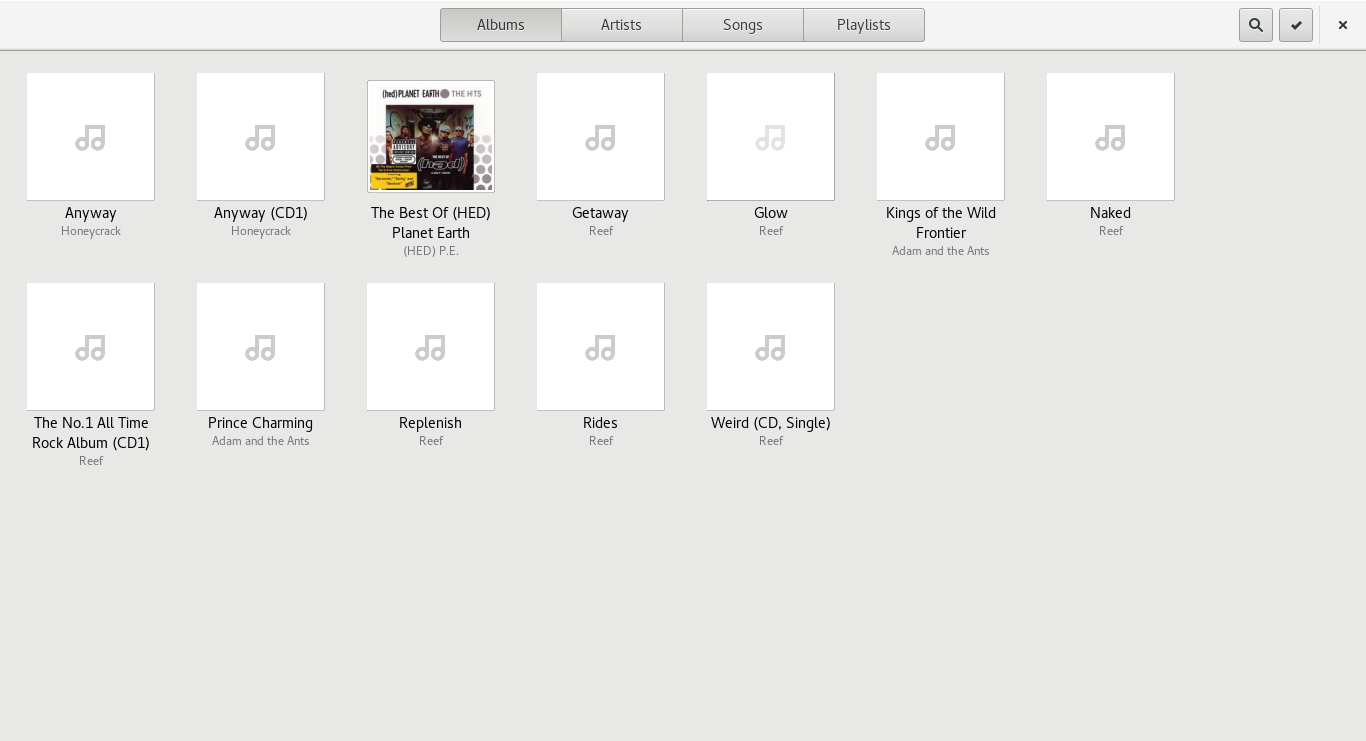
If you decide that there aren't enough applications installed there are two things you should know. The first is that you are probably insane and the second is that software can be installed via the Ubuntu Software Centre.

Connecting to the internet

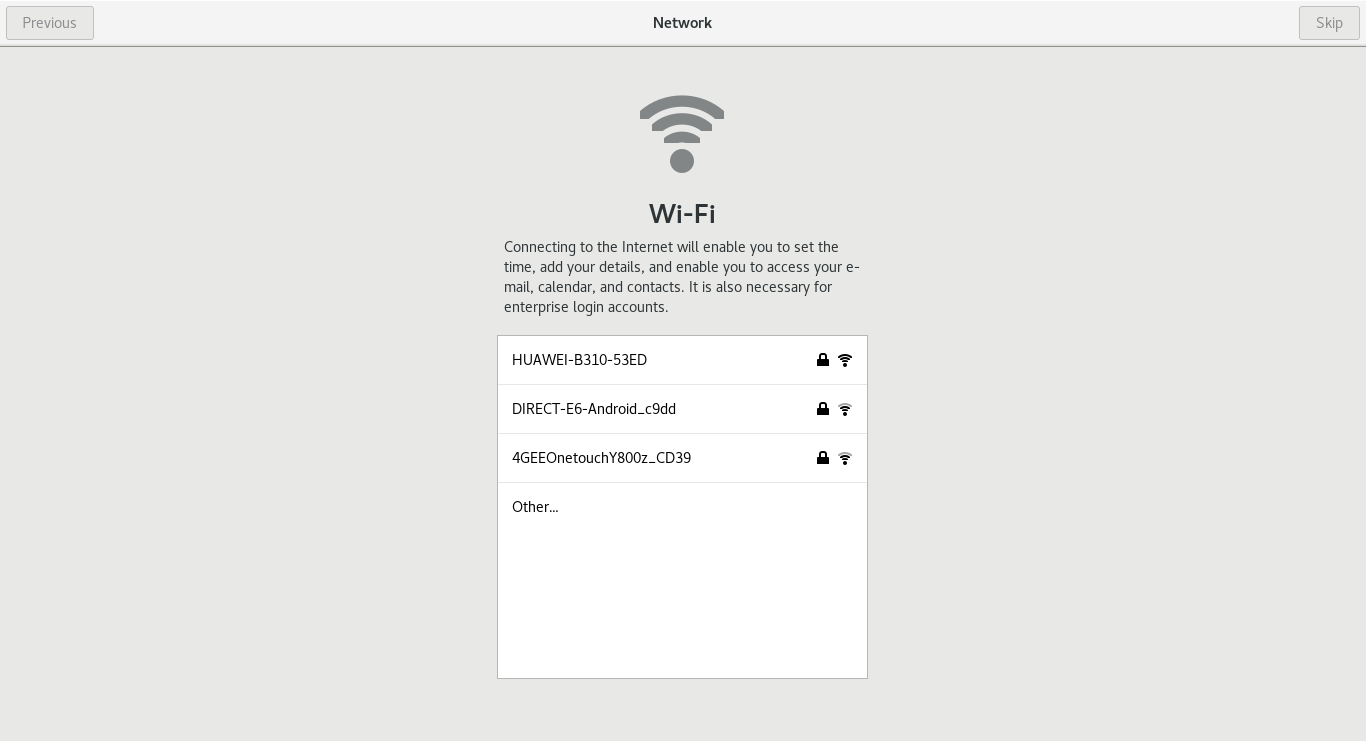
As Emmabuntus is based on Xubuntu connecting to the internet is a breeze. There is a network icon on the panel and clicking it brings up a list of the available networks.

All I had to do was enter the security key and I was connected to the internet.

A rather interesting feature I stumbled upon was when I tried to go to the Everyday Linux User website. (This site).


I was denied access to the website because this site is in an unrated category for the site blocking software. This is an add-in that has been installed in Chromium and FireFox.


To turn off the add-ons I had to go into the settings for the browser where I also found add-ons for advert blocking and ghostery which helps you find out which sites are tracking your browsing.

Changing the desktop background

To change the desktop background in Emmabuntus you follow the same process as you would in Xubuntu.

Simply right click on the desktop and select desktop settings.

There are some desktop wallpapers available but I like to add my own so I added some into my pictures folder and clicked the plus symbol and located the pictures I had downloaded.


I always find it amazing how a well crafted wallpaper image brightens up the desktop.
Flash and MP3

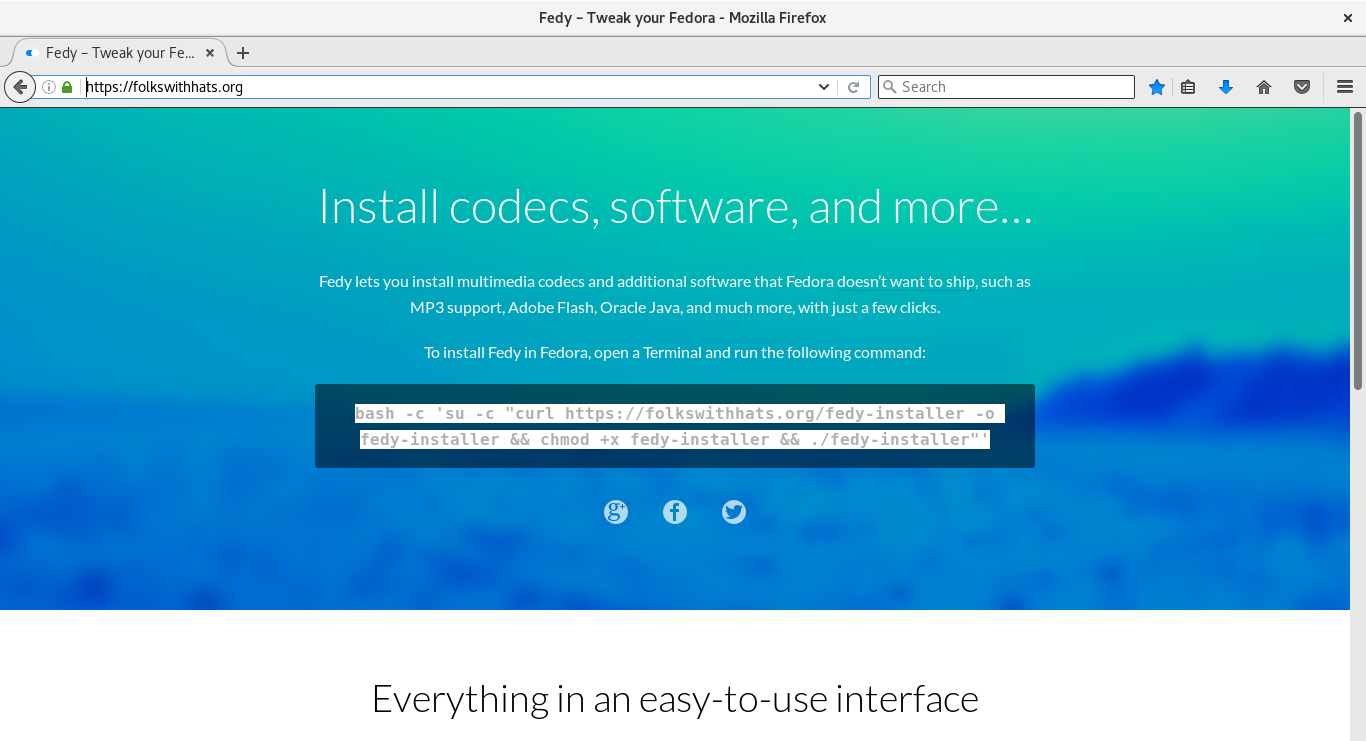
The scripts that run when you first install Emmabuntus take care of all your Flash and MP3 needs and as you can see Youtube works perfectly.
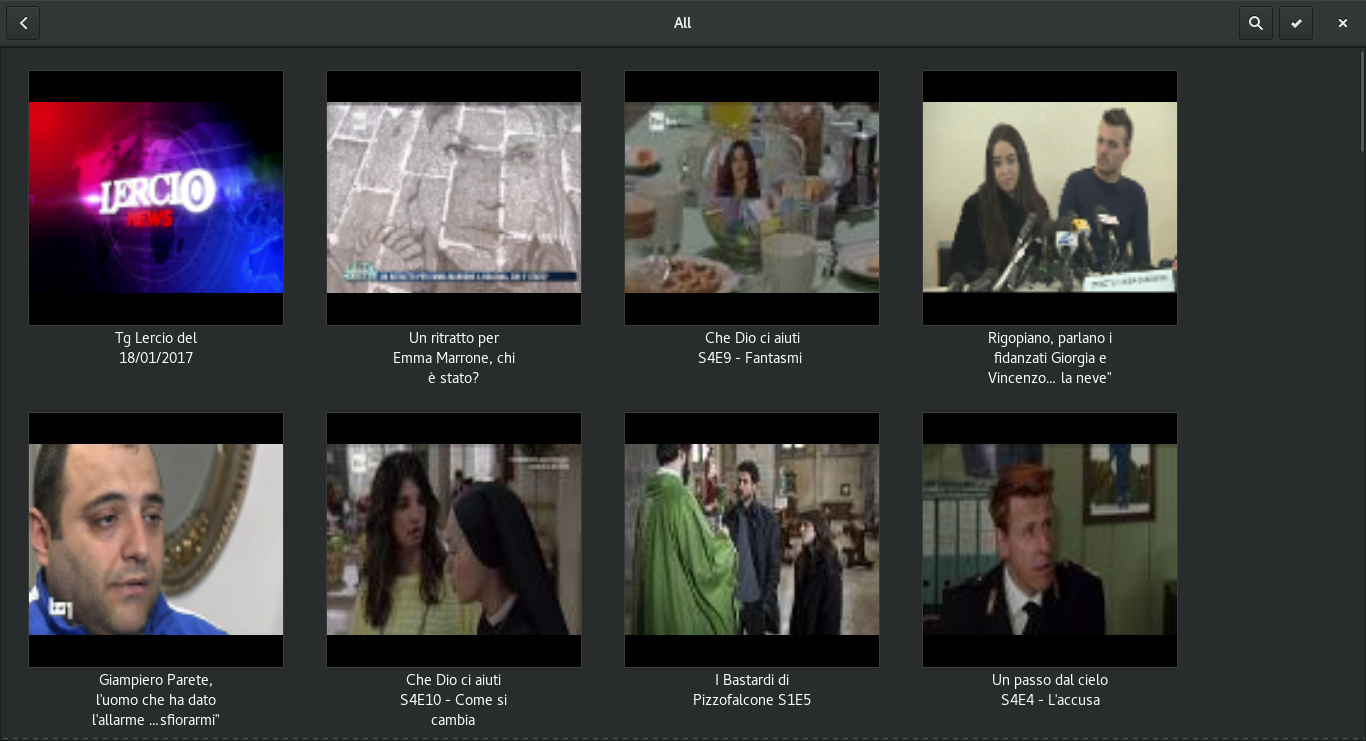


There are a plethora of music applications installed with Emmabuntus but what surprised me was that when I loaded Rhythmbox there was already some songs installed. I thought this was a nice touch. The music installed however is in OGG format.


To test MP3s I downloaded a Ramones track which was automatically to Rhythmbox


There were no issues playing the MP3 files.

RadioTray


One of the applications in the audio category is called Radiotray. This adds an icon in the top right corner of the screen. When you click on the icon a list of online radio stations appear broken down into various categories.

By default the radio stations are mainly French in nature but you can change the preferences to make the list show the radio stations of your choice.

Summary

Emmabuntus basically takes Xubuntu and adds to it in an attempt to cut out the configurations steps many people have to go through before using their system.

There are a number of ways of creating a distribution and when it comes to the choice of software I see there being 3 approaches.
  1. Keep it minimal by only installing the applications necessary to run the operating system.
  2. Install a popular set of applications you believe users would like to use.
  3. Install a heavy assortment of applications so that users do not have to download anything extra.
For me there are merits in each approach.

If you keep it minimal then it is up to the user to decide on the software they wish to install. For more experienced users this is easy because they already know what is out there.

If you go for option 2 and install a popular set of applications then you are second guessing the applications that people would like to use. This is an acceptable approach because it means the system is useable out of the box and the user can get going straight away and if they prefer other applications they can install them as required.

Option 3 seems more scattergun but for new users it is actually a fairly valid thing to do. Disk space is no longer really at a premium and so installing extra software isn't really a problem unless it loads at startup and uses up memory. 

If you have never tried Linux before it is probably quite an exciting prospect seeing so many options available. You can try out 2 or 3 of each type of application and decide on the one you wish to use.

Emmabuntus has a few quirks. As it is a French distribution there are a few menus and applications that have French headings. The radiotray application is full of French radio stations and there is the issue I raised when running Emmabuntus for the first time where I couldn't enter a root password because the keyboard layout defaulted to French.

Other than the small issues raised I have to say that Emmabuntus was a real pleasure to use for the past week. Everything just works and the XFCE desktop keeps things running snappily. Emmabuntus does really take the Xubuntu 12.04 release and add to it. 

The Cairodock is really nice and it makes it much easier to navigate the system than the standard XFCE panels.

I have decided to install Emmabuntus onto my netbook for a while to see how I get on because having downloaded 3.5 GB of software I may as well use it.

If you have a computer that is a few years old but not ancient then I would really recommend Emmabuntus. 

Thankyou for reading


Sunday, 19 May 2013

Windows Users - Welcome to the world of open source with PortableApps

Introduction

A comment I often get from Windows' users is that they quite like the look of Linux but they also really like Windows.

A common question I get asked is "What can Linux give me that Windows doesn't?".

There is a fear factor that Linux is going to somehow ruin their day and they aren't going to be able to do all the things they normally do.

I have written an article previously which gives examples of how Windows' users can try Linux without messing up their current Windows setup but I think there is something that can help the transition from Windows to Linux long before an ISO is downloaded from the Ubuntu website.

A good proportion of the key applications used within Linux are also available in Windows and if the people wanting to try out Linux can get used to those applications first then it makes the final transition a lot smoother because instead of looking for Internet Explorer, Windows Media Player, Outlook and Photoshop the user has already become accustomed to FireFox, Rhythmbox, Thunderbird and GIMP.

Another thing a Window's user might not be keen on is filling up their hard drive with full blown applications that do pretty much the same as their current applications. This is where PortableApps (http://portableapps.com) comes in.

The PortableApps website has a whole host of applications that can be installed onto a pen drive which can also run from the pen drive without touching any files on the host system. What is more is that the applications available are portable versions of the major applications that are available in Linux anyway.

This means that a Window's user can use all the applications available in Linux without installing anything onto their computer at all.

Once the Window's user is comfortable with the applications they are using they might consider installing the full application on their main computer and ultimately become less dependent on their Windows only alternative.

When the user has become used to all the open source applications they will realise that they are now ultimately device independent and so whether they use Windows or Linux is entirely irrelevant.

At this point the selling points of Linux become a lot easier to sell. No viruses, no subscriptions, freedom of choice, performance, better support etc.

The other good thing about PortableApps is obviously that you can carry them about on a USB drive and use them wherever you go. Whilst I like to carry a bootable version of Linux on a pen drive I also carry a pen drive with PortableApps on it.

The Applications


To download PortableApps visit www.portableapps.com.

You can choose to either download the menu and app store application or you can click on the "Get Apps" link which will provide you with a long list of applications to choose from.

The applications are split into the following 10 categories:
  • Accessibility
  • Development
  • Education
  • Games
  • Grraphics and Pictures
  • Internet
  • Music and Video
  • Office
  • Security
  • Utilities
There are over 300 applications to choose from so I won't list them all here but here are just a few that you could use to replace existing Windows applications and also because they are really useful to have with you.

Database Browser Portable

For anyone who has to work with  SQL databases this tool is a good replacement for SQL Server Management Studio.

It allows you to run queries against the databases you have access to.

Database Browser Portable works with SQL Server, Oracle, MySQL and PostgreSQL. It also works with OLEDB and ODBC so in theory will connect to any database servers using those layers.

Geany

Geany is a lightweight IDE. 

This is one of my favourite applications both in a Windows and Linux environment. 

It can be used for editing all sorts of programs including C, C++, Python and PHP.  

I used this tool heavily when building my son's school website. Whenever I had a spare 30 minutes I could log on to the nearest computer and continue working on the site because my project and files were editable within Geany.

This brings me onto the next application.

Xampp

Xampp provides a portable version of Apache, PHP and MySQL. Also included is PHPMyAdmin which makes it easy to create and amend MySQL databases and their objects.


Notepad ++

Not really a Linux application but for Windows users it enhances the existing Windows notepad by adding things like tab editing, syntax highlighting and auto completion.

I found it to be a good tool for editing XML files.

SuperTux Portable


SuperTux is basically Linux's answer to Super Mario where Mario is replaced by a Penguin.

SuperTuxKart Portable

SuperTuxKart is to Linux what SuperMarioKart is to Nintendo. The game play is quite good if not quite to the level of Nintendo.

Dia Portable


Microsoft Visio is a tool used by project managers, business analysts and anyone who needs to create process diagrams, network diagrams, flow charts and database diagrams.

Dia is a tool that has many of the features of Microsoft Visio. I have found Dia useful on many an occasion where I have had to insert a diagram into a software specification.

I am not really a huge user of Visio or indeed Dia but if you are a Visio user then Dia is just one example where you can become device independent.

GIMP Portable


A lot of Windows users will already be aware of GIMP. GIMP is the open source equivalent to Photoshop.

I am not qualified to determine whether GIMP is as good as Photoshop. As a casual user however I can say that GIMP has a lot of really good features for manipulating photos, creating logos and aiding with web page design.

Adobe have created a new Creative Cloud service that you subscribe to online. The cost for the service is £48 a month or for the standard Photoshop £17.58 a month. Now if you are a professional you might not find all the features in GIMP that you need but it is worth giving it a shot because it is free.

Inkscape Portable

Inkscape makes it possible to create Scalable Vector Graphics (SVG). I have used SVGs in professional dashboard applications for quite some time and I use Inkscape to create them as opposed to Adobe Illustrator.

Filezilla Portable


Whether you ever plan to use Linux or not, Filezilla is a great tool. The Filezilla FTP client enables you to upload and download files to and from your FTP server.

Google Chrome Portable

I am currently working for a major Oil and Gas company. We are currently stuck using Internet Explorer 7 within the office.

Internet Explorer 7 is not supported by a lot of websites nowadays which is very frustrating. Google Chrome is for me the best browser there is and so having a portable version on a USB drive has become invaluable to me.

FireFox Portable

As an alternative to Internet Explorer and Google Chrome there is FireFox. If you haven't heard of FireFox then the question has to be asked "Where have you been?".

A lot of Linux distributions come with FireFox installed as the default browser. It is therefore a good idea if you have any inclination of moving to Linux to use the portable version of FireFox to get started.

Thunderbird


Thunderbird is the closest application in Linux to Microsoft Outlook. Many of us for home use probably use web mail for accessing our emails.

If you do prefer to use Outlook then you may be using Outlook Express as opposed to the full product.

Thunderbird is free and easy to use and provides most of the functionality that you will find in Outlook. (Especially Outlook Express). For home use Thunderbird is perfect.

Opera


Yet another browser on offer is Opera. Opera isn't open source but is free to download and use.

Some of the features include a built in webmail client, the ability to compress web pages before downloading them and a speed dial option to access your favourite pages with a single click.

Pidgin Portable

If you use MSN or any other instant messaging program then Pidgin is the open source equivalent that it is worth getting used to.

Pidgin is made available by a lot of Linux distributions and contains many of the features of MSN. It is compatible with MSN, Yahoo and AOL.

Seamonkey

Seamonkey is a web browser used on some of the more lightweight Linux distributions. If you are looking to get more juice out of your system by moving to Linux and you wish to maximise your resources then Seamonkey is a web browser that will enable you to achieve that goal.

Skype

If you want to chat with distant relatives over the internet then Skype enables you to do that. It is great for grandparents who wish to see their grandchildren when they live a long way away.

Skype is available for both Linux and Windows.

VLC Media Player

If you use Windows Media Player for listening to music and watching videos then it is worth giving VLC a go because whether you plan to use Linux or not VLC is a much better application.

Abiword

Abiword is a word processing package. It isn't really a replacement for Microsoft Word. There are better applications for that purpose. Abiword is good though if you want to type the odd letter or create basic documents. (It is a bit like the word processing package that used to come with Microsoft Works).

Abiword is quite often included with lightweight Linux distributions so if you are looking to get extra juice out of that old computer then Abiword might suffice if you need a word processing package without all the bells and whistles.

Gnumeric

Gnumeric is a spreadsheet package. As with Abiword it can't be considered a replacement for Microsoft's mammoth spreadsheet package Excel.

Excel is used by every man and his dog for creating simple invoices, small applications and complicated analysis tools. There are a lot of so called Excel and VBA experts out there.

Gnumeric can't replace that but if you just need to quickly create a spreadsheet for say working out a budget or for creating import/export files then Gnumeric should more than suffice.

LibreOffice


LibreOffice is a tool that can compete with Microsoft Office. In fact LibreOffice has become so good that Microsoft even includes features in their products that were first thought of and used within LibreOffice.

For home use LibreOffice is great. It is feature packed and includes a word processor, spreadsheet package, presentation package, database package and more.

OpenOffice

Before LibreOffice there was OpenOffice. In fact LibreOffice is a forked version of the OpenOffice software.

The PortableApps version is out of date as approval is required from Apache to package OpenOffice as a portable application.

UNetbootin

As someone that often changes Linux distribution, the Unetbootin tool has been invaluable to me. This software makes it possible to create bootable versions of Linux on a USB pen drive.

Installing PortableApps

There is a full installation guide available at http://portableapps.com/support/portable_app#installing

I will go through a small example here though. The program I will demonstrate is KeePassPortable which enables you to store all your passwords in one place. The idea is that you create more secure passwords and different passwords for each site and application. 


To install the application first download it from Portable Apps. The download will be a file with a ".paf" extension.

Double click on the downloaded file and a box similar to the one above will be shown asking the language you wish to use to install the software.


A wizard style application will be displayed. Click "Next" to get past the initial welcome message.


Now choose the destination folder for the application. You should point the destination folder to your USB drive.


That is it. The application is installed.

Summary

As I said before there are over 300 portable applications available and it doesn't matter whether you are a Windows user planning to use Linux or not.

There are some great applications that can run straight from a USB drive without touching the host system and that has to be a good thing.

PortableApps enables users to get used to applications that are operating system independent.

Thankyou for reading.

Tuesday, 14 May 2013

Fedora 18 Can we ever be totally free

Introduction

For the past week I have been playing with Fedora 18. 

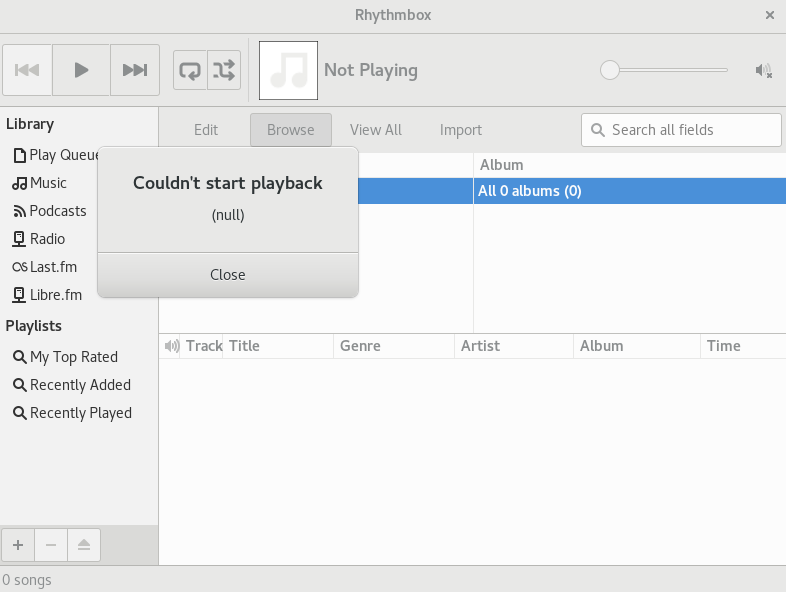
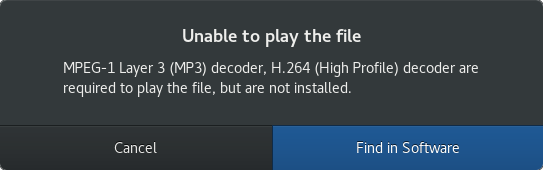
Fedora 18 only contains free software. You do not get MP3 codecs or an Adobe Flash Plug-in. What you do get is free alternatives.

The question that I wanted answered is "Can we ever be totally free?"

Installation

I have read other reviews of Fedora on other blogs and the consensus of opinion is that the installer is not the best.

I however do not think it is as bad as some other people would have you believe.


You can download Fedora from http://fedoraproject.org/get-fedora.

To create a bootable USB drive I actually used the version I put on a dual boot pen drive a few weeks ago whilst creating the article for "Installing and booting 2 or more Linux based operating systems on a pen drive".

Generally though I would have used Unetbootin.

When you boot into the live Fedora image you are presented with the screen above. You can continue using the live system or install the system. Before installing the system I check for basic problems that I may have later on such as connecting to the internet or graphics card issues.

The live system worked well enough for me to start the install. I am not going to go through the entire install process here as this is a review not an installation guide.

That is the thing though. If you want to install Fedora there are installation guides available:-


If you prefer a visual aid then there are YouTube Videos that show you how to install it.

This video shows you how to install Fedora within a virtual environment.


 This video shows you how to dual boot Fedora


The installer isn't as crisp as the Ubuntu installer but if you read the documentation and/or follow the examples other people have kindly left then it is quite a simple process.

I think the biggest problem people have when moving to Linux is the partitioning. Once you have mastered partitioning the rest is actually very simple.

The main problem for Windows users coming to Linux is that Windows doesn't care whether you have other operating systems or not. It wants to be the one and only operating system and so it will try and eat all resources available.

Linux is much more accommodating but to be accommodating it has to know where to put things so as not to overwrite what you already have.

Some Linux distributions try and make it easy for you. (Ubuntu for example). They give you options such as replace entire operating system or install alongside existing operating system. Whilst at the beginning this sounds great it actually takes the control away from you.

For instance when installing alongside Windows, Ubuntu will take the rest of the disk and create its own partitions. Now all your programs and documents will live in the same partition.

Fedora, Debian and other Linux operating systems give as much help as possible to guide you through partitioning but they really leave the control in your own hands. The documentation is there to help you with suggested configurations but at the end of the day it is your choice how to partition.

With the exception of partitioning the rest of the install is just as easy in Fedora as it is in any other Linux distribution.

First Impressions


Fedora runs off Kernel 3.6 and Gnome 3.6.

I am going to go against general opinion here and say I really like Gnome 3. I actually prefer Gnome to KDE and Unity.

KDE is great if you like widgets and you like stuff on your desktop. It is basically really for people who like to customise their experience.

Unity and Gnome are the opposite. Whilst you can do basic things like changing the desktop wallpaper, the rest of the desktop is fairly static.

The reason I prefer Gnome is that Unity has that bar down the left hand side which takes up real estate. Gnome provides a really clean desktop.


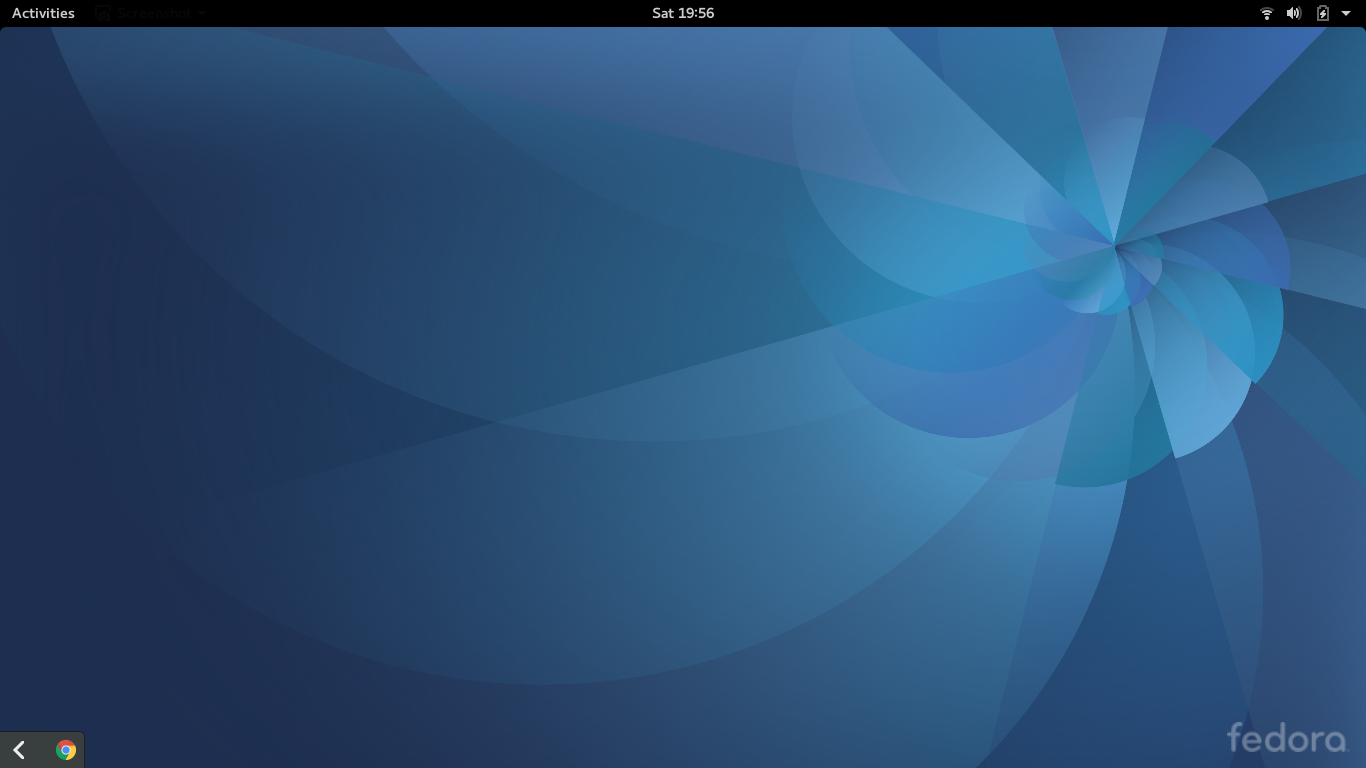
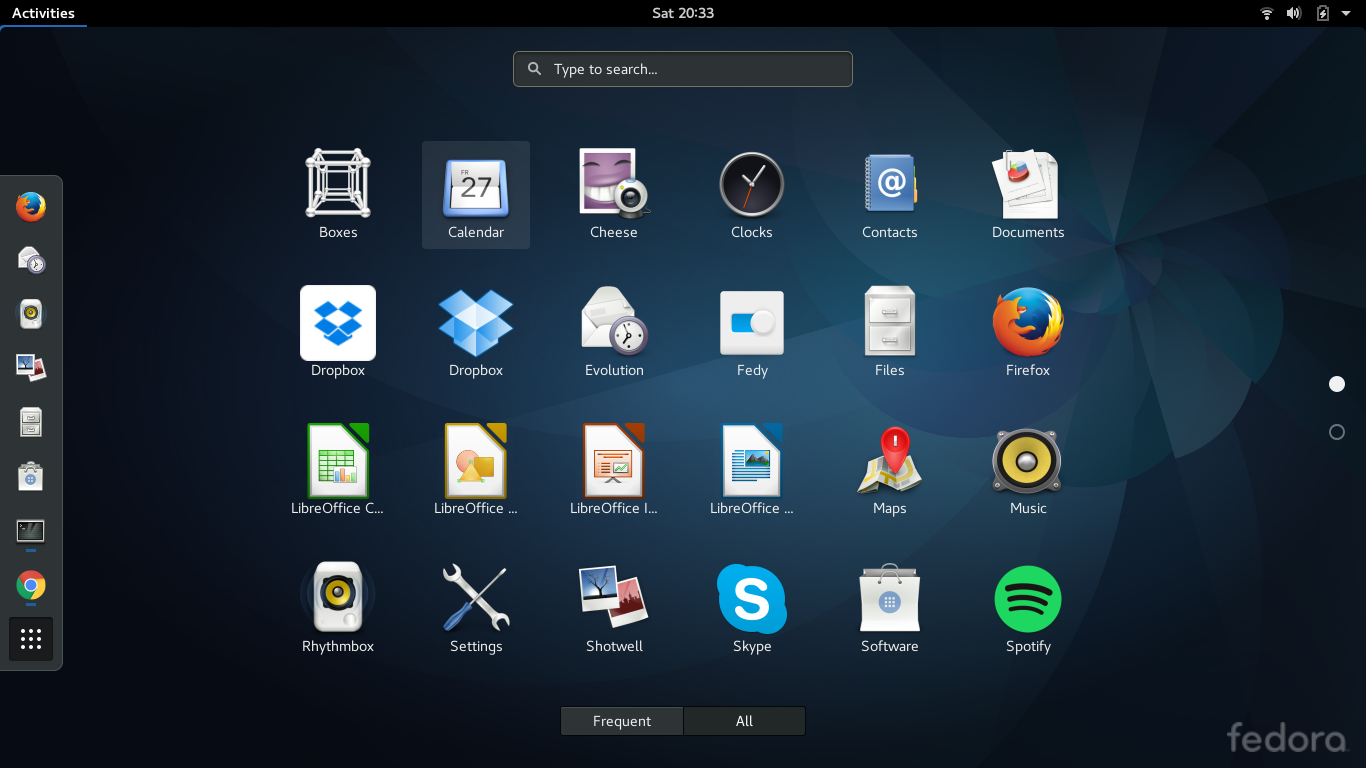
With Gnome you have a bar across the top. On the left is an activities menu and then a clock in the centre and on the right system icons for accessibility, sound, networking, battery and then user options.

You can pull up the activities menu by clicking with the mouse or by pressing the "Super" key which unfortunately on most computers still looks like a Windows icon.

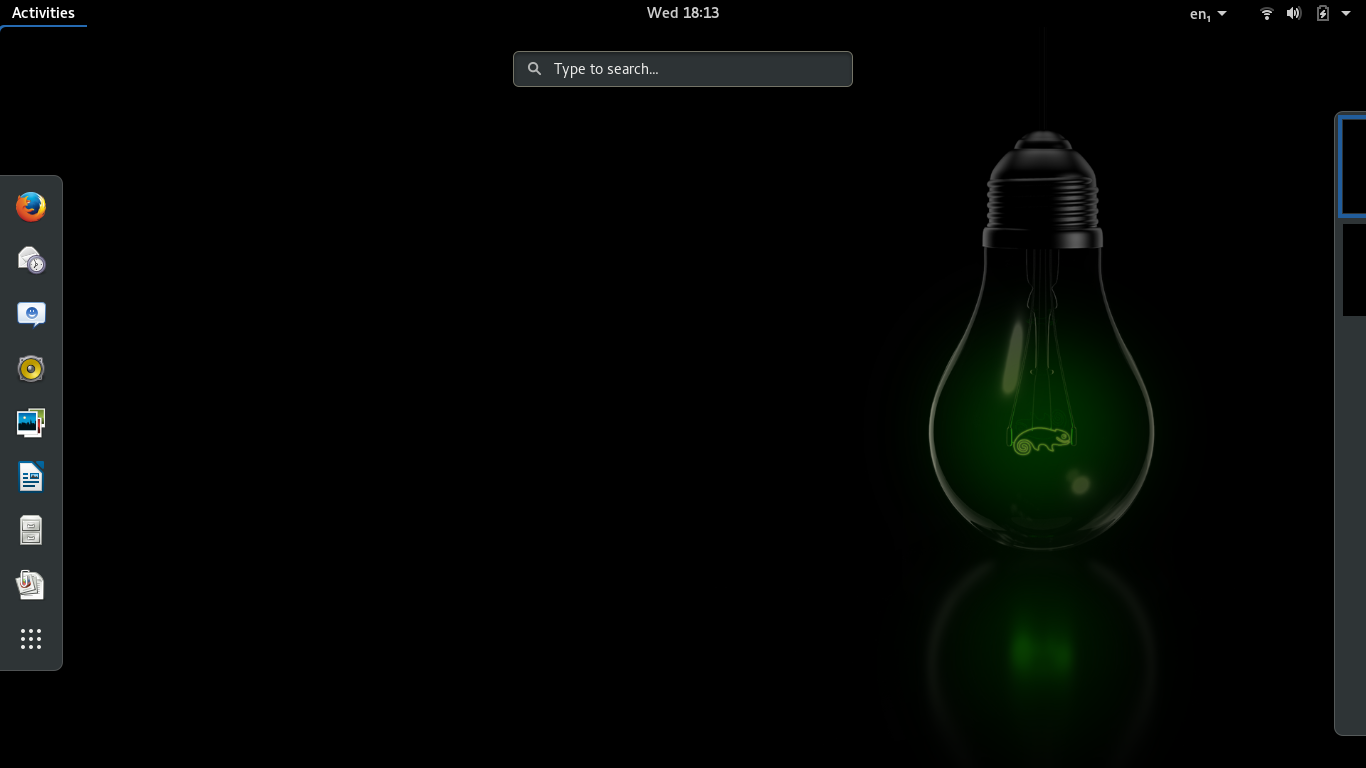
The picture above shows you what you will see when you bring up the activities menu. You can now either click on an icon on the favourites bar which is down the left hand side or start typing. In the screenshot above I started typing "screenshot" and the relevant applications were shown on the screen.

On the right hand side of the screen is a list of open applications.

People have various issues with the way Gnome 3 works such as for instance the lack of a minimise and maximise button on the screen. The reason for no minimise button is that when you minimise the program normally goes into the taskbar but in Gnome it doesn't. The only program in the taskbar at the top is the currently active program. If you minimise a program the only way to get it back is to alt-tab into it or to open the Activities menu and choose the application on the right hand side of the screen. This means minimise isn't really minimising, it is hiding.

Personally I find Gnome very intuitive and easy to use. For a quick cheat sheet visit https://live.gnome.org/GnomeShell/CheatSheet. It takes a little while for people who use traditional desktops to get up to speed but after a while you will find it second nature and it really works very very well.

Changing the desktop wallpaper

To change the desktop wallpaper click the "super" key and start typing "desktop". An option will appear for background which when clicked will enable you to choose from a set of stock photos.


There is quite a nice set of wallpapers available but I always like to go for one I find on the internet. An alternative way to set wallpaper is to find the image you like online, download it to a folder and then open the file in shotwell. You can then choose to set the image as the desktop background.


Connecting to the internet

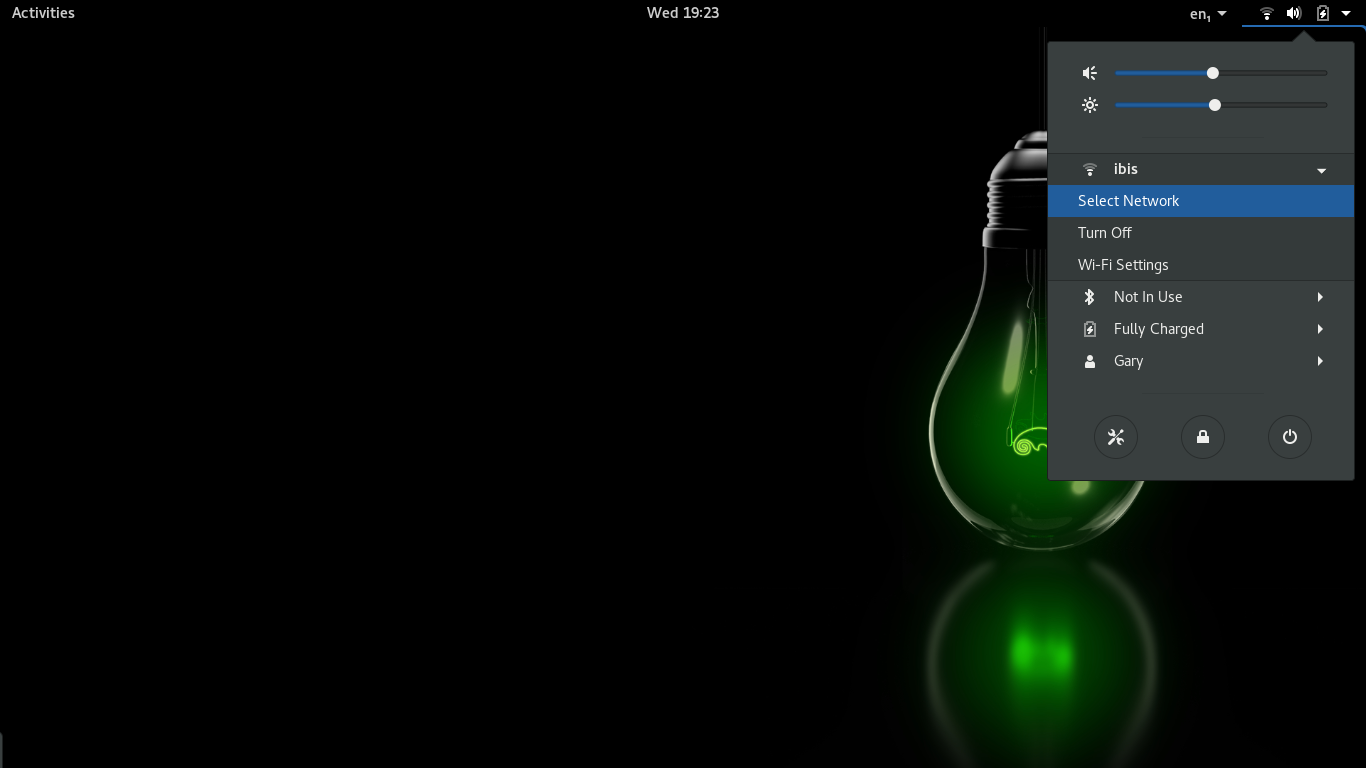
Fedora like all modern Linux distributions makes it easy to connect to the internet. Just click the network icon in the top right hand corner and a list of wireless devices is available.

Both my home broadband and mobile broadband networks were found straight away. All I had to do was click on the network and enter the security key and I was connected to the internet.

Flash and MP3

Fedora is all about freedom and neither Flash nor MP3s fall into that category.

So what are the options? Well I normally in these occasions go searching for the quick fix of going to Google and searching for the answer.

As this is Fedora however I wanted to investigate the free options on offer to see if we can truly work without proprietary software.

Firstly there is the Flash issue. If you look in the Package Manager there is an option for Gnash, which is an open source Flash player. Gnash includes a FireFox add-in which is handy because the default browser in Fedora is FireFox.

I decided to try Gnash out and to see if it worked I went to Youtube and unfortunately the image below says it all.


I didn't have much success. None of the videos would play. I therefore decided to try another Flash site called Miniclip which has online Flash games to see if the problem was isolated to Youtube. Unfortunately none of the games could be played.

I read the Fedora documentation at this point (http://fedoraproject.org/wiki/Flash).

With regards to Youtube, the Fedora documentation makes the suggestion to sign up for WebM support and after doing this I was able to watch a good selection of Videos. Not all of them worked but the majority did.


I could not find a way to get the games on Miniclip to play. I therefore bit the bullet and installed Flash.

The truth is HTML 5 will take over at some point and the reliance on Flash will become less and less but Flash will be around for quite some time yet. I have tried Gnash more than once in the past and it doesn't seem to improve. (Unless I am doing something wrong).

At the moment Flash is still one of those things that is used often enough on websites to make it a necessity.

Moving on to MP3s. Now the free compressed music format is OGG Vorbis.

In order to realistically use OGG Vorbis regularly I need a few things. Firstly I need my personal music device to be able to support OGG. Now whilst my current player doesn't support OGG there are a good selection of players available that do.


OGG players are available in most good electrical retailers and a few bad ones as well. 

The next thing I need is to be able to get the music from my CD collection into OGG format. That is easily done as there are a number of converters available.

I also have a lot of music files already in MP3 format. Now here is a weird thing. You can convert from MP3 which is a compressed format to OGG which is also a compressed format with minimal if no degradation in quality. Again there are an abundance of tools for this job.

The final thing I would need to switch to OGG forever is an online store that sells music in OGG format. Now I have had quite a search online and there are no major online music stores providing music in OGG format. 

For me that is a problem. If you can't buy music in OGG format then you would have to buy it in MP3 format. If you buy it in MP3 format and you need a converter to convert to OGG then you are using proprietary codecs to perform the conversion. 

I have come to the conclusion that I may as well stick with MP3 format. If there was a music store for OGG format music or FLAC then I would be more than happy to ditch MP3 as well as it would save the GStreamer plug-in issues that are encountered in certain distributions.

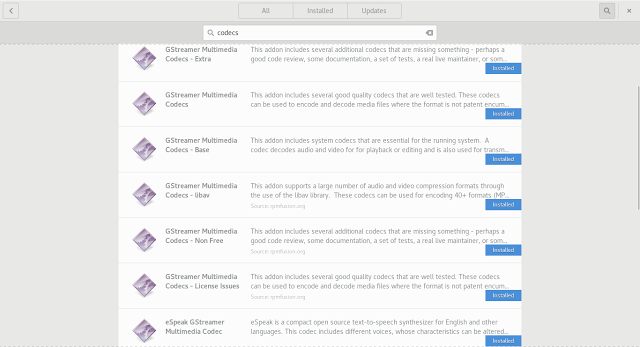
Fedora has documentation about how to get MP3s working and so I followed that guide and I was able to listen to MP3s. (http://fedoraproject.org/wiki/Multimedia/MP3)


Applications

Fedora comes with the following applications:

Games

  • Aisleriot solitaire
  • Freecell solitaire

Graphics

  • Document viewer
  • Image viewer
  • Shotwell
  • LibreOffice Draw

Internet

  • Boxes - Virtual Machines
  • Firefox - Web Browser
  • Empathy - Mail Client
  • Remote Desktop 
  • Transmission - BitTorrent

Office

  • LibreOffice

Sound/Video

  • Cheese - Webcam
  • Brasero - Disk burning
  • Rhythmbox - Audio
  • Videos - Video player
There are a host of accessories and system tools available as well.

Installing applications

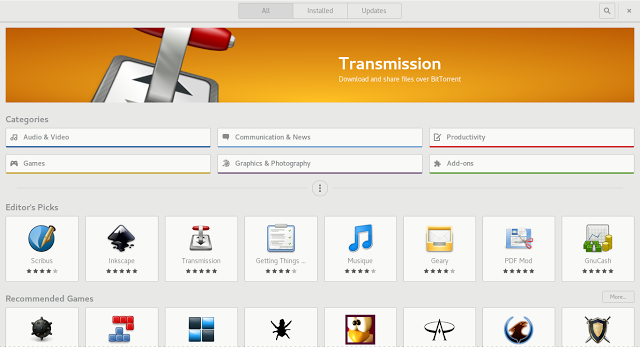
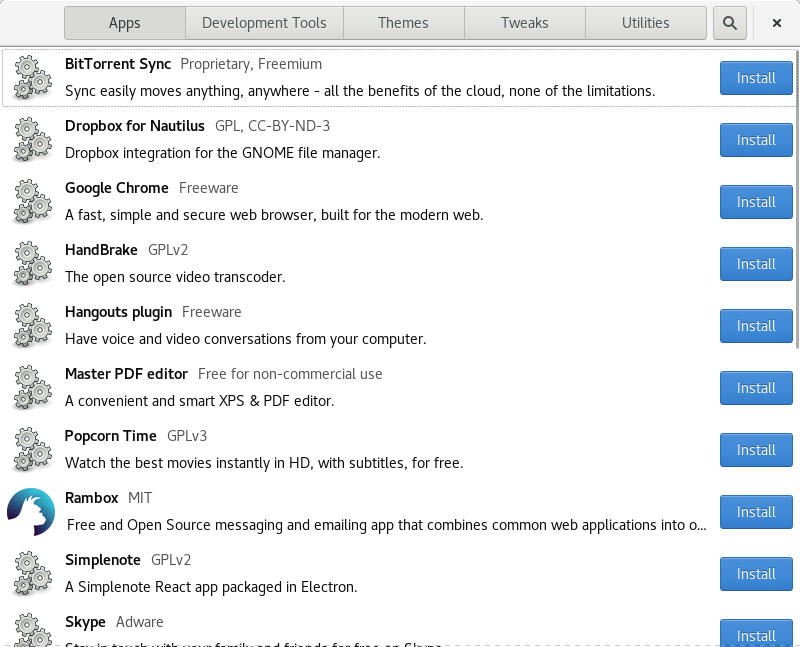
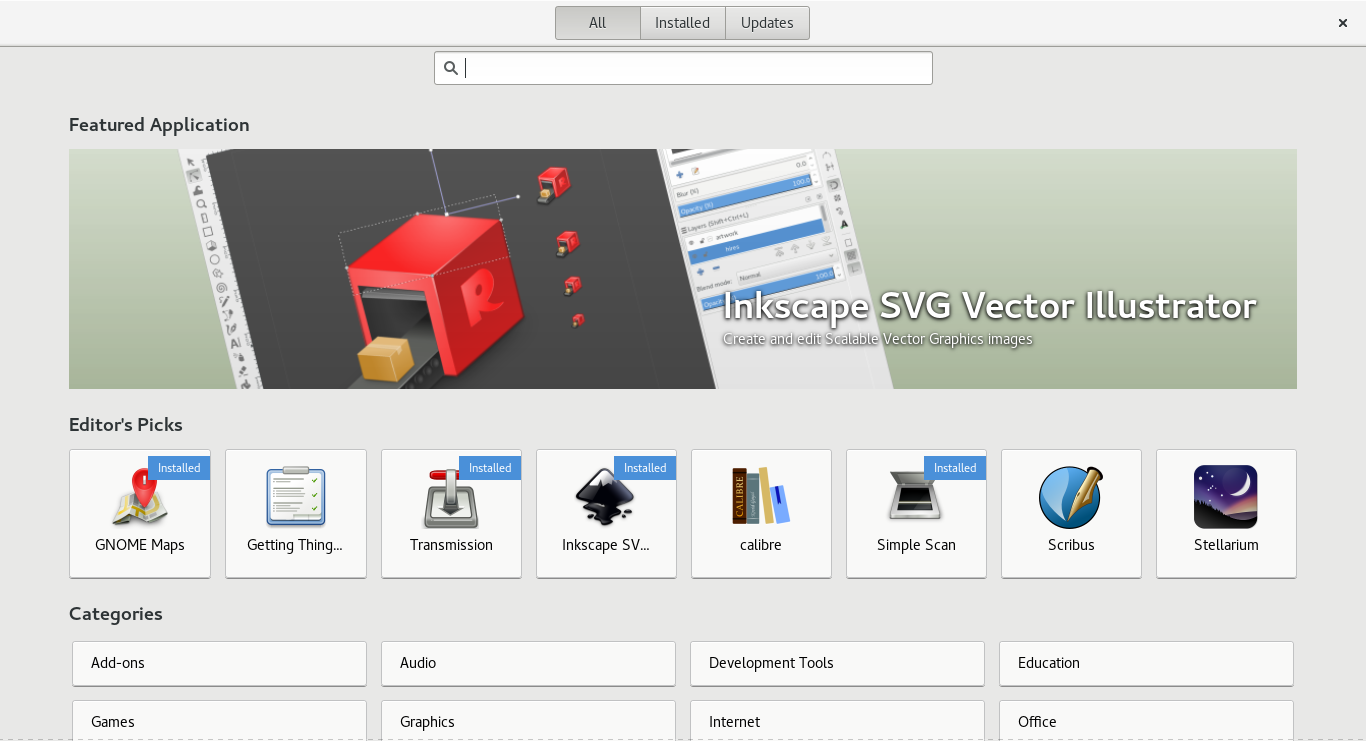
To install applications in Fedora you can use the graphic packagekit. Simply press the "Super" key and start typing "software".


The graphical tool is nicely laid out. On the left hand side there is a list of categories and on the right hand side a list of applications that fall into the category. There is a search box as well which enables you to search by name or keyword.

You can check all the boxes of all the items that you wish to install and then click apply. This will then find all the dependencies for the applications you wish to install.

I had a small problem the very first time I ran this tool in that it constantly said "Queueing" and wouldn't find any applications. The only way to solve this was to open a terminal and look for processes containing "packagekit". I then killed the rogue process and the problem was solved and it has never come back.

The alternative to using the graphical tool is using Yum. Here is a basic cheat sheet (http://yum.baseurl.org/wiki/YumCommands).

Yum is to Fedora what Apt is to Debian.

So what is in the repositories? Google Chrome isn't in the repository. You can go to the Google website and download Chrome but when I did that I received the following error:


Again I decided to refer to the Fedora documentation (http://fedoraproject.org/wiki/Chromium). This gives concise instructions on how to install Chromium.

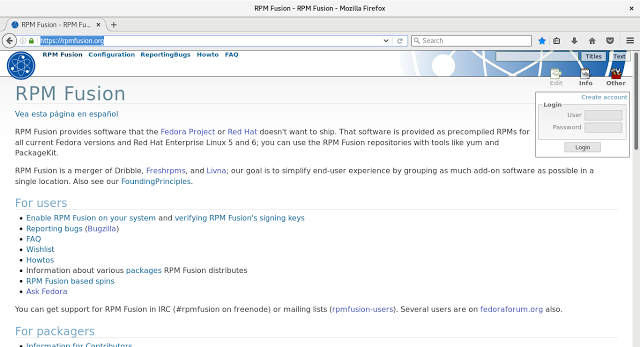
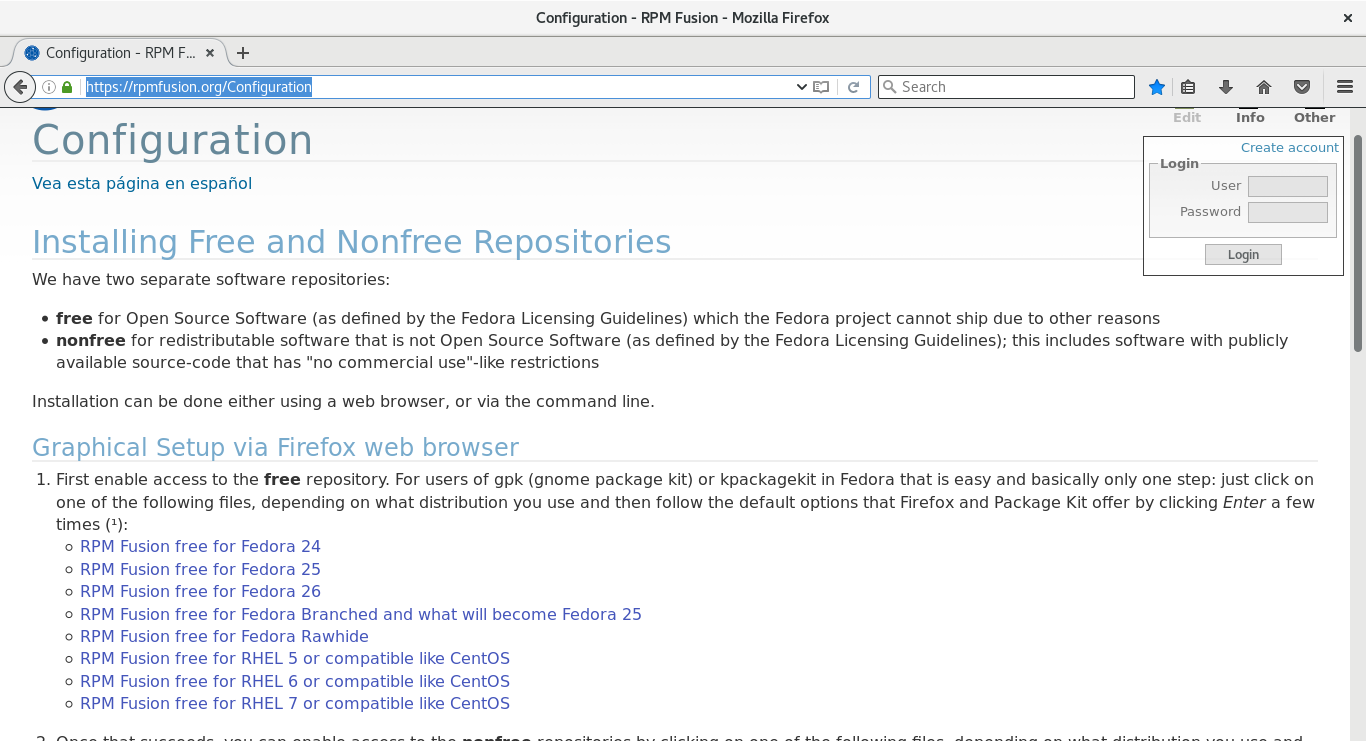
If you really want to make your life easier in Fedora then visit this link http://rpmfusion.org/Configuration/ as it gives you the options required to get non-free software into Fedora.

What is new in Fedora 18?

If you are coming from Fedora 17 then you should perhaps read the release notes before upgrading. http://docs.fedoraproject.org/en-US/Fedora/18/html/Release_Notes/

Summary

Ideally I would like to follow the Fedora concept and live in a "Free" world but realistically I don't think that is going to happen any time soon.

Fedora is a really nice distribution. 

Criticisms of the installer are a little over the top. Just read the documentation, read other people's guides, watch a Youtube video. 

The Gnome desktop also takes a lot of unwarranted criticism. It is a modern desktop for a modern way of computing. I think for a lot of users who just want to work without tinkering with configuring the desktop it is very intuitive and I can navigate to any application or window with one or two keystrokes. 

Fedora is a crisp distribution. It feels very much a polished distribution in the same way that Ubuntu or Mint is and the only issue really is the lack of non-free software.

It is relatively easy to get around the non-free software issue by visiting the RPMFusion page and following the instructions.

I had a couple of errors early on but they went away and have never returned. 

Thank you for reading.

Thursday, 9 May 2013

The Everyday Linux User interview

I was asked a few weeks ago to answer a few questions as part of an interview for the site MyLinuxRig.com.

The questions were as follows:

1. Who are you, and what do you do?
2. What distribution do you run on your main desktop/laptop?
3. What software do you depend upon with this distribution?
4. What kind of hardware do you run it on?
5. What is your ideal Linux setup?
6. Will you share a screenshot of your desktop?

To find out the responses to these questions visit: 

Which Linux Distribution would you save? The Results

Introduction

Last week I started a poll.

There was one simple question:

Imagine that tomorrow the world decided there can only be a limited number of distributions. Which distributions would you save?
 The poll's reception was mixed.

At first the people at Reddit thought it was a dumb idea and the topic got voted down. It then picked up and 13 people commented on the concept.

The people at Linux Today warmed to the idea and the votes came flooding in.

In the end the article itself received 6090 pageviews and 44 comments.


The Results

Bizarrely despite there being so many pageviews there were only 362 votes cast.

The graph above tells you everything you need to know. Debian came out clearly on top followed by the usual suspects of Ubuntu, Mint, Arch, Fedora and openSUSE.

The people who use Luninux, Snowlinux and Rosa were far too cool to vote on such a silly subject and decided to keep away from such a bizarre concept.

But what about my distribution?

A common theme in the comments was the question "What about Distribution X?", "Where is Distribution Y".

Well I could have listed all 300+ distributions on Distrowatch but the graph above would then look even sillier than it already does.

Instead I am going to give an honourable mention to the distributions I left out in the poll right here, right now.


What can we learn from these results?

What can we learn from the results of this poll? I would say not a lot.

There are various reasons for this. 

The first reason is the number of votes cast. The proportion of people voting is obviously a very small subset of the Linux community.

It also has to be concluded that the bigger distributions received the highest number of votes. This was always going to be the case because they already have a larger user base and people tend to vote for the distributions they actually like as well as the ones that are actually most important.

I think the comments actually provide far more information than the poll results themselves. The conversation that generated from the poll was very good.

It didn't start that well as the first comment received was:

Who would vote against a particular distro, using another? And why should he or she do so? So you get a nice picture about how many users distros have but nothing more.
Furthermore not all are just forks. Some have a specific purpose but for only a few people.

It is a fair point. Why should people vote? Well to be honest I started the poll as a bit of fun and out of interest to see the response that I would get and how the votes would be cast.

The follow comment was interesting because the person who made it interpreted the question to be "which is your favourite distro?"

The whole idea of "better" is entirely subjective. Better for desktops? Better for servers? Better for commercial software support? Better because I said so and I've been using Linux longer than some of you have been alive? Every distro out there was created to "better" meet the needs of someone.
In equal measures came comments from both sides of the argument that I initially laid out when starting the poll.

Some people say though that it would be better if some of the smaller distro creators concentrated on contributing to their upstream project.
You can argue for both camps in this debate. If there isn't a distro doing what you do and it is worthwhile then there is merit to your work. On the flip side if more people worked on the upstream projects they may be even better than they already are.

The text in blue was written by me at the top of the poll.

The following comments suggest that more is better:

I would rather have as many distros as possible than a limited amount. Some people complain about one and enjoy another, I love 'em ALL! Even the ones I don't use have something to contribute! 
The idea of spins, to me, is great. I mean, that's how Linux Mint got started, and what a distro that is! Fedora, for instance, doesn't really care about making life easy for the home desktop user. Enter Korora. It blends some things from Ubuntu and uses the KDE and Gnome desktops to make a nice Fedora experience. 
I voted for all the ones I know and have used, because they helped me along the way to what I know now, I'm glad there are so many distros around, many are for specific needs, to "scratch a developers itch" as they say.

In more than equal measure came the following responses:


Just too many distro..! If Linux would want to replace iOS or M$, then we need to combine all the effort..
Exactly!The rest of distro there are ... just parasites over these.Although they bring little added value, they cannot survive alone without the hosts they parasite upon.
There were a few very insightful comments such as:

Presumably, people start these spins because the upstream distribution is not interested in the changes they want to make.
Given that,it's pretty unlikely that the upstream distro is going to welcome the same changes in the form of a so-called contribution.

I think the above point is right. If you use a particular distribution and every time there is a new release you have to do certain things to get it back to the way you like it and then you suggest to the distro developers that they add in your changes but it doesn't materialise then there is a justification for creating your own distribution.

How many people do you need to use your distribution to make it a success? The answer: One. Just you. If you can justify the time and effort to spin your distribution even if it is just a re-spin and it works for you and does everything you require from it then you have justified your time and effort.  You have also probably learned quite a bit along the way.

One needs a vast knowledge of the Linux world to answer correctly this question. I have no idea about 80% of the distro listed above. Should I *not* save them? May be they have full of merits and actually I would be happy with one of these?

This is why blogs like this exist. I don't just review the big distributions. I review the smaller ones as well which brings me to the next comment:

I'd love to see in your list some of the FREE distros from the list that FSF post in http://www.gnu.org/distros/free-distros.html.
April was certainly a month where I targeted reviews of bigger distributions such as OpenSUSE, Debian and PCLinuxOS.

May will be the month for reviewing smaller distributions and I have already lined up reviews of Emmabuntus, Mozillux, SolyDXK and Linux Royal.

Before I finish I'd like to comment on a few of the other comments. Firstly there is the scientific response suggesting that if I had put the items in a different order then the results would have been different.
I'm guessing that if you displayed the choices randomized differently for each voter the results would differ.As is, I'll bet that the choices listed near the top are favored.
An interesting point. If you took the Distrowatch rankings and instead of ordering them by downloads you ordered them alphabetically then would people use a different spread of distributions? I think there would be certain people that would take the pin on the paper approach (The same way that I pick horses at the bookies). I think what would really happen is that people would use Google, Reddit and other distro ratings sites to find out which distributions are most popular. In truth if you go to Reddit on any given day there are people constantly asking which distribution to use.

The other question that came up more than once was "Where is Linux From Scratch?" Whilst I have included this in the honourable mentions above I thought I would comment further. I don't really see Linux From Scratch as a full distribution. It is more a guide showing how to build your own Linux system. In a similar way when I buy flat packed furniture from Argos I don't see for example a wardrobe. I see lots of pieces of wood, screws, tacks, drawer runners and wood glue. Along with that I get instructions of how to build the actual wardrobe.

And my favourite comment.....

I may just build a bigger Ark

I would like to thank everyone who contributed into making this poll a success. I hope you enjoyed reading this short review of the results.

So what happens next.... well clearly we now need to strip it down to just 5 distributions and they are Debian, Ubuntu, Mint, Arch and Fedora.

I voted against Ubuntu. It's actually not necessary in 2013 

Oh well maybe we won't then. Maybe we will just keep things the way they are. In truth the world has a happy knack of sorting itself out and the best keep on going and those that become redundant disappear into the mists of time.

For those waiting for something more substantial from this blog, check back next week as I am currently running the new version of Fedora and so there will be a review for that and I am trying something out on the Raspberry PI that I need to write up.

Thank you all for reading

Monday, 6 May 2013

Linux Podcasts and Magazines

Introduction

Whilst there are a host of great blogs out there reviewing distributions and providing key how-to articles there are times when you just don't have time to read, yet you may still need that Linux fix.

When I'm driving long distances or whilst programming I need to plug myself in and block out the outside world. 

A lot of programmers block out the outside world by listening to music but I find I get bored of listening to music. When driving I listen to the radio rather than listen to CDs and when I am programming I listen to podcasts.

This article highlights my favourite Linux based shows that I like to listen to and also highlights a couple of good free magazines available for download.

The Linux Action Show


The Linux Action Show is hosted by Chris Fisher and Matt Hartley. It features news and reviews and guest interviews.

Technically not a podcast but more an online television show. The show is very entertaining and it is quite cleverly put together so that the hosts can appear in the bottom right hand corner leaving the rest of the screen for showing the display on the laptops they are using.

The show has a few sponsors and so some of the show is given over very enthusiastically to showing the best bits of the sites and services being advertised.

The two hosts have the knack of keeping you interested and are knowledgeable about the subjects they are talking about.

In the recent episode that I have just watched the guys were reviewing Ubuntu 13.04. They don't appear to have any agenda and the review was largely positive especially when it came to improved performance. On the other hand they weren't blown away with excitement about it.

Personally, looking at the examples they displayed it would tempt me to have another look at Ubuntu because it did look very crisp. I always do that though and then a few days later think "why did I do that?" and end up back at Linux Mint.

In the same episode of the show there was a guest interview with the creator of Descent OS. It is good to see the faces behind the distributions and it is interesting to understand the motivation behind a distribution.

To Watch the Linux Action Show visit http://www.jupiterbroadcasting.com/tag/linux-action-show/

PCLinuxOS Magazine


Up until recently I hadn't tried PCLinuxOS but I have been reading this magazine for years. To be honest it doesn't really matter which version of Linux you are running as most of the articles are relevant to all distributions.

The format of the magazine is varied, with tutorials, screenshot showcases, poetry, spot the difference and of course reviews.

A lot of the online blogs write about the different operating systems and tend to gloss over the actual applications and this is something I am guilty of myself.

The PCLInuxOS magazine reviews the actual software that makes up the repositories and so there are plenties of articles about LibreOffice and GIMP etc.

Whether you intend to use PCLinuxOS or not this is a very good read.


To get the latest PCLinuxOS magazine visit: http://pclosmag.com/index.html

(Available in HTML, PDF, EPUB and MOBI formats).

Going Linux


The Going Linux podcast is hosted by Larry Bushey and Bill Smith (Chief Executive Minion). 

It is fairly similar to the Linux Action Show content wise but with less emphasis on the adverts. The show has a mix of news, reviews and a good bit of technical stuff thrown in.

I listen to this when I am on the train. 

The Linux Link Tech Show


So what has a lot of chatting and very little of it actually about Linux? The Linux Link Tech Show of course.

Don't let that put you off. This show lasts a good 2 hours and to be honest lasts a bit longer than that.

The show generally starts and there is general chit chat for about 15 to 20 minutes and then suddenly someone will announce "shall we start". Then you get an opening theme tune and you are back to the same sort of chit chat that happened before the music.

This podcast is great for me when I am working. I have been listening to this podcast for a while now and it is like listening to a bunch of friends I have never met.

Will you learn anything about Linux whilst listening to this show? Probably not that much. There are a few tit bits of information but mainly it is just chat.

I really enjoyed the recent episode where they looked back at all their previous shows. I'm guessing the girl who appeared on a show talking about RSI probably wouldn't agree as it was announced by one and all that she was the worst guest they had ever had. (I never heard that interview but I'm guessing it would be like someone from Alcoholics Anonymous walking into a South London pub on a Saturday afternoon whilst the football is on and suggesting that everyone calms down with their drinking).

This is my favourite podcast.

To listen to The Linux Link Tech Show visit http://tllts.org/

Full Circle Magazine


Full Circle magazine is to Ubuntu what PCLinuxOS Magazine is to PCLinuxOS.

The magazine features news articles about Ubuntu and derivatives of Ubuntu. It also contains programming tutorials and how-tos.

There are also letters pages and a question and answers column.

In this month's edtion there is a review of  SolydXK and how-to guides for LibreOffice.

The magazine also contains book reviews, games reviews and software reviews.

I don't find it quite as endearing as PCLinuxOS magazine but I still read it every month.

To read Full Circle Magazine visit http://fullcirclemagazine.org/

Ubuntu UK Podcast

This podcast is very British. 

It is another one of those podcasts I can just put on and listen to and get on with my work. The show is almost like a radio show in the way it is presented but there is a good element of feeling that it is just a few people in a room chatting.

Today I listened to episode 9 where there were important discussions about the direction of the Ubuntu Swirl.

I listen to this show more for entertainment value than to learn anything because generally I don't use Ubuntu and because also the show features mainly news features and short snippets rather than how-to guides.

To listen to the Ubuntu UK Podcast visit http://podcast.ubuntu-uk.org/

Summary

I like listening to podcasts. They help me to zone in to what I am supposed to be doing in a way music just doesn't seem to work.

There are hundreds of podcasts out there and as I come across some more I will share them with you.

Thank you for reading.