
Introduction
By far the most read article on this site shows how to install Ubuntu alongside Windows 8 in 10 easy steps.
Those instructions have helped people install Ubuntu since 12.04 but now with the introduction of Ubuntu 14.04 and many Windows users upgrading to Windows 8.1 there are a few new challenges that have been brought to the table.
Over the weekend I have played around with dual booting Ubuntu 14.04 and Windows 8.1 and the following article highlights the steps that I took to get it to work.
Update
I have written a new guide for dual booting Windows 8.1 and Ubuntu.There are a few differences to the instructions below using the new method which are mainly as follows:
- The backup section advises only using Macrium Reflect for creating system images
- The USB drive created uses a new method to create a UEFI bootable USB drive
- Instead of using the "something else" option the new guide allows you to use the default install alongside Windows 8.1 option.
I have used Macrium Reflect for creating system images and restoring them (even after moving images around) and it works. The software is free to use as well although there is a paid for version for extra options.
Creating a UEFI bootable only Ubuntu USB drive ensures that Ubuntu is installed to a GPT partition. The Ubuntu installer therefore also recognises the existence of the Windows 8.1 partition. This enables you to choose the default option for installing alongside Windows 8.1
Using this method it appears that there is no longer a requirement to turn off secure boot.
I still had to manually set the Windows bootloader using BCDEdit.
Feel free to give the new guide a try or you can stick with the tried and trusted method below.
A review of Ubuntu 14.04
Before you start it might be worth reading the latest review of Ubuntu 14.04 to make sure dual booting with Windows 8.1 is something you want to do.1. Back up Windows
There are two steps to backing up Windows:
- Create a recovery drive for backing up Windows 8.1
- Create a file history for backing up personal files
For the recovery drive you will need a. Insert the USB drive into your computer. You should make sure that you have no data that you need to keep on the drive as it will be wiped during this process. If you don't have a USB drive you can create recovery DVDs.
For the file history backup I would recommend using an but it depends on how much data you have. If you don't have much then a USB drive will do. If you have nothing else to hand you can backup to DVDs.
This guide assumes that you are using Windows 8.1 but most of the steps will be similar to Windows 8.
In my original guide I showed how to create recovery disks and a system image using the Windows 7 recovery tools.
In this guide I use the simpler Windows 8 recovery drive tool.
To create a recovery drive press the super key (Windows key) on your keyboard and then click on the magnifying glass in the top right corner.
Now start typing "Recovery".
An option will appear called "Create a recovery drive". Click this option. You will be asked if you are happy to give permissions for this application to run. The answer is yes you do.
A recovery drive lets you get Windows 8.1 back to a working state.
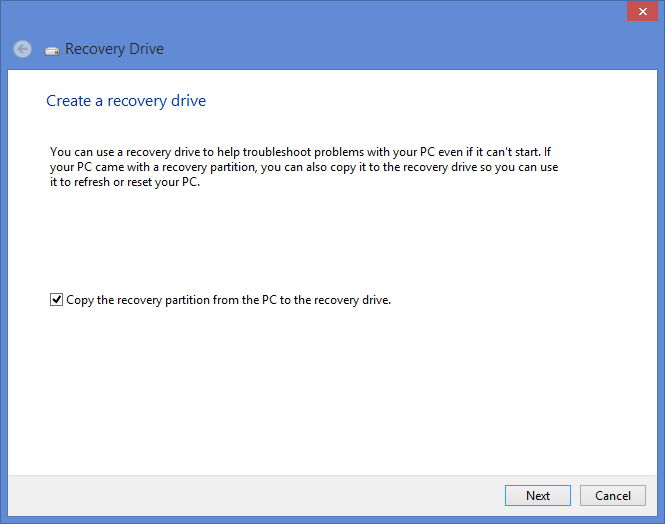
When the "Create a recovery drive" window appears click "Next" to continue.
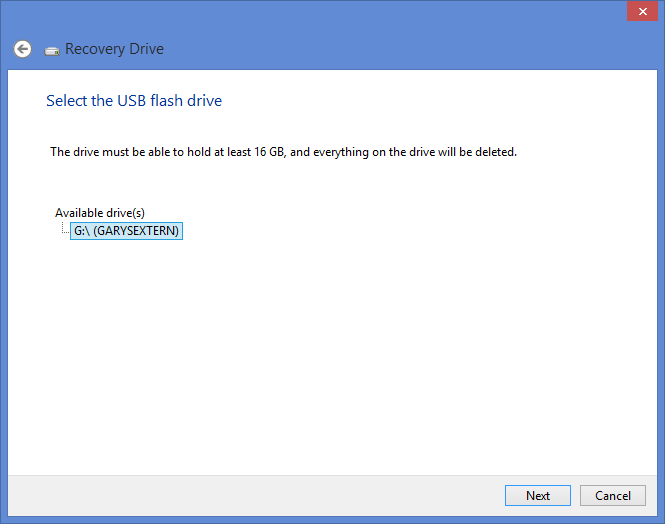
Click the available USB drive to be used and click "Next".
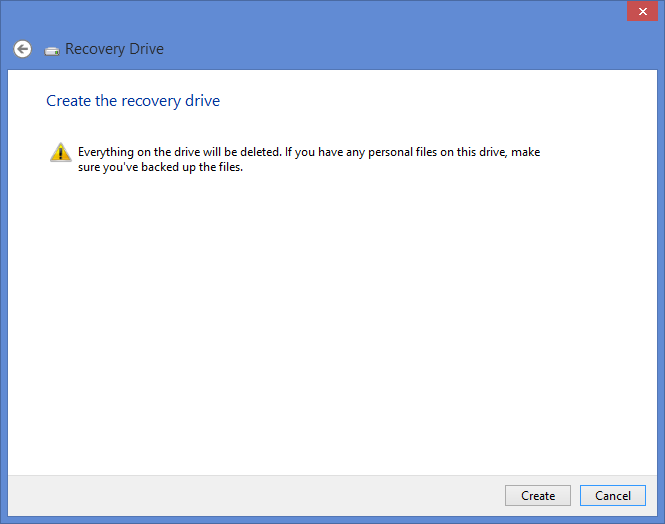
A message will appear confirming that you want to create the drive and you are warned again that all the data on the target drive will be deleted.
If you are happy that you don't need anything on your recovery drive click "Create".
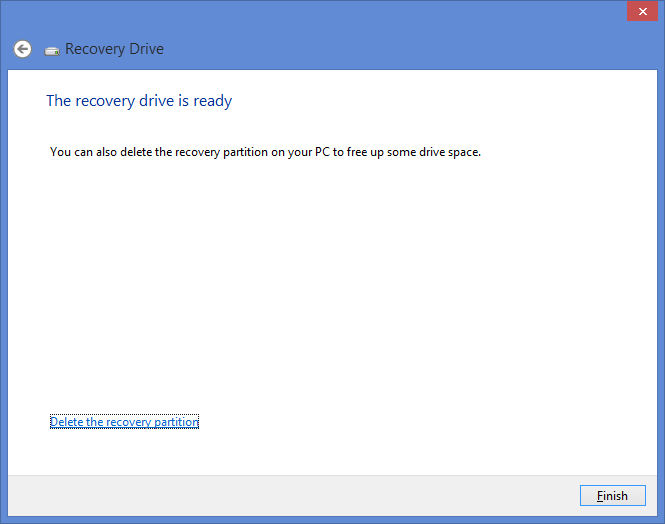
It will take a few minutes for the drive to be created but eventually a screen will appear stating that the drive is ready.
Safely remove the drive, put it in a small plastic bag like a sandwich bag or in an envelope. Label the bag or envelope and place it somewhere very safe.
If something goes wrong either whilst installing Ubuntu or later on in time you will be grateful that you followed these steps.
Now insert the drive that you want to use for storing all your personal data.
To be honest you should do this whether you plan to continue installing Ubuntu or not.
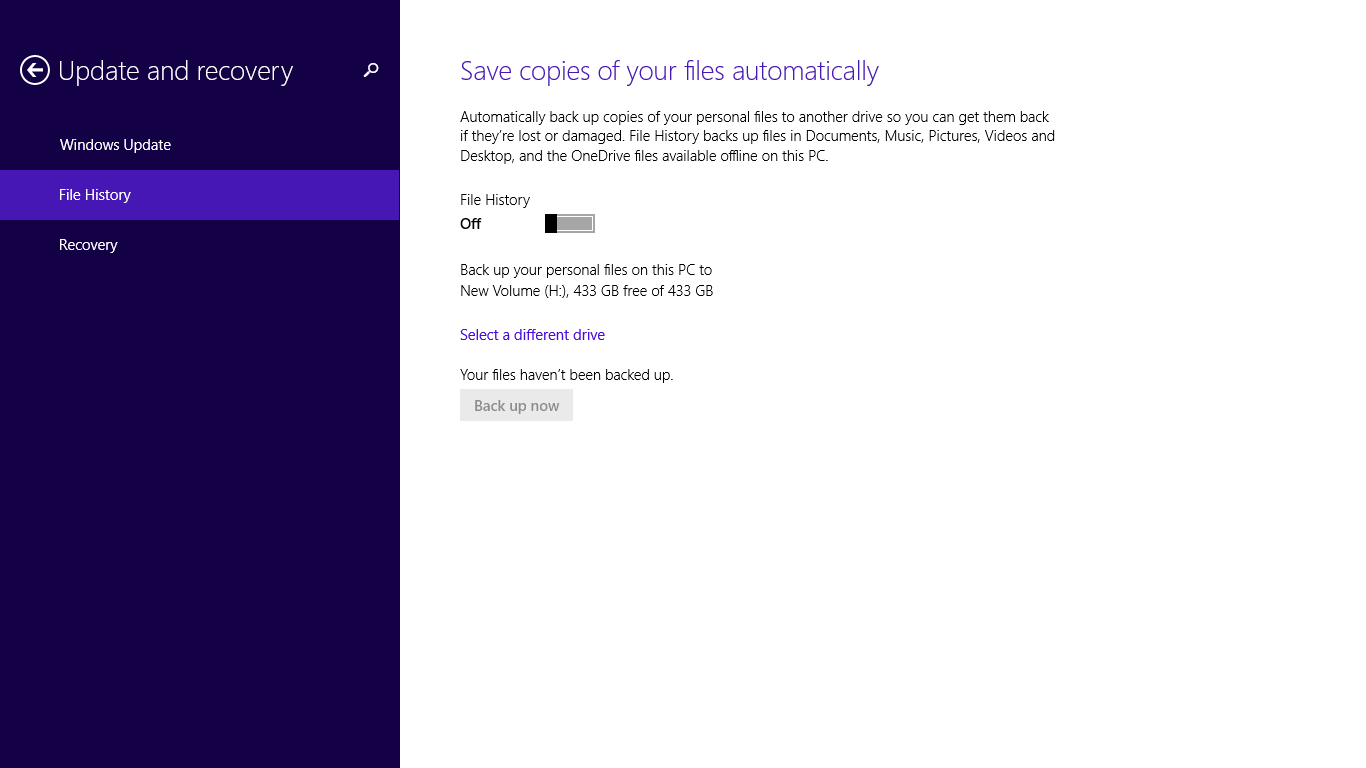
Press the "super" key (Windows key) on your keyboard and then press the search icon in the top right corner.
Enter the words "File History". Click the option that says "Save backup copies of your files with File History".
A screen similar to the one above should appear. Click on the "Off" button to flick the switch to "On" for File History.
Click the link that says "Select a different drive". Find the drive that you want to back up to and click "Back up now".
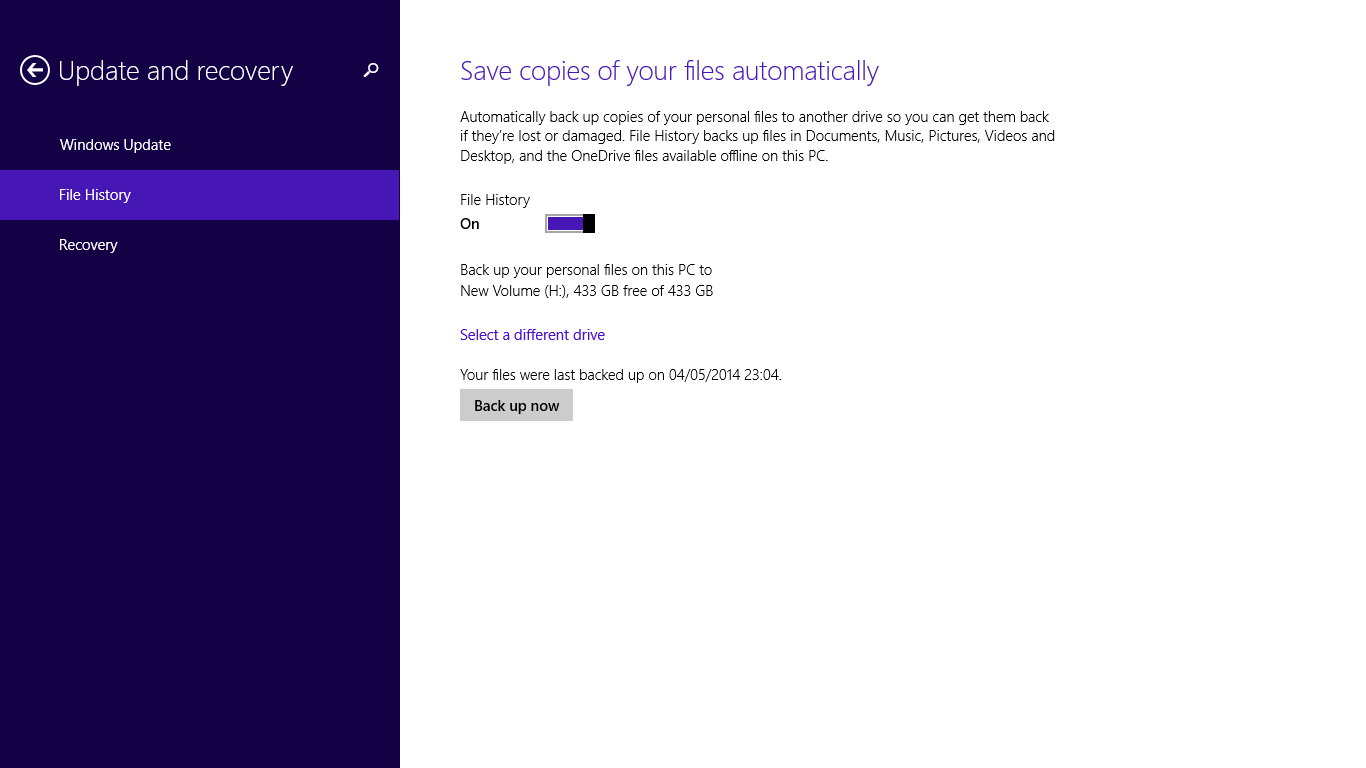
After a while all your files will be backed up to the new drive.
Note that this application assumes that you store all of your files under your Documents, Music, Pictures, Videos and Desktop folder. If you don't then I would recommend copying any file that that isn't stored in these folders manually using Windows Explorer.
2. Create a bootable Ubuntu USB drive
If you want to skip a step or if you have a poor internet connection then you can . Of course if you do that you will need to bookmark this page and wait until the USB drive arrives in the post.
If you choose to create your own bootable USB drive you will need another blank USB drive to continue.
Insert the USB drive into your computer.
Visit http://www.ubuntu.com/download/desktop. Make sure that you choose the 64-bit version. Click "Download" to download the file.
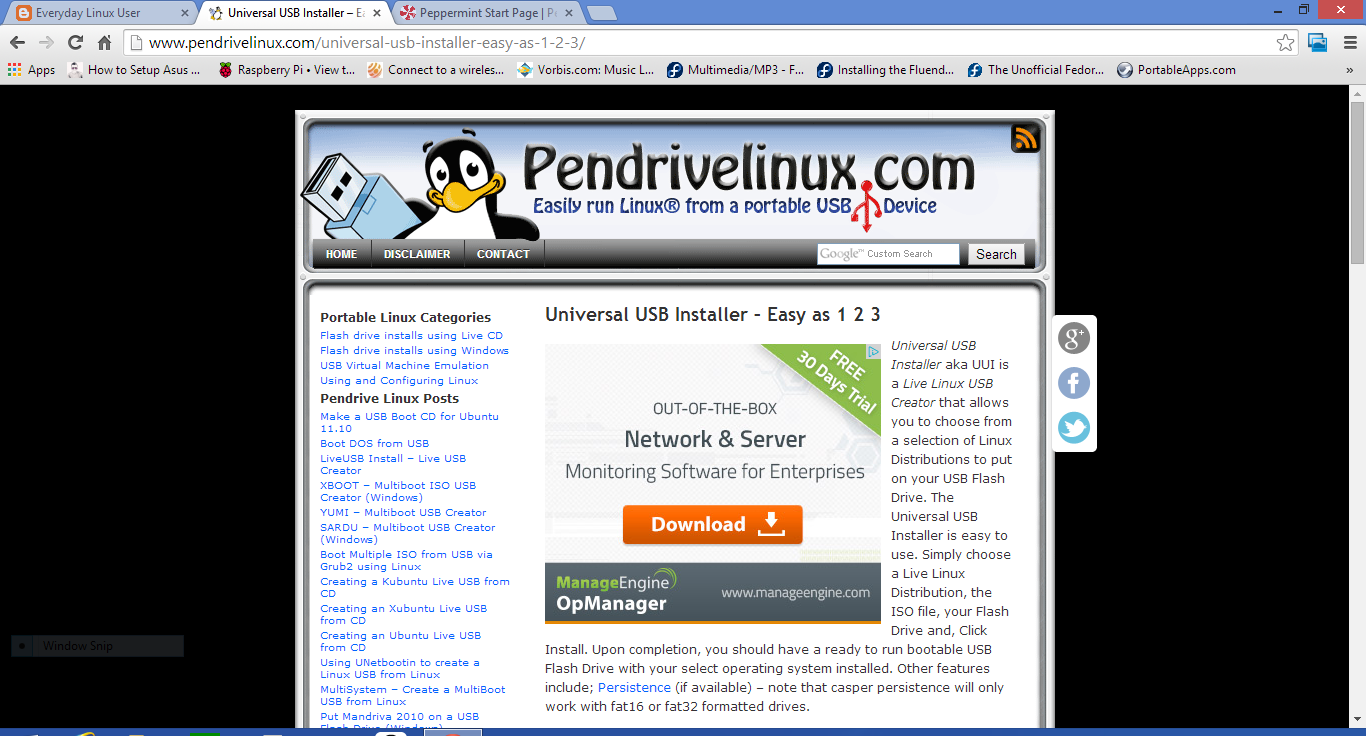
To create a bootable USB drive the tool that I advocate using is the Universal USB Installer from www.pendrivelinux.com.
Follow the above link for pendrive Linux and scroll half way down the page until you see the "Download UUI" link. Click on the download link and wait for the program to download.
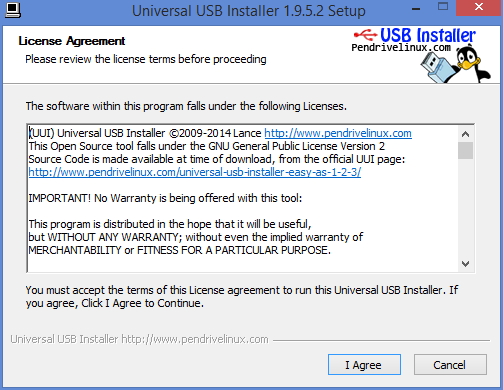
When the download has completed double click on the executable.
When the license agreement screen appears read it and then click "I Agree" if you accept the license.
Creating the drive is fairly straight forward.
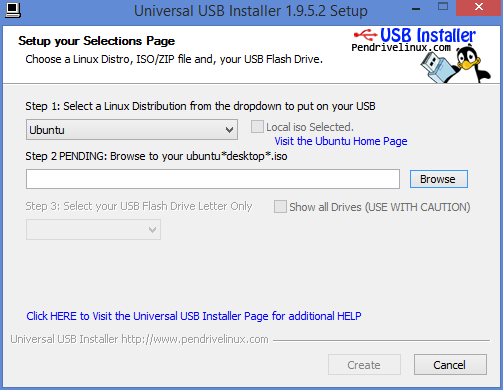
The first thing to do is choose your distribution of choice, in this case Ubuntu, from the dropdown list.
Click on the "Browse" button. Find the downloaded Ubuntu ISO.
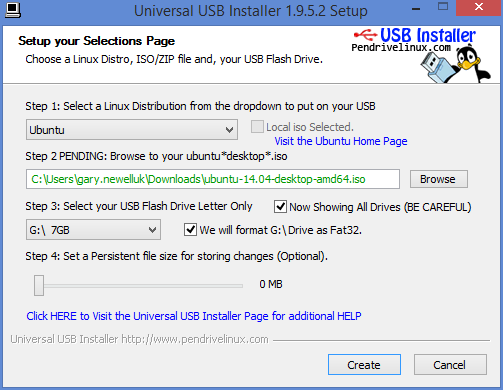
Select your chosen USB drive letter and make sure that the "We will format" option is checked.
At this point you can create the USB drive so that it persists data. This makes it possible to install software when using the live Ubuntu version and it will still be available the next time you boot from the USB drive.
Click "Create" to continue.
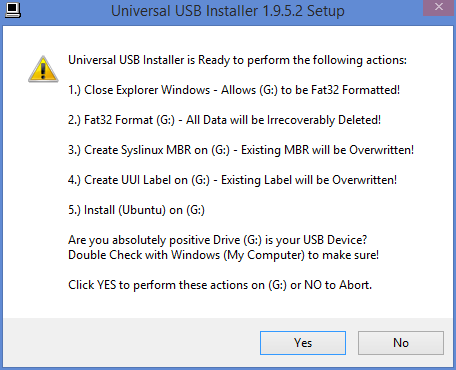
A summary screen will tell you what is about to happen.
Basically your USB drive is about to be completely wiped and Ubuntu is about to be installed as a live image to it.
If you are happy to continue click "Yes".
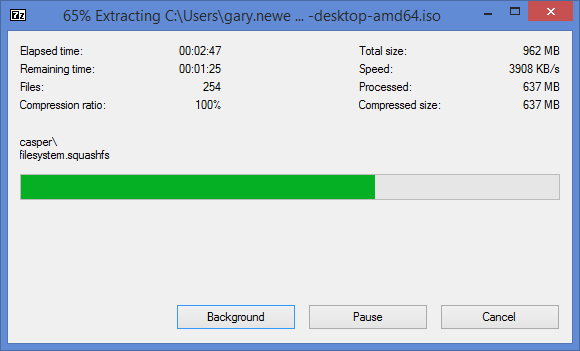
You will now see a progress bar showing how far through the process the installer is and how long it is expected to last.
Feel free to get a comfort break, have a drink or boil and egg at this point.
3. Shrink your Windows partition
Windows takes up the whole of the drive when it is first installed. In order to install Ubuntu you will need to make space for it.
Press the "super key" (Windows key) on your keyboard and click the magnifying glass in the top right corner. In the search box start typing "Partitions".
Click on the option called "Create and format partitions". This will bring up the "Disk Management" screen.
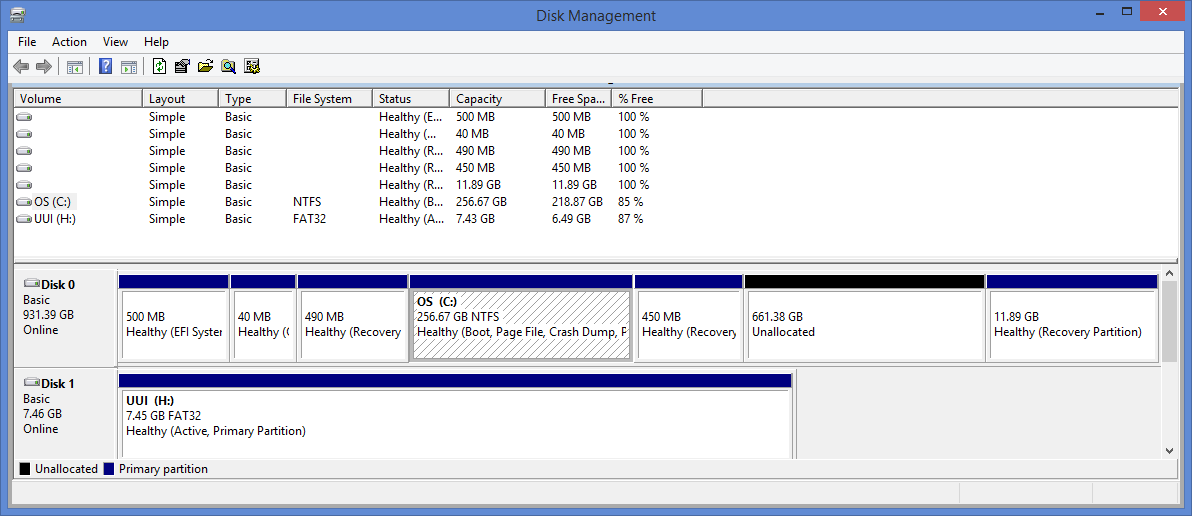
To shrink the drive, right click on the "OS (C:)" volume and select "Shrink volume".
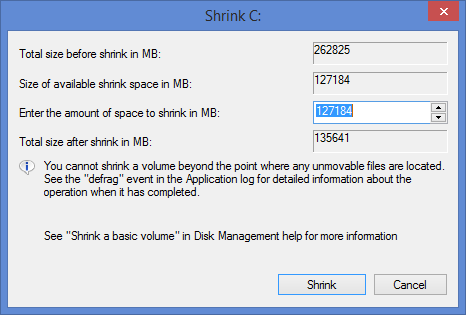
A screen will appear showing how much you can shrink the drive by. You can of course choose to shrink the drive by less than offered but never go for any more than offered as you will break your Windows 8.1 operating system if you do.
Click "Shrink" to continue.
When you are finished you will see that there is a lot of unpartitioned space. This is where Ubuntu will be installed.
4. Turn off fast boot
To be able to boot to your Ubuntu USB drive you will need to turn off the fast boot option.
Press the "super" key (Windows key) and then click the magnifying glass in the top right corner.
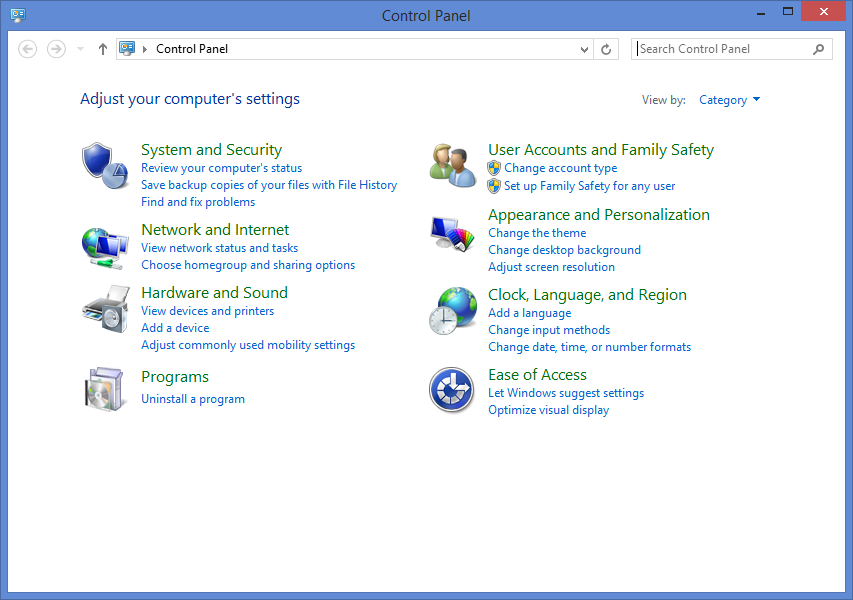
Enter "Control Panel". Click on the "Control Panel" option that appears.
When the "Control Panel" appears click on the "System and Security" heading.
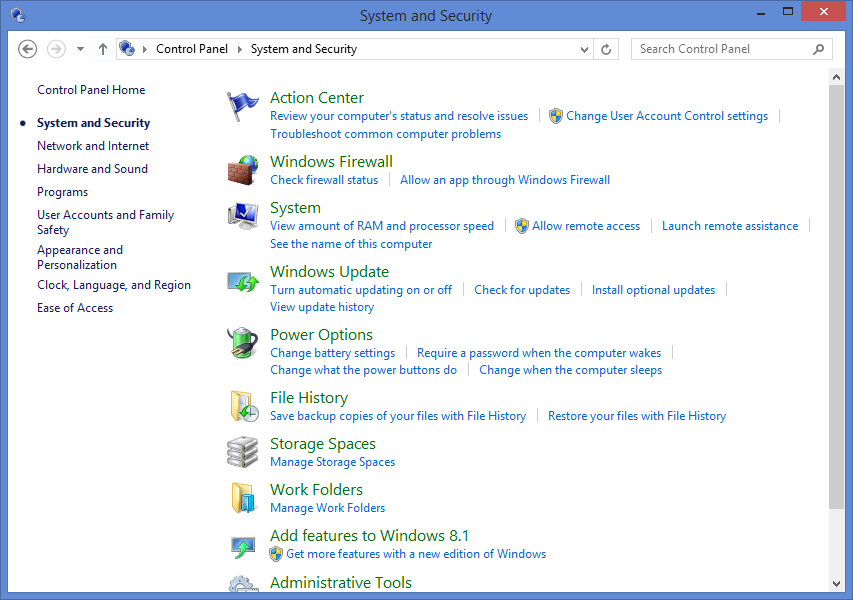
Now click on "Power Options".
On the following screen click on "Choose what the power button does".
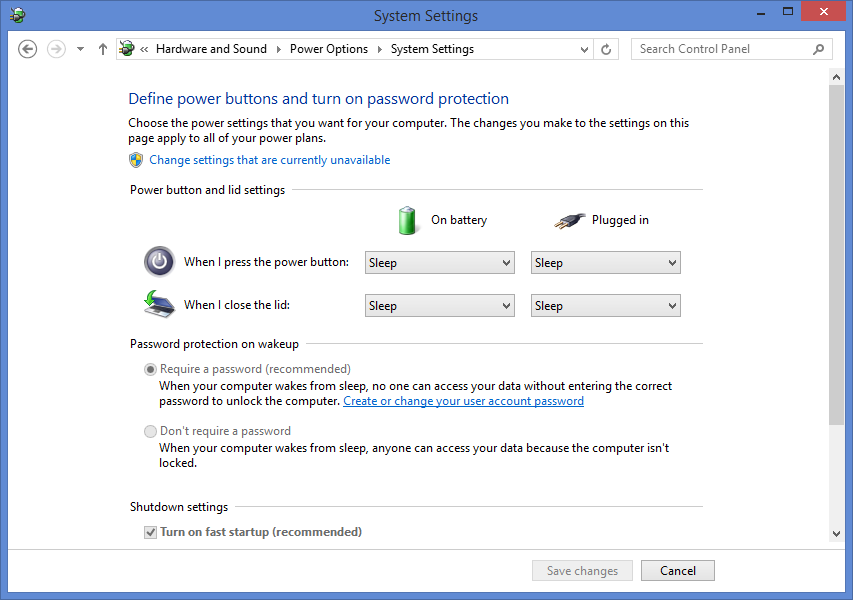
A screen will appear with the heading "Define power buttons and turn on password protection".
Scroll down until you see "Shutdown Settings".
An option should be available called "Turn on fast startup" (recommended).
Uncheck this option.
Click "Save Changes".
5. Turn off secure boot
In theory you don't need to do this any more. In practise it is almost certain that you will.
Turning off secure boot depends on the make and model of your computer as each one has slightly different methods for turning it off.
Basically though click on the "super" key (Windows key) and then click on the power icon next to your user name.
Hold down the shift key on your keyboard and select restart computer. Keep the shift key held down until your computer reboots.
You will now have an option to go into your UEFI boot settings.
Within the UEFI settings look for the option to turn off secure boot. You don't have to switch to legacy mode and you shouldn't switch to legacy mode as this will not help your cause.
Save and exit the UEFI settings
Save and exit the UEFI settings
6. Install Ubuntu
When you have turned off secure boot, save and reboot. You will probably end up back in Windows.
Now at this point to boot into Ubuntu on the USB drive I had to again hold down the shift key whilst rebooting the computer.
One of the options that appeared let me boot from the USB drive into Ubuntu 14.04 live and you should have a similar option available to you.
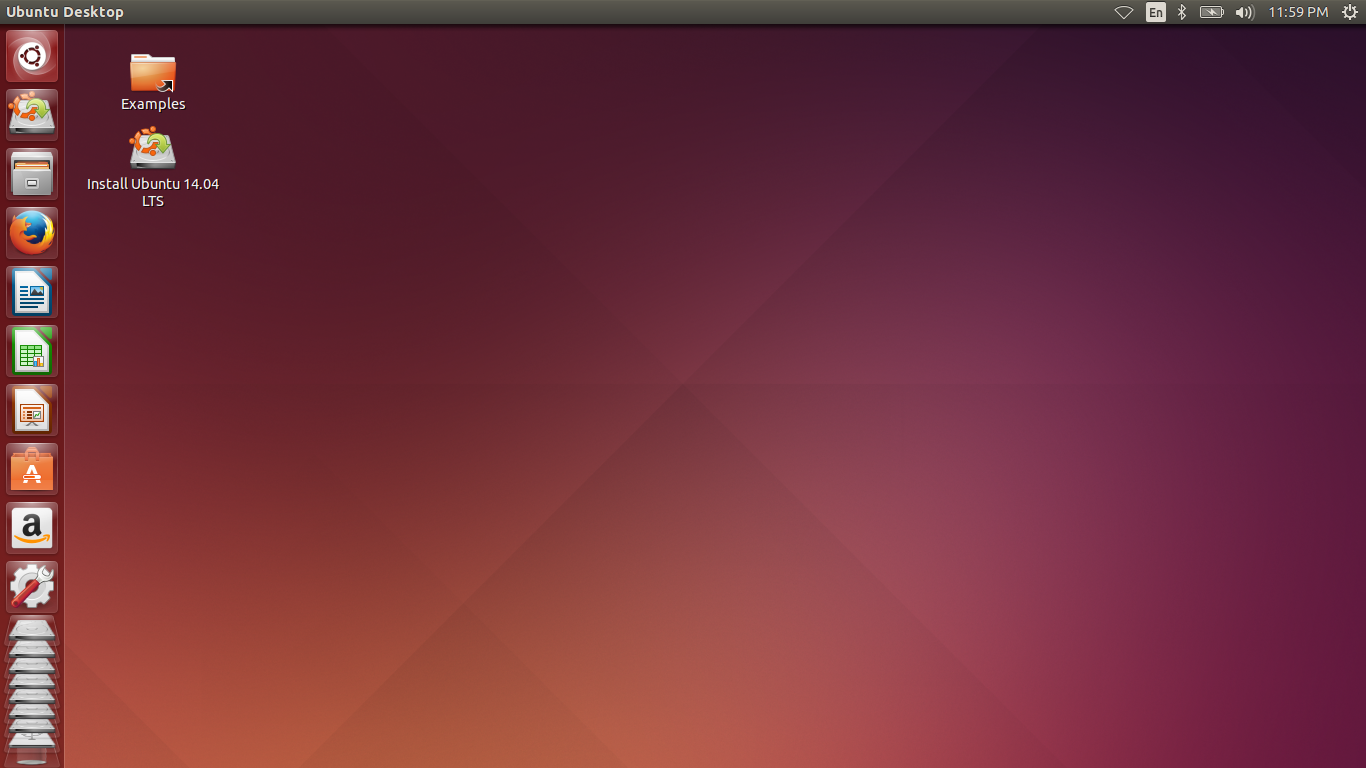
When you first boot into the live version of Ubuntu you will be presented with a screen similar to the one above. The only difference is that I have closed the window that shows all the keyboard shortcuts to make it easier to highlight the "Install Ubuntu 14.04 LTS" icon.
To begin the installation double click on the "Install Ubuntu 14.04 LTS" icon.
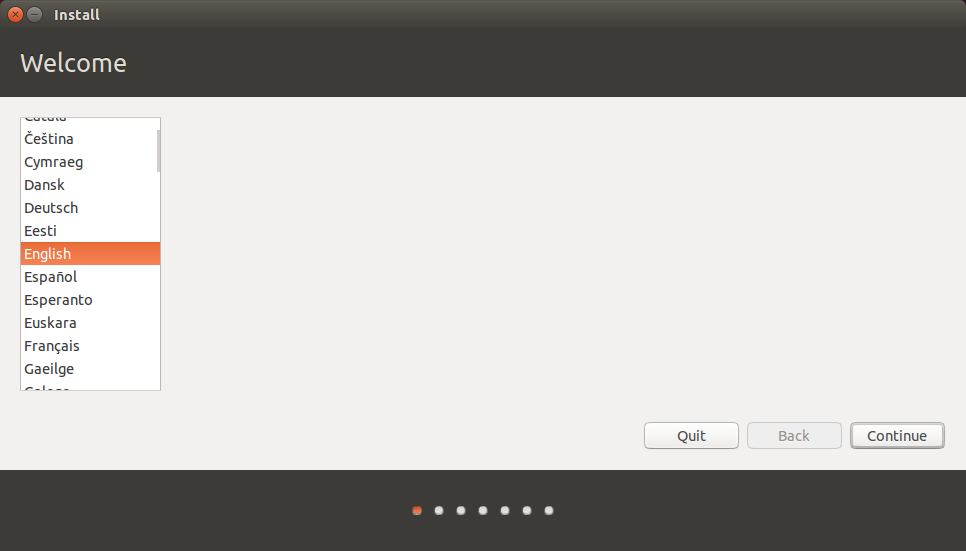 The first thing you need to do is decide which language you would like to use.
Unless you feel like the challenge isn't great enough I would choose the language that you would normally use.
Click "Next" to continue.
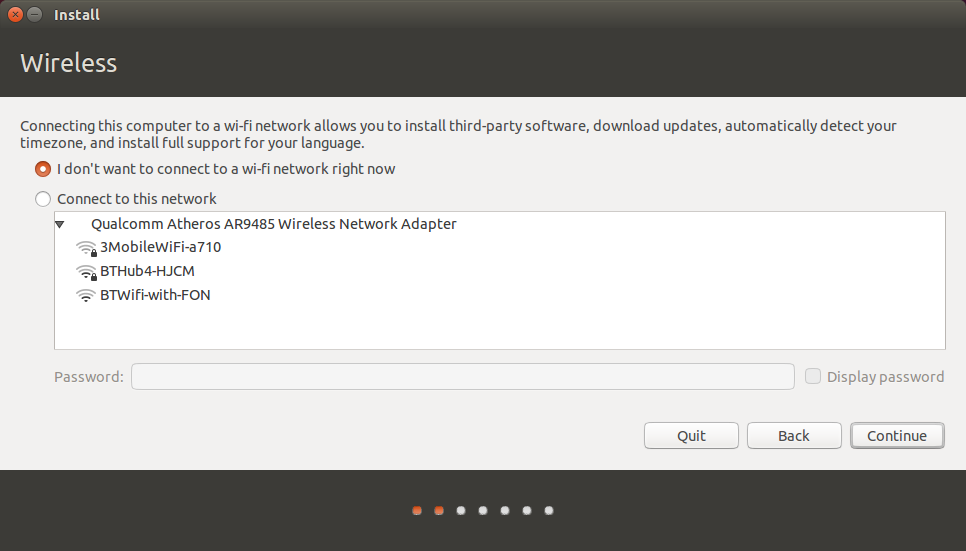 The next screen lets you choose which internet connection to use whilst installing Ubuntu.
I always opt for not wanting to connect and there is a good reason for that.
I live in the countryside and my internet connection is poor. I don't want the installer failing half way through because the connection dropped.
I prefer to install the operating system and run updates as a separate task later on.
If you have a good broadband connection you may wish to connect to it now so that you download updates as you go. This will slow down the initial install but will save time later on as you won't have to install lots of updates.
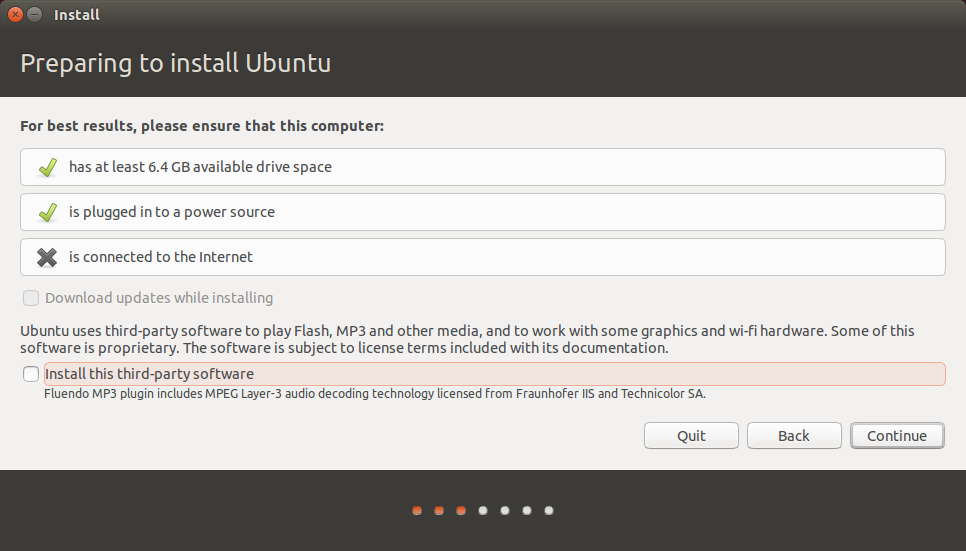 When you click "Next" you will be shown a tick list highlighting how prepared you are for installing Ubuntu.
As you can see I have 2 ticks because I have enough disk space and I am plugged into a power source. I chose not to connect to a network as this stage (hence the cross).
Click "Continue".
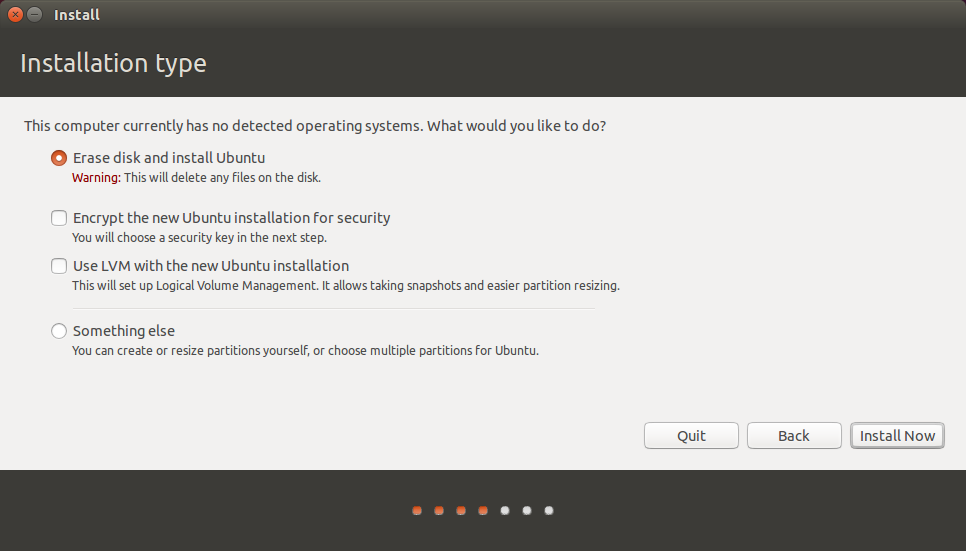 In the past there used to be an option on the "Installation Type" screen to install alongside Windows.
If you are installing alongside Windows 7 on a non-EFI based system then you will still have that option.
Click on "Something Else" and click "Next".
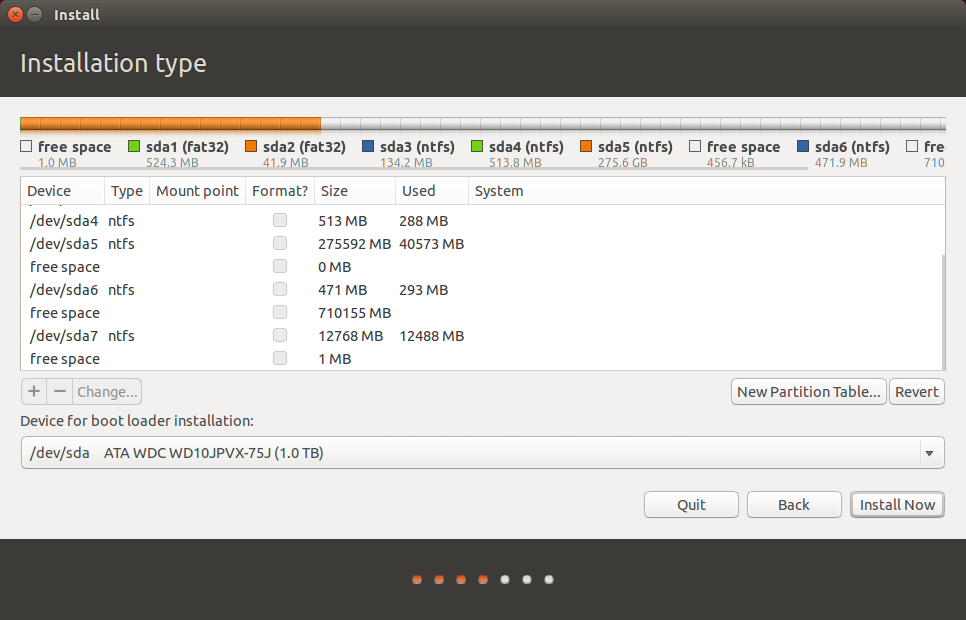
The next screen may look rather intimidating but it is just showing your current disk layout.
Be very careful with the next few steps.
If you haven't taken that Windows backup, quit the installation, reboot and follow step 1 of this tutorial again.
Look at the image above. You will see a large portion of free space (710155 MB). This is where I put Ubuntu.
The free space is going to be split into 3.
The first partition is for Ubuntu and will be 50 Gigabytes in size.
The second partition is for your home partition and stores configuration files and your personal files such as music, pictures etc.
The third partition is for swap space and is used for intensive operations and suspending the computer.
To begin the installation double click on the "Install Ubuntu 14.04 LTS" icon.
Unless you feel like the challenge isn't great enough I would choose the language that you would normally use.
Click "Next" to continue.
I always opt for not wanting to connect and there is a good reason for that.
I live in the countryside and my internet connection is poor. I don't want the installer failing half way through because the connection dropped.
I prefer to install the operating system and run updates as a separate task later on.
If you have a good broadband connection you may wish to connect to it now so that you download updates as you go. This will slow down the initial install but will save time later on as you won't have to install lots of updates.
As you can see I have 2 ticks because I have enough disk space and I am plugged into a power source. I chose not to connect to a network as this stage (hence the cross).
Click "Continue".
If you are installing alongside Windows 7 on a non-EFI based system then you will still have that option.
Click on "Something Else" and click "Next".
The next screen may look rather intimidating but it is just showing your current disk layout.
Be very careful with the next few steps.
If you haven't taken that Windows backup, quit the installation, reboot and follow step 1 of this tutorial again.
Look at the image above. You will see a large portion of free space (710155 MB). This is where I put Ubuntu.
The free space is going to be split into 3.
The first partition is for Ubuntu and will be 50 Gigabytes in size.
The second partition is for your home partition and stores configuration files and your personal files such as music, pictures etc.
The third partition is for swap space and is used for intensive operations and suspending the computer.
When you have found the partition with free space, click on it and press the plus symbol (+) under the disk layout.
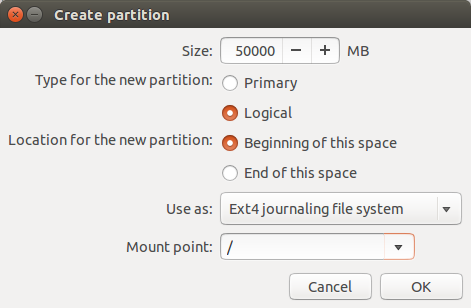
In the size box enter 50000, select logical as the partition type, select beginning of this space and choose EXT4 as the file system.
For the mount point choose / (this means root).
Click "OK".
The disk layout screen should now show a new partition for /.
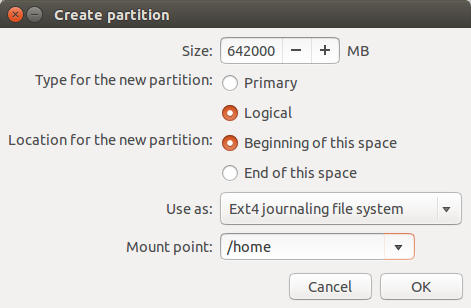 Find the large section of free space again, click on it and press the plus symbol again (+).
This time you want to set the size to be the rest of the free disk space minus 2x the amount of memory in your computer.
If you have 8 gigabytes RAM, subtract 16 gigabytes.
Again choose "Logical" as the partition type, beginning of this space for where to put the partition and EXT4 as the file system.
For the mount point choose /home.
The issue of how much swap space to use is constantly up for debate. Some people say you don't need any at all, some go for 1.5 times the amount of RAM and some say 2x.
Unless disk space is at a premium I would just go for the 2x and have done with it.
In theory if you are running lots of intensive processes such as video editing then the swap space is used to store memory that isn't currently being used (swapped) to disk. This is disk intensive and slows down your computer but it will help to prevent a crash. Swap space is also used for suspending your computer.
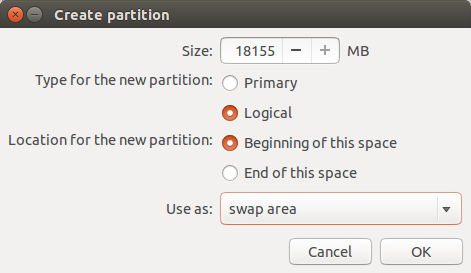 Now find the free disk space again, click on it and press the plus symbol. (+).
Leave the size as the rest of the free disk space, choose logical as the file system and beginning of this space as the location.
Choose "swap area" as the mount point.
The final thing to concern yourself with when partitioning is where to install the boot loader.
By default it is set to /dev/SDA on the "Installation Type" screen. This can be changed but unless you are using multiple disks you should leave this well alone.
Press "Install Now" to continue.
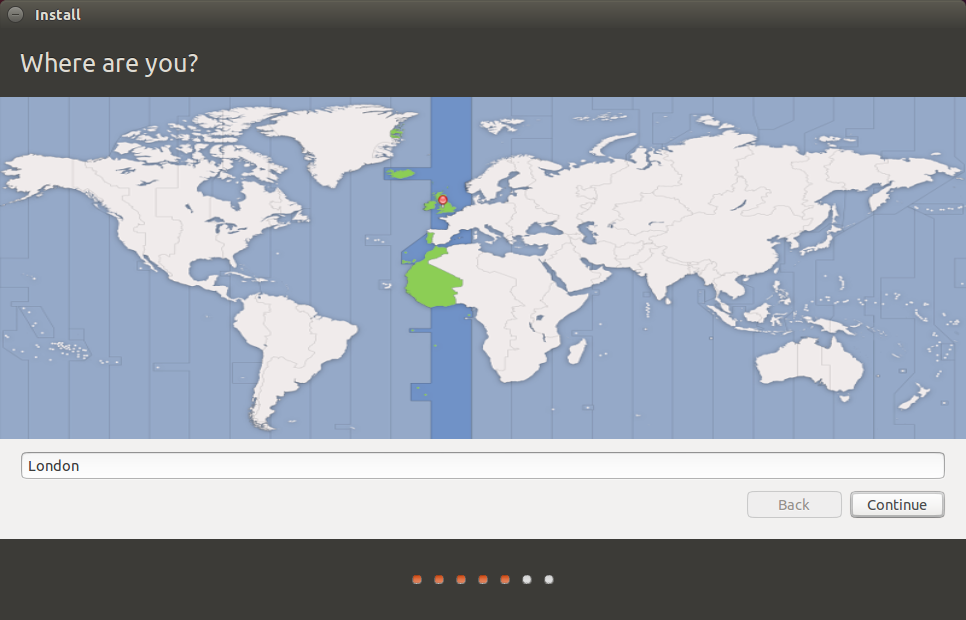 The installation has now begun but whilst it is taking place you are asked a few configuration type questions.
First of all choose your location by clicking on the map.
Press "Continue".
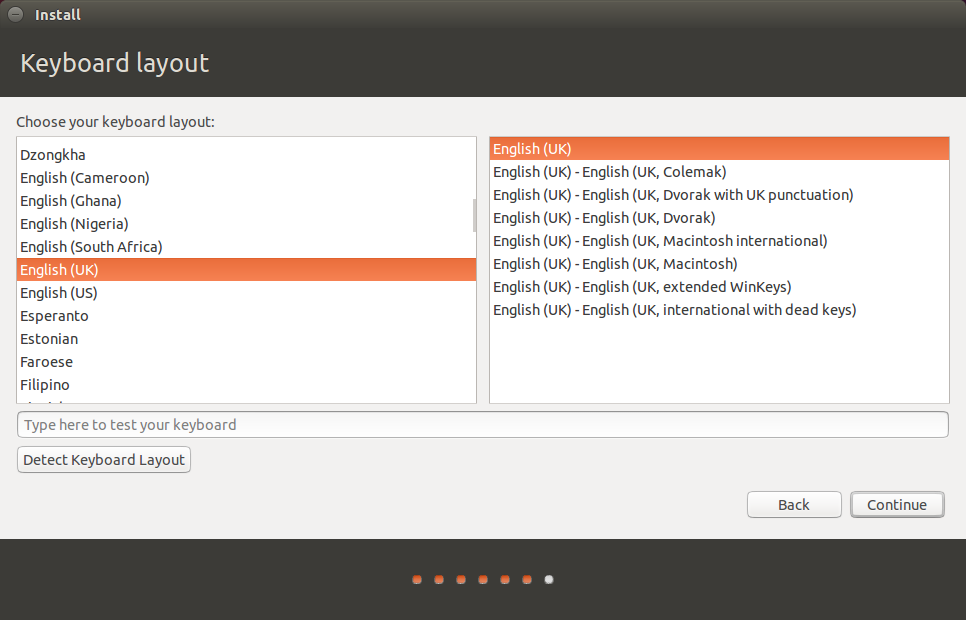 The next screen asks you to choose your keyboard layout.
Simply choose the correct one for you and press "Continue".
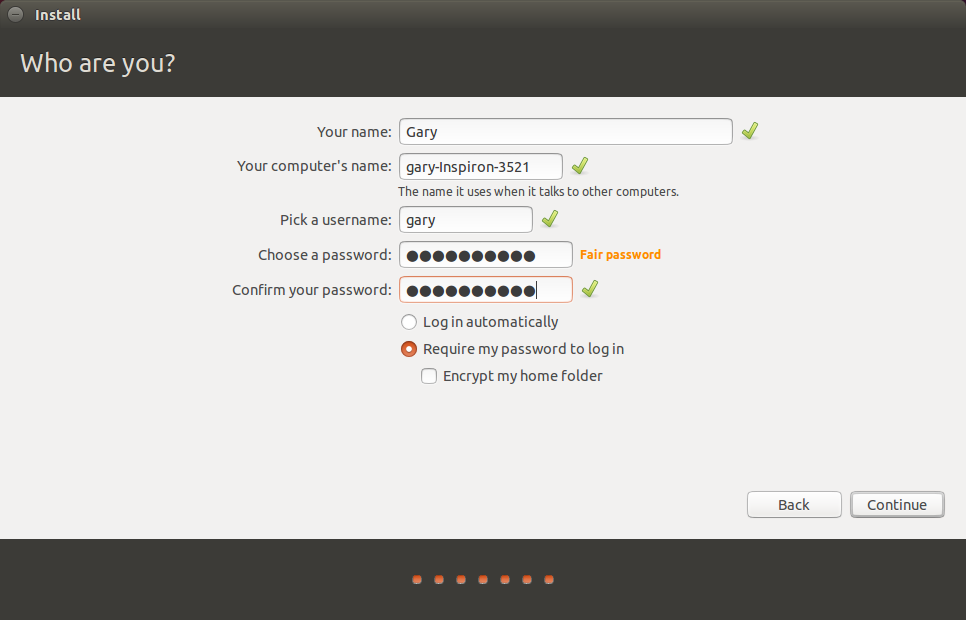 You will now be required to create a default user.
Enter your name, a name to identify your computer, a username and a password.
You can also choose whether to log in automatically or require a password each time.
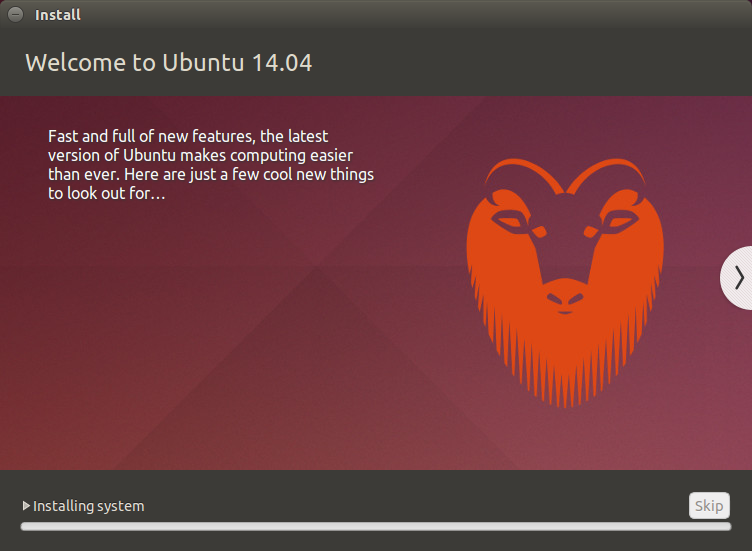 A progress bar will now show you how far through the installation you are.
You can also view a selection of messages telling you all about Ubuntu.
At this point you can take another comfort break and depending on your computer's speed you will either have time to boil an egg or wash your car.
At the end of the process you will be asked whether you want to reboot to start using Ubuntu or to continue using the live version.
When I rebooted it went straight back into Windows and I had to reboot back into the live session anyway. So at this point you can either take my word for it and stay in the live session or you can reboot and see if the installation has worked without any further steps required.
Log into Windows and click the power icon next to your username in the top right corner.
Hold down the shift key and select to restart your computer. Keep the shift key held down until your computer reboots.
At the point of the UEFI settings appearing choose to boot from USB again.
You will now be booted back into the live session of Ubuntu.
Click on the network icon in the top right corner and choose your network connection. You will probably need to enter the security key. (If not then when you have finished with this process consider checking your router settings because your internet connection is wide open).
Now open up a terminal by pressing the "super" key (Windows key) and typing "term".
Within the terminal window enter the following commands one by one.
For the mount point choose / (this means root).
Click "OK".
The disk layout screen should now show a new partition for /.
This time you want to set the size to be the rest of the free disk space minus 2x the amount of memory in your computer.
If you have 8 gigabytes RAM, subtract 16 gigabytes.
Again choose "Logical" as the partition type, beginning of this space for where to put the partition and EXT4 as the file system.
For the mount point choose /home.
The issue of how much swap space to use is constantly up for debate. Some people say you don't need any at all, some go for 1.5 times the amount of RAM and some say 2x.
Unless disk space is at a premium I would just go for the 2x and have done with it.
In theory if you are running lots of intensive processes such as video editing then the swap space is used to store memory that isn't currently being used (swapped) to disk. This is disk intensive and slows down your computer but it will help to prevent a crash. Swap space is also used for suspending your computer.
Leave the size as the rest of the free disk space, choose logical as the file system and beginning of this space as the location.
Choose "swap area" as the mount point.
The final thing to concern yourself with when partitioning is where to install the boot loader.
By default it is set to /dev/SDA on the "Installation Type" screen. This can be changed but unless you are using multiple disks you should leave this well alone.
Press "Install Now" to continue.
First of all choose your location by clicking on the map.
Press "Continue".
Simply choose the correct one for you and press "Continue".
Enter your name, a name to identify your computer, a username and a password.
You can also choose whether to log in automatically or require a password each time.
You can also view a selection of messages telling you all about Ubuntu.
At this point you can take another comfort break and depending on your computer's speed you will either have time to boil an egg or wash your car.
At the end of the process you will be asked whether you want to reboot to start using Ubuntu or to continue using the live version.
When I rebooted it went straight back into Windows and I had to reboot back into the live session anyway. So at this point you can either take my word for it and stay in the live session or you can reboot and see if the installation has worked without any further steps required.
7. Boot Repair
I am going to assume that you chose to restart now and your computer booted straight into Windows without giving the option for Ubuntu.Log into Windows and click the power icon next to your username in the top right corner.
Hold down the shift key and select to restart your computer. Keep the shift key held down until your computer reboots.
At the point of the UEFI settings appearing choose to boot from USB again.
You will now be booted back into the live session of Ubuntu.
Click on the network icon in the top right corner and choose your network connection. You will probably need to enter the security key. (If not then when you have finished with this process consider checking your router settings because your internet connection is wide open).
Now open up a terminal by pressing the "super" key (Windows key) and typing "term".
Within the terminal window enter the following commands one by one.
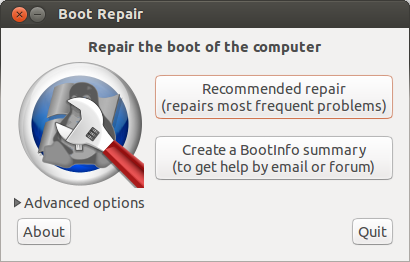
sudo add-apt-repository ppa:yannubuntu/boot-repair sudo sh -c "sed -i 's/trusty/saucy/g' /etc/apt/sources.list.d/Eventually the boot repair screen will appear.yannubuntu-boot-repair-trusty. list" sudo apt-get update sudo apt-get install -y boot-repair && boot-repair
Click on the "Recommended repair".
When I did this I received a message stating "EFI is detected". This is just an informational message as far as I am concerned because it is perfectly fine to install Ubuntu with EFI turned on.
After clicking "OK" to the EFI detected message the utility performed a few tasks and then asked me to select some text and run it in a terminal window.
If you are asked to do this open a new terminal window (press the "super" key, enter "term" into the Dash and click on the icon that appears).
Copy the text from the boot repair window by selecting it with the mouse. Press CTRL and C and then right click in the terminal window and select paste.
Make sure all the commands have run correctly. You may need to press return to get the last command to run.
Now click on the "Forward" button within the boot repair application. You may be asked to copy and paste more text.
Repeat the process of selecting all the text, press CTRL and C and then right click in the terminal window and select paste.
Make sure the commands run.
Keep following through on the process until the boot repair finishes.
If you are like me then at the very end of the process you will see a message stating that boot repair completed with errors. (not good). It is worth copying the link and posting to pastebin as suggested but I think you can just continue onto the next step.
8. Fix the boot loader
Almost there now.Reboot your computer.
Unless you are lucky it will still boot straight into Windows and actually this is ok because we are going to use Windows to fix the boot loader.
Log into Windows and make sure you are viewing the desktop and not the tiles screen.
Hover the mouse in the bottom left corner and right click. You should see an option for the administrator's command prompt. Click on this option.
Within the administrator's command prompt type the following command:
bcdedit /set "{bootmgr}" path \EFI\ubuntu\grubx64.efi
Exit the command prompt.
9. Reboot into Ubuntu
Reboot your computer.This time when the computer boots you should see 4 options.
1. Ubuntu
2. Ubuntu (advanced)
3. Windows (might say something similar like Windows boot options).
4. Setup
Choose option 1.
Ubuntu 14.04 should now appear. Get yourself a beer, you have earned it.
10. Reboot into Windows
Reboot your computer (click the symbol in the top right corner, click shutdown and restart).This time when the boot menu appears click on the Windows option.
Your computer should boot back into Windows 8.
Troubleshooting
The steps I have written here are the steps I went through to get Ubuntu 14.04 to dual boot with Windows 8.1 on my Dell Inspiron.The process will hopefully work on other computers as well and as with my last guide I will do my best to help people and clarify the points within the article.
I can't guarantee success in every case as this doesn't appear to be an exact science.
If you want to save yourself some real hassle then you might consider viewing my article "How to buy a laptop pre-installed with Linux".
You could do worse than buy a computer pre-installed with Ubuntu (make sure it will include 14.04 and not 12.04) or buy a computer without an operating system at all and install Ubuntu from scratch.
Make sure you take a backup before attempting to dual boot Windows 8.1 and Ubuntu 14.04.
Further reading

I have written an eBook which will help you get to grips with Ubuntu.
It includes chapters describing the user interface, the dashboard, lenses, applications and many other topics.
Click here to buy
on Amazon.Summary
Feel free to leave comments and if you found this guide useful share it using the buttons below as it may help other people as well.Thankyou for reading.
Troubleshooting
If Ubuntu still will not boot after running EFI Boot Manager try reading this guide which aims to help with UEFI boot issues.


My experience with setting up UEFI multi-boot on a number of different systems has been that the UEFI firmware implementation varies significantly between different OEMs. The details of what is necessary, or what even works or doesn't, depend very much on what system you are using - and you don't even provide that information in this post. What kind of computer was it?
ReplyDeleteMost UEFI implementations are getting to be pretty flexible and pretty stable now, and the radical procedure you suggest of replacing the Windows bootloader with Ubuntu's GRUB in the UEFI configuration is not necessary.
- Many systems today will simply boot Linux correctly after it is installed on a UEFI firmware system, so nothing special is necessary.
- Some systems have a UEFI Boot Priority list in the BIOS setup, and all you have to do is go there and move the Linux/GRUB item to the top of the list
If neither of the above work, you can use the Linux efibootmgr command to set the boot priority, and put Linux first
- If and only if all else fails, you can resort to the Boot Repair tool and bcdedit.
The original procedure described by Ubuntu, which you quoted, was a useful workaround when it first came out. But it has become outdated and unnecessary on all but the most stubborn (broken) UEFI systems.
jw
Thanks for the comment.
DeleteOn the computer I was using which was a Dell Inspiron (sorry model number escapes me right now) the firmware system would let me select to boot windows or ubuntu but would basically always revert back to Windows.
The efibootmgr didn't really work either.
Hence the boot repair and bcdedit.
I would imagine that not everyone is going to have computers with the latest UEFI and many will be stuck with stubborn systems as you put it and this guide may help them in that case.
Gary, I would have preferred if you had described how to dual-boot Debian, or, even better, Fedora, with Win 8. Both of these great distributions (there or others) are backed by people who have contributed mightily to making Linux what it is. Ubuntu, on the other hand, are a band of parasitic "popularisers", eager to "make a buck" from the work of others, while contributing next-to-nothing.
DeleteThanks for the suggestion. It is a potential future article.
DeleteSuggestion: in my case i have already created previous windows partitions and i was not able to see unallocated space as free space and i can only see entire disk as a one item during ubuntu installation.
DeleteI used 3rd party software to convert my disk from dynamic to basic from windows. Later i was able to see my other partition and my unallocated space as a free space and able to proceed the space.
I'm facing this particular problem with win 8.1 pro right now. So Ubuntu/Kubuntu can't handle dynamic disks at all? Could you please tell the name of the tool you used. Thanks.
Deletei have windows 8.1 and ubuntu 14.10 dual booting happily on an acer v5-572, the 1st boot is ubuntu 14.10 development.
ReplyDeletei found it very easy, my steps were:
blank my whole machine immediately with gparted (free), in my opinion most laptops are sold in an almost useless state, well for me anyway.
press F2 at boot ,change bios from eufi to legacy, change usb cdrom as primary boot, save configuration.
boot up cdrom with gparted, change type of hard disk from dynamic to plain ordinary msdos and master boot record as grub. ( who needs more than 2TB ? as machine comes with 500mb)
install windows 8.1 and ensure activation. update windows 8.1
backup windows 8.1 using clonezilla( free and a wonderful program, (having used paragon, easeus and go knows how many other non-free programs )
Now install 13.10 ubuntu remix SECURE, THIS IS BECAUSE SECURE ALLOWS YOU TO REPAIR MBR AND DELETE AN OPERATING SYSTEM.
bootup and update ubuntu 13.10.
update 13.10 to 14.04.
update 14.04 to 14.10
backup your dual boot with clonezilla
you can now keep both operating sytems or get rid of either in 5 minutes.
dont forget to reclaim the empty unused space if you delete either, use gparted for this, and just check the partitions with gparted.
and all this before lunchtime.
well allright yout warranty for the machine is probably invalid.
this is how OAP'S spend their morning.
That is an interesting way to do it. So basically you wiped your machine, turned off anything to do with UEFI and installed as you normally would.
DeleteI don't suggest this dual boot using the same HHD. It's prone for disaster. Maybe for the more experienced - But hey aren't we all.
ReplyDeleteBOOT REPAIR!!! That is the hell you will live.
I have seen so many people do the dual boot and cry blood when one of the systems crashes. Or an error that is beyond their experiences. So much time can be wasted doing this.
If you want to Linux and Windows at the same time - run a Virtual Box. Much easier and yes there are some system limitations, then get a dedicated HHD and do the right thing.
Installer beware! this is can cause your day either to be GREAT or you will rack your head against the wall looking for help online, which I should mention, the community for the Ubuntu user beats windows any-day!
Linux for life!
Personally I would recommend separate computers than dual booting or if you want to use Ubuntu give up Windows completely. There are lots of people who like the dual boot thing and virtual machines aren't a complete win win solution as you have to use resources from the host to run the virtual machine in the first place.
DeleteOne of the options I think I would like to try is using my secondary SATA controller on the motherboard. My motherboard has one Intel controller and one Marvell controller. If I set the Marvell controller to RAID, and then install Ubuntu in a RAID0 configuration using its built in FakeRAID drivers (mdadm), you can be assured that Windows will never see it, because one, Windows does not have Marvell raid drivers by default and two, Windows would not understand EXT4, especially in a stripe config. It would probably, and hopefully, be completely ignored. And if it does recognize it and automatically install drivers for it, just go into the WIndows disk management and remove the drive letter, or letters for it. Then just set the motherboard bios to boot the Marvell raid array which will house the GRUB, and make the necessary changes in windows bcd and grub. Not sure if this can be done but with a Motherboard with a secondary SATA controller it sure makes me want to try, just out of sheer curiosity...
DeleteASUS must have a pretty standard implementation. I've got an N56JR-EH71 Asus laptop with Windows 8.1. I repurposed my 500+GB "data" partition that windows gave me to / 50GB, /home 100GB, and 400 GB+ of FAT32 for sharing files easily across OSs. I left secure boot on in the bios, but disabled the other options. Other than disabling secure boot, I followed the remainder of the instructions. I did not wait to try to reboot into windows. I installed boot-repair and followed all the pasting instructions, as well. I did receive an error pastebin, but the only concern that it seems to raise was a GRUB2 versioning problem.
ReplyDeleteI rebooted a few times, testing boot into windows and into linux. It all worked like a charm. I did not have to run the windows bcdedit step. It all worked upon my first reboot after installation.
So, your mileage may vary. I would change the instructions to run boot-repair just after installing ubuntu but before rebooting. You're already in the livedvd or usb environment, why reset it? The installer is smart enough to flush the partition tables and update the information, and boot-repair has no trouble finding the efi boot entries.
Here's my pastebin if anyone is interested:
http://paste.ubuntu.com/7412393/
Definitely try to keep secure boot on. It's just a safer option against malware.
There is a suggestion in my guide to just do that but I left the reboot in there because if some computers work straight away then they may not need to do the boot repair at all.
DeleteIt is a little easier to simply press the "Windows key + x" to get the list containing the admin cmd prompt:
ReplyDeleteHover the mouse in the bottom left corner and right click. You should see an option for the administrator's command prompt. Click on this option.
Thanks for the tip. I am not completely in tune with all the shortcuts for Windows 8. I spend 99.9% of my time now in Linux.
DeleteGary, forget about the naysayers. You have written an excellent thorough article on how to do something that many people are hunting an answer for. And, as you stated throughout, this process may not suite every system, but this is more information on this topic than most places I've seen on the web and is a good place to start regardless of the system you're using. Great job.
ReplyDeleteThankyou for the nice words. I'm not adverse to receiving criticism however, so long as it is constructive. One thing a blogger has to have is thick skin.
DeleteI found you article very useful. I installed on a USB external drive and had a flawless install. I haven't used Windows for three months.
DeleteThanks so much for this its really i want it ... Could u also describe that after this i want to uninstall ubuntu alongside with windows 8.1 Then i want to use just windows 8.1 then what else next with booting for just win 8.1 ???
ReplyDeleteHello,
ReplyDeleteI would also like to give you a big thank you for the article! I don't understand that much of computers, but since I wasn't really happy with windows 8.1, I thought I might try ubuntu, but without touching the windows installation, in case I wouldn't like ubuntu either. And this article just showed me how to do it, and it worked without any problems!
Just one thing: Although, as I said, I don't know that much about computers, I still like to have an idea of what I am doing. This was really well described in the beginning of the article, but in the end (when it started with the command prompts), the only option was to trust you completely and copy letter by letter what you wrote. I know that going into details would probably go beyond the scope of this matter, but I imagine that it would still be possible to give an idea of what is done, like the changing of the bootloader. I did it the way you described it, and it worked well, but after reading the comments, I am now worried if there wouldn't have been a somewhat better way (which would imply less changes, for instance) and how I could ever undo the changes I did (for whichever reason there might be).
But still, thank you very much.
Hello.
ReplyDeleteIn the shrinking part, is it ok if I shrink my D: volume, instead? I have Windows on C: volume, but on the D: one I have more space to shrink.
Do you know what your D drive is used for?
DeleteIt just has some photos and a few random files
DeleteAnd it's just a primary partition
DeleteAlso it's called DATA (don't know if that is important)
DeleteThen yes it should be fine to do that. I was worried it was a recovery partition
DeleteThank you very much for this useful walkthrough!
ReplyDeleteI also have a Dell Inspiron and would like to install Ubuntu 14.04 alongside Windows, but the Live USB won't recognize Windows 8.1's partition.
Is it safe to proceed with the installation selecting "Something else"?
I can see from the snapshot at step 6 that yours was not recognized either, but I just want to make sure I won't mess up with Windows. Thanks again! :)
Hi.
DeleteThe main advice I would give is to make sure you have followed step 1 which is to create backup and recovery media. If you do that then you always have an easy fallback.
I can confirm that the Windows partition wasn't displayed and as long as you only use the unpartitioned space (the bit you freed up when shrinking the disk) then your windows partition will be left alone and Windows won't be messed up.
Thanks for the article. I followed every step given. But every time I restart its always going to Windows :-(
ReplyDeleteThe only deviation I took was allocated 150 MB to "Reserved BIOS boot area" in the partition section..
Please help how to get the grub..
There occured an error also at the end of the boot repair process. which provided an url which I need to send it to boot.repair@gmail.com. I did that too. Waiting for any reply..
Hi,
DeleteI think you need to look at step 10 again which is the bcdedit part. this switches control to the Ubuntu EFI loader from the Windows one. Make sure you have secure boot turned off.
Thanks for the reply.. Yes I have disabled the secure boot in the BIOS. Also I was able to do the bcedit part (Step 8) and it got updated successfully. When I reboot, its still going in to Windows without the grub. No clue !!
DeleteAny idea how to bring up the grub ?
First time when I completed the process, it didn't work. I noticed that I have created the partitions with primary instead of logical. So, I erased the partition in windows. And I did redo of everything again. But still no luck !!
-------
The second command to bring up the boot repair is lengthier and it is not fully visible in the post. But when I copy it got copied fully. Just thought of informing.
Try using this software http://www.softpedia.com/get/System/OS-Enhancements/EasyBCD.shtml. It is a graphic interface for Windows that lets you manage your EFI partitions. Try using that to find you Linux EFI partition
DeleteThanks Gary ! Before I saw your reply, I was just exploring options in my laptop (Toshiba Satellite S50 - intel i5) , and finally it worked . :-D. .
DeleteThis is what I did :
1: Go to - Change PC Settings - Update and Recovery - Advance Options - Restart Now - Troubleshoot - UEFI firmware Settings - Restart Now
2: This will restart your system and it will take you to the BIOS setup.
3: Secure boot was already disabled. So I tried to change the Boot mode under System Configuration menu - from UEFI to CEF (Legacy mode). Save and Exit.
4: The system restarted and I got the error message that "Insert Boot device". Even Windows did not boot. (I got panicked and gave the shock of my life).
5. But immediately I restarted again and I kept pressing F2 Key. And the BIOS setup appeared and I was happy.. Changed the Boot mode back to UEFI. Saved and restarted again.
6. And this time.. Bingo !!! the grub menu appeared to my surprise..with the options Ubuntu and Windows Boot Manager to choose.
7. I was able to login to both Ubuntu and Windows. :-)
I just elaborated, so that it may help other users.. Thanks again !!
Hi Gary,
DeleteI connected the hdmi cable with youtube in Firefox. But only the wallpaper was visible on the TV. Also the right click menu, alt tab window, etc was also visible. But the side menu and the Firefox window was not visible. The cursor/pointer was visible on the tv and the touchpad was working, I was able to move the pointer.
After I removed the HDMI cable, my cursor/pointer disappeared and my touchpad is not responding! ! I tried to restart many times, but still no luck. Its still not visible in the desktop. The pointer is visible in the login screen, but is not responding to the touchpad.
I tried to login to my KDE session, there too the cursor/pointer is visible but is not responding to the touchpad. It is not moving.
I then tried to connect the bootable usb linux , but in that too the cursor was invisible. So I doubt reinstalling ubuntu will help.
Is there any fix available for this or should I remove ubuntu entirely ? :-) Kindly help if possible..
I also tried the trick of switching from UEFI to CEF and then back to UEFI and worked!! :D
DeleteThank you both!!
Very important article to me, thank you!
ReplyDeleteI would suggest to improve it giving more information on the porpoise of some steps like:
- why do you need to disable secure boot?
- what is going to do the command bcdedit?
What I mean is to give a reason to some of the tasks.
Thank you again, Andrea
Hi Gary.
ReplyDeleteI just started using Linux in college for C programming, so I decided to go ahead and install it on my laptop along with Windows 8.1
I was able to get through till the part when I create a USB with the Ubuntu image, using the Universal USB, but when I boot it, I press escape to go to "Boot from USB", then I have to open the pen drive and open a folder to boot the OS from. I tried "grubX64.efi", but then I get a command prompt sort of thing, and I have no clue how to proceed after that.
Can you please help me out at this point?
what is the make and model of the computer?
DeleteThank you, your instruction is useful, although I had to go on the sixth paragraph
ReplyDeleteGary...I've tried several different ways to do this and haven't been successful on my Acer Aspire S7-191. I was ok with your way (a couple of different results but still with you) until the line: sudo sh -c "sed -i 's/trusty/saucy/g' /etc/apt/sources.list.d/yannubuntu-boot-repair
ReplyDeleteI got a single ">" prompt. I even decided that this might be right and so I continued to type the following lines like a blind squirrel...to no avail. I thought that this might have been a typo and that someone else would have caught it in the comments...but alas...no. I tried putting the double quote at the end (where it looks like there is a space) but it couldn't find the file. I then tried it before the file name and again it barfed big chunks. So....what up?
Sorry. I need to expand on the last few steps a bit more. I have also just realised that the text for that bit is misaligned leaving some of it off the screen. The text should be
Deletesudo sh -c "sed -i 's/trusty/saucy/g' /etc/apt/sources.list.d/yannubuntu-boot-repair-trusty.list"
Hi,
ReplyDeleteI have followed all the steps till step 7. However, then boot repair tell me to run the command
sudo apt-get install -y --force-yes grub-pc linux
The error that comes is "E: Unable to locate package linux".
Boot repair doesn't continue after this. Can you please help?
So have you ran the command sudo apt-get install -y --force-yes grub-pc linux
Deletein a terminal?
Yes. Was getting that error when I ran it in the terminal. I removed the 'linux', i.e. ran the command
Deletesudo apt-get install -y --force-yes grub-pc
That worked. Thank you! :D
Hi Gary after upgrading from ubuntu 13.10 to 14.04, I can see the list:
ReplyDeleteUbuntu
Ubuntu advance
System settings
But once I choose the first option, I get a blank screen with a white prompt. No F keys work. It's a ASUS republic of game laptop. Any solution.
Dear Gary,
ReplyDeletethank you a lot for your useful tutorial: I'm from Italy, using an Inspiron 15r 5537 and unfortunately no one here (I mean italian-speaking internet) knows properly how to turn it into a dual boot kickassing machine...
But I'm sorry to observe that even this guide doesn't work with my lap ;(
In detalis (and without taking notice of the AMD Radeon issues with Ubuntu live...):
1) I've followed steps 1-7 without problems, but I noticed a difference in my boot-repair process: before "the very end of the process" (that, yes, also to me shows "a message stating that boot repair completed with errors"), it opens a window in which is written "WinEFI detected. Do you want to activate [Backup and rename Windows EFI files]?" with a No/Yes choice. After reading this: http://ubuntuforums.org/showthread.php?t=2195025&p=12880914#post12880914 , I chose Yes.
2) I've followed step 8 without problems, but after the reboot no grub appears: Windows restarts placidly as if I've done nothing.
I've also tried the solution suggested here by Subin Raju (17 May 2014 01:26), but I'm not lucky the same: grub still lies under the overwhelming Win 8.1.
Any other idea on how to recover my grub?
Thank you in advance,
diego
Try using one of the graphical tools for EFI such as http://www.easyuefi.com/index-us.html. It lets you choose which EFI boot partition to load first.
DeleteFixed, but I dunno how:
DeleteI've used easyuefi as you suggest, but it can't find the Ubuntu partition.
So I tried to restart from step 7 in order to click "no" to that window and see... but there is no window this time, and magically grub reappears (without typing the command line in Windows as in step 8). Who the hell knows!
BTW I've temporary fixed the AMD Radeon issue by installing Gnome and setting GDM as the display manager.
Thank you at last, you saved me.
Many thanks for this! I guess that I am lucky with my particular laptop, a Lenovo Z710. I did not disable the Secure Boot as in step 5, from a USB stick installed Ubuntu 14.04 in the space freed up in Windows 8.1, and once it had completed the installation, allowed it to reboot. And there it was: Ubuntu / Grub with the option to load the Windows boot loader. Dual boots between the two without any further work. And the One Key recovery (something specific to Lenovo, also used to access the BIOS and boot options) still works without issue too. Brilliant!
ReplyDeleteThank You! I was following the instructions step by step, and at step 7 you assumed that people would reboot. I wish I would have because when I did reboot to get to Windows and follow the rest of the instrucctions, I noticed my dual-boot was working already. Everything works fine. Toshiba Satellite C55t. Even the touch screen works with Ubuntu. Thanks again as I would have completely screwed it up without your guide.
ReplyDeleteHi there,
ReplyDeleteThanks for the article, very helpful and well written. Unfortunately, my dual-boot doesn't work as you describe. I followed your instructions closely, except that I live booted from a DVD. Now i have both Windows and Ubuntu installed, but in order to use Ubuntu, I need to press escape when I turn the computer on, and then choose boot options, then select Ubuntu, and only then do I see the four options you describe above. Do you have any tips about how I could make the computer go straight to the options screen when I switch it on?
Hi Gary.
ReplyDeleteI created the windows backup and installed ubuntu but unfortunately lost windows and all my data.
I would like to know how to get back windows from ubuntu.
If you created a recovery drive you just need to plug the recovery drive in and boot from it. There are then various options for reinstalling or repairing windows and in worst case scenario restoring from the system image you created
DeleteDear Gary..
ReplyDeleteThanks for the article. Luckily on the new Hp Pavilion machine, I can easily install Ubuntu 14.04 alongside pre installed windows 8.1 without any disabling of secure boot or uefi. I decided to follow the advice here (http://askubuntu.com/questions/221835/installing-ubuntu-on-a-pre-installed-windows-8-64-bit-system-uefi-supported) and attempted to just go ahead with the install with both secure boot and uefi enabled. But your post provided some very important info on creating partitions etc. Plus it gave a very clear understanding of the mechanics of why things are they way they are with dual boot these days, and what to do if something goes wrong. Thanks for putting in the time to get this together.
I have been using Ubuntu/Linux for about 8 years now as a duel boot on any computer I care about/need. I have to say. I was at a crossroad with my new Toshiba laptop. And ready to call it quits. until I found this! Now I can go through the necessary growing pains of familiarizing myself with Windows 8 while also enjoying Ubuntu 14.04.
ReplyDeleteThank you
Thank you for writing this blog entry. I followed your procedure as carefully as I could, but it ended in disaster. I write this detailed reply to warn others of what might happen, to describe what ultimately worked for me, and to provide some well-intentioned suggestions for how your blog entry can be improved. If everyone has as much trouble as I did installing Ubuntu alongside Windows 8, it certainly won't bode well for Ubuntu.
ReplyDeleteFirst of all, let me describe my setup. I have an HP 400-224 PC with 1 TB disk space and 6 GB RAM, running Windows 8.1. I also have an external 1 TB disk. My original plan was to use the external drive as a backup for Windows, and as the Ubuntu system disk. That way, I thought, I could boot Ubuntu from any of my PCs. However, after reading your stern warning to leave the device for the boot loader to be sda, I decided it would be better to partition the internal drive and install Ubuntu there.
I dutifully followed your advice to create a set of System Repair DVDs, I also went a step further by creating a system image on my external drive, so that I wouldn't have to reload all the Windows updates and other software I needed. I had obtained a Ubuntu 14.04 LTS Desktop 64-bit DVD from OSDisc.com, and used it instead of the bootable USB drive obtained from Step 2. After installing Ubuntu, I rebooted, and Windows 8 came up. I then ran Boot Repair exactly as you described, and later bcdedit. Your procedure calls for setting {bootmgr} to \EFI\ubuntu\grubx64.efi, but I saw no evidence that this file existed. Everything else in your procedure seemed to work perfectly, so I relied on blind faith and made the change.
When I restarted, I got the message, “No boot device found. Please insert a boot disk and restart.” At this point I had no idea what to do, other than perform a complete reinstall of Windows 8 from my System Repair disks. Furthermore, the system image I created wouldn't reload because the size of the image no longer matched the size of my recreated hard drive. So I had to go through the painful procedure of installing all the Windows 8 updates, printer drivers and other necessary software (Office, Java, Flash, Acrobat Reader, etc., etc.)
Now here's what worked for me. I left the internal hard drive alone and shrank the size of the external drive partition. I didn't change anything regarding the boot order, secure boot or fast boot. I ignored your admonition and set the Ubuntu boot device to be sdb. I installed Ubuntu 14.04 LTS on the external drive and rebooted. Grub64 came up and allowed me to select which OS to boot. When I defaulted, Ubuntu came up. If I select Windows, then that comes up. When I disconnect the external drive, only Windows comes up. Everything works perfectly.
Finally, here are a few suggestions to improve your blog entry:
1. Insert a recommendation to invest in a second hard drive (either internal or external) for Ubuntu. It will make life a lot easier.
2. Say it's OK to change the boot device to a second drive, if you have one.
3. Please comment on what the “Type of partition” (primary or logical) means, and why you would want to choose one over the other.
4. In step 7, please elaborate on what you mean by “choose to boot from the USB again.” I think this is where I went wrong. When I booted from my Ubuntu Desktop DVD, I got two choices: “Try Ubuntu” and “Install Ubuntu.” Since I had already installed Ubuntu, I chose “Try Ubuntu.” Then when I thought I was running Disk Repair on my Ubuntu installation, I was actually running it in a sandbox created for the purpose of “Trying Ubuntu.”
5. Provide ways that a user can verify that the new bootmgr (grub64.efi) actually exists, before committing to using it.
6. Describe a way for someone to return {bootmgr} to its original state, short of reinstalling the entire system from scratch.
So basically you have Ubuntu booting from the external drive. Not a bad idea at all.
DeleteCan this be done with a pendrive instead of an external drive?
DeleteManny, as long as the pen drive is large enough for everything you need. But I should warn you that own drives are pretty easily broken by "accidents" (not fun to have it in your clothes pocket and get it washed).
DeleteIf you feel adventurous, you can have a pen drive dedicated to booting up GRUB for wherever your OSes lie. Using the pen drive for booting AND a removable drive for another OS would require GRUB to locate by UUIDs of partitions, besides the fact of either having all OSes (& pen) plugged in or adding boot entries manually for all those OSes (not easy))
"own drives" i meant "pen drives"... (Thanks Android *sigh*)
DeleteHi, I have gone through all steps, and now the pc boots directly into ubuntu, and I can t boot into windows anymore. I dont know theoretically what is the "concept" of what I have done, so I dont know even where to start looking for a solution!
ReplyDeleteCould anyone help me?
Thxs
At the point of choosing where to install Ubuntu did you choose something else. Did you also make sure that you chose the free space that became available after shrinking Windows?
DeleteThe first time I completed the tutorial I thought it was not working and I reinstalled Ubuntu. But when I díd that I choose something like "erase Ubuntu and reisntall" (I thought it was going to be at the same partition that Ubuntu has been installed in first place) But it formated all the hd. I have the back up and the recovery so I reinstalled Windows followed the tutorial again and by now it's working fine! Thank you very much. Í learned a lot through the process!
DeleteI am glad that eventually you got it working. Sounds like some frustration along the way though.
DeleteCan I use the recovery drive to install Windows 8.1 again after deleting it? Say, I chose to replace Windows with Ubuntu, but then realized that I needed Windows (I don't really want to but warranty issues). Thanks!
ReplyDeleteYes you can. In the past they would have given you a physical DVD to boot from and if you wanted to you could restore from DVD as many times as you wanted. Now the onus is on you to create that physical DVD/external drive etc.
DeleteHi, Gary. I've had a lot of trouble with this. I'm using an HP Envy touch with Windows 8.1 installed, and I followed your instructions to the letter. The only problem is when you say
ReplyDelete"When I rebooted it went straight back into Windows and I had to reboot back into the live session anyway. So at this point you can either take my word for it and stay in the live session or you can reboot and see if the installation has worked without any further steps required."
When I reached that point, it simply opened up the screen saying "Try Linux before installing it" yada yada yada. Then, I went through the whole boot repair thing, as you said. I still don't get a screen allowing me to choose what OS I want to start. Also, every time I plug in the thumb drive I the whole thing starts again. I feel like I'm walking in circles. Could you please help?
Hi,
DeleteSorry for the delay. Did you follow the steps for BCDEDIT?
Thank you very much for the help. I have a Toshiba laptop and it is the second time windows 8 updates something which destroy my dual boot. I tried boot-repair, supergrub2. I tried to reinstall ubuntu, then I did a new install but nothing worked and I kept booting directly in windows. Your last windows command did the trick.
ReplyDeleteClaude
Glad you got it working Claude.
DeleteThanks a lot!
ReplyDeleteAfter some hickups, it worked on my Compaq CQ58
I think that is the general consensus of opinion and should be the UEFI tagling "after some hiccoughs, I got it working"
DeleteThis comment has been removed by the author.
ReplyDeleteThanks for the guide, I followed exactly your guide but unfortunately after step 8 and reboot my machine
ReplyDeletei got this scary error
error: file '/boot/grub/i386-pc/normal.mod' not found.
Entering rescue mode...
grub rescue>
.... I'm doomed .... Anyway, too late over here, i'll try to fix it tomorrow...
My laptop is a Lenovo Ultrabook S540.
Hi Luis,
DeleteDid you get yourself up and running again? Sorry for the delay, I have been away for the weekend
Regards
Gary
This isnt working for me. Is anything different if im installing kubuntu instead of ubuntu? that last windows cmd?
ReplyDeletefound that if i use the windows reinstall partition during post, i can "use a device" and boot my kubuntu partition as though it was a usb. So yay, the computer can see both windows and kubuntu, and i have a kludge method for booting into either... its just a very inefficient bootloader... :( grub! where for art thou!
DeleteI am glad you have it working. I have received comments before stating that with newer UEFI machines the process is easier. I will believe it when I see it.
DeleteHello,
ReplyDeleteThat worked wonderfully well. I installed ubuntu for one of my friends suggested its good for programming "as I would see later". I however, want to ask one thing. I have my musics and files on d drive in windows now can I somehow merge my d drive to the partition I created to save file for Ubuntu? If yes, how?
ubuntu can access any files on your windows partition, you just have to "mount" the windows partition. The easy way is to assign it a mount point when you installed ubuntu, but you can also make it automount from within ubuntu.
DeleteThat's really good. Can you please tell me how should I assign it a mount point? or how an I automount from within ubuntu?
DeleteThanks alot!! The post was really helpful ! :) :)
ReplyDeleteHi Gary. You are a STAR. Don't let anyone tell you any different. Thanks. Has worked a treat.
ReplyDeleteBit of messing and confusion but that's to be expected as there are so many different computer makes and types. A great general users guide. Only one I could find that made any sense.
Thanks again. Keep up the good work.
Rob
Why dont you get Install alongside windows option? Everyone gets it. See your installer pic. It says This PC has no OS detected. Zap your stary GPT data and you will get install alingside option.
ReplyDeleteThanks man instructions worked perfectly. Although had a bit of trouble with boot repair it kept changing grub to shim64x which didnt work. Went into settings on boot repair and unticked the 'secure boot' option and it installled grub normally. Been a while since ive used linux. Thankyou
ReplyDeleteif i turn off the UEFI and insert my bootable LINUX CD/USB. will it work both without any problem?? i mean if i make my ubuntu non UEFI and my window with UEFI. isn't it problem while making dualBoot???? thanks
ReplyDeleteTurn off the secure boot but do not switch from uefi to legacy
DeleteHello sir, at step 7 when i rebooted...my pc did not boot from windows. This booted from ubuntu.
ReplyDeleteNow i am unable to boot from windows.
Please suggest any solution. I am waiting for solution.
Thanks in anticipation
Thank you for this article. It made it possible to dual boot kubuntu 14.04 LTS with windows 8.1 on a HP Pavilion 15 Notebook PC. It is my wife's computer. Although myself I always remove ( since 1996) windows completely from my machines (once I paid the MS tribute), she keeps keeping it. However, she probably never uses it or very very rarely in any case. But always keep it in a corner.
ReplyDeleteI discovered your article once I had already installed Kubuntu but was unable to boot into it. I followed the steps that you suggest in order to repair the grub and voila! It works on the HP machine too.
Thank you.
Thank you for this whole article. Quite frankly, Windows 8 makes me want to dig up Steve Jobs, steal his femur, and beat Bill Gates to death with it. I know this would be a senseless act of aggression, though; as probably even he uses a Mac since this stink-bomb of an OS was released. I've used Ubuntu since 8.04, and have dual booted every single computer I've ever owned from Windows 98 up to Windows 7. I have NEVER had a problem. Not even with Vista, and I thought I'd go spare with that OS! Boy, if only I had done the research before hand, I'd have built a new laptop. I'd have a better machine, and a dual boot XP/Ubuntu.
ReplyDeletePuke to you Windows 8! I hate your stinking guts.
Wait...That wasn't very positive, was it? I did say thank you for this article right? Well, at least that part was polite. ~|:\
Thanks for great walkthrough.
ReplyDeleteI installed LinuxMint 17 and followed your article till point 6, although it was even easier and didn't even have to choose partition. Booting was automatic and didn't have to fiddle with that.
Older Lenovo SL500 WIN 8.1 installation worked like a charm but new HP notebook refuses to install any Linux versions no matter what I do.
There are some WIN 8 haters around but I think it is working very well and fast, and is still my # 1 OS. XP is so yesterday.
I have a Sony Vaio F14212 with Windows 8 pre-installed (64 bit). Later, I upgraded to Windows 8.1. I installed Ubuntu 14.04 along with Windows 8.1 in dual boot. Unfortunately, I deleted Ubuntu drive from hard disk. Later i deleted swap and root drives with home drive.
ReplyDeleteNow when i tried to install Ubuntu 14.04 again, the USB is not booting. I tried all options from boot menu but still it is not working. When i am booting from USB, it is showing an error:
GNU GRUB Version 2.02~ beta 2-9
[Minimal BASH-like line editing is supported
For the first world, TAB lists possible command completions.Anywhere else TAB lists the possible completions of a device/filename]
grub>
Please help me to solve this issue
Gary, thank you for providing these instructions. They are the most useful I have found for setting up a dual boot system with Windows 8.1. I am dual booting Windows 8.1 with Ubuntu 14.04 on a Dell Inspiron 15R. I can follow all of your instructions until I go to edit the BCD so I can have the Windows Boot option in the Grub2 menu. When I run the bcdedit command in the Command Prompt (Admin), I get the following message:
ReplyDelete"The boot configuration data store could not be opened. The system cannot find the file specified."
I cloned my computer fresh out of the box before I began, and the first time I set up the dual boot, Windows was in the grub, and then disappeared when I edited the grub trying to make Windows the grub default. Then, when I tried to get Windows back in using sudo update-grub, the grub menu started to come up as a blank, black window before booting into Ubuntu. Since I had no luck restoring the grub at all, I scrapped everything and started over by using the image to restore the computer back to factory defaults. Since then, anytime I install Ubuntu and run the boot-repair, the Windows boot is missing from the grub.
If you can provide me any insight how to get around this and get Windows in the grub, I would appreciate it.
Thank you.
I upgraded from windows 8 to windows 8.1 and it was auto-booting into windows, the end of your tutorial worked perfectly for me. I am, however, having another problem. Every time I boot into ubuntu, the next time I shut down then turn my computer back on it auto boots into windows, does anyone know why?
ReplyDeleteGary, thanks for the tutorial. Worked perfectly. On a Lenovo C560 desktop, I had to perform an additional step at the end, where I manually changed the boot order in BIOS setup utility.
ReplyDeleteHey Gary, I'm trying to get Linux because I need to program in Ruby using Rails and was told the command line is the best on Linux.
ReplyDeleteI'm terrified I'm going to mess up my new self-built PC though.
I'm trying to back up the OS as suggested and bought a 32GB stick just for this... Yet, when I do the create recovery, there is no recovery partition on my drive to copy leaving only a 256MB requirement.
Did I do something wrong when first installing my 8.1 onto my computer? Or can this recovery partition still be made?
Also, I have a macbook that I never use anymore, would you recommend installing Linux onto it instead of my PC? I'm not sure if it's a more difficult process or if it'd work okay or anything. I feel terribly unknowledgable on the subject and my research just leaves me confused.
Thanks,
Jesse
Hi Jesse,
DeleteWhen you create the recovery drive using the Windows 8 tool it should give you an option for which drive to create the recovery drive on. (I.E your USB drive).
Select that drive and continue. Test it out. Reboot the computer with the recovery drive in to see if it loads. (Obviously don't actually recover though).
You should also do the file history backup as suggested in the guide to backup important files.
In the boot repair section,the recommended repair isint working. I tried it couple of times just to be sure. It always gives the bootlog and asks me to mail it to boot.repair@gmail.com.
ReplyDeleteI have a HP envy dv6 laptop. Please help.
Hello, thanks for the great tutorial but I have a problem... I have an Inspiron too, and after entering the code on the command prompt (win) and rebooting, the notebook doesnt recognize any booting device... Any idea?
ReplyDeleteYour guide was spot on for my MSI GS60 laptop. Thank you very much for taking the time to put together such a thorough guide!
ReplyDeleteHello,
ReplyDeleteWhile doing step 5 "Turn off the secure boot", my OS got corrupted with a message of missing or deletion of boot code.
So I used automatic repair by inserting the OS DVD and booting it.
After repair, the OS got started normally and my data of all primary partitions got recovered.
But data of logical drive didn't recover & in disk management, it shows the free space instead of my logical drive. Also another primary partition of around 7GB created with the name of PBR Image.
Now how to get back the data of logical drive???
Did you follow the first step and create a system recovery drive. If you did then run the recovery tools and recover the system using the recovery drive.
Delete@Gary Newell,
ReplyDeleteHello, I am going to try out this guide today. I have spent the last 4 days trying to get both 14.04 LTS and my Windows 8.1 dual boot setup working. Both must be installed on my Intel FakeRAID BIOS setup. I do not know exactly why but Boot-Repair is not working properly after installing Windows, and I tried EASYBCD from within windows but it completely destroyed a fresh Windows install. So, right now I have a fresh install of Ubuntu 14.04 already working brilliantly in FakeRAID. I have an unallocated space of 190gb for Windows that I need to get it installed onto soon. I tried using gparted from within the live session but Windows 8.1 refuses to use it unless I let windows create the partition itself. So, right now I have Ubuntu installed and I do NOT have Windows installed.
Can you suggest where in your guide I should start from, and if it will work with fakeraid using dmraid? Thank you
OK, this is cool, I just found a new tool called "Dual-boot Repair Tool for Windows 8.1" so maybe I can just install Windows now and run this automated tool and hope it fixes the dual boot problem.
DeleteNot sure about this one. I usually install Windows first and then Ubuntu because of Windows obsession of being the only OS there is.
DeleteThis comment has been removed by the author.
DeleteHello. I'm having some problems.
ReplyDeleteI got a Inspiron 15R SE (or 7520). It got some intel technology and a 32gb SSD card along with the 1TB hard drive.
I did all steps you said. However, when I come to the "installation type" on ubuntu, nothing appears in the box. it is completely blank! you have any idea why that happens?
could be a problem recognizing the ssd or the intel stuff?
thanks,
George
Hi George,
DeleteThese articles might help:
http://askubuntu.com/questions/182179/i-cant-install-ubuntu-on-my-dell-inspiron-15r-at-all
http://ubuntuforums.org/showthread.php?t=2003675
They say Ubuntu 12.04 but the fact it is the same make of computer and it is similar symptoms is probably a likely cause.
Thanks for the reply sir. I never found those articles.
DeleteIts late here over now, tomorrow morning I'm going to try to delete those RAID files (even not knowing what that means lol)
That command wont do anothing to the windows, right?
Thanks again,
George
I can't guarantee that I'm afraid. I would make sure you take good backups first
DeleteLooks like Intel SRT uses raid files with SSD whenever windows hibernates or something. I almost never use that, i always shut it down completely. But im afraid it will cause the problems with the system. I made a topic on askubuntu. In case you are interested on...
Deletehttp://askubuntu.com/questions/485584/doubs-and-problems-with-dual-boot-with-windows-8-1/
thanks for your help so far =)
Is it possible to follow same steps of partitions and install a third operating system along with ubuntu and win8?
ReplyDeleteIt should be marginally easier. You already have the system booting from GRUB. You might get away with booting the third operating system (for instance Kubuntu) and then using the install alongside option. Not something I have tried but that is what I would expect to happen. Again take good backups first. It might be worth setting the partitions up yourself to make sure you are installing to the right place and not overwriting Windows
DeleteI'm new to the whole linux stuff so really don't know the GRUB part. But say I'm in the mood for some gaming (yeah lets call it 'gaming') and I wanna install backtrack with ubuntu and win8. Is that possible the same way or is there any acrobats I gotta do for that
DeleteHi Gary,
ReplyDeleteWhile configuring the partitions in installation of ubuntu, it didn't show any of the partitions I have made in 8.1, neither primary or logical drive nor unallocated space of 50GB (made for ubutu).
How to make windows partitions visible in Ubuntu installation & will 50GB space be sufficient for proper functioning of ubuntu?
Hi Gary, I followed your instructions but when I got to the last stage where I used the usb installer to upload the iso file from my usb, it tells me two things: first, download is complete and then a message follows which says could not retrieve the iso file from archive. It is confusing because I am getting these two messages same time and it takes about 10 seconds for these two to show up....I'm I doing anything wrong? Also on the UEFI, I turned off only the secured boot but did not disable the fast boot. Another instance, I disabled both but still not working...Last, prior to this, I had attempted previous installations with linux and unetbooting and it seems their boot loaders persist on the windows even though I deleted/uninstalled them from "programs"...could these boot loaders be the reason? I am trying to take them off but it seems I am lost from some of the help I got on creating a recovery cd to restore the original settings in order to get rid of the boot loaders of the previous downloads....please let me know what you think about this...thanks a lot...
ReplyDeleteHi Gary, I followed your instructions but when I got to the last stage where I used the usb installer to upload the iso file from my usb, it tells me two things: first, download is complete and then a message follows which says could not retrieve the iso file from archive. It is confusing because I am getting these two messages same time and it takes about 10 seconds for these two to show up....I'm I doing anything wrong? Also on the UEFI, I turned off only the secured boot but did not disable the fast boot. Another instance, I disabled both but still not working...Last, prior to this, I had attempted previous installations with linux and unetbooting and it seems their boot loaders persist on the windows even though I deleted/uninstalled them from "programs"...could these boot loaders be the reason? I am trying to take them off but it seems I am lost from some of the help I got on creating a recovery cd to restore the original settings in order to get rid of the boot loaders of the previous downloads....please let me know what you think about this...thanks a lot...
ReplyDeleteHello, you're great! The article really helped me go through all the steps and install Ubuntu 14.04 alongside windows 8.1.
ReplyDeleteBUT, when I boot Ubuntu, it shows a message:
"The system is running in low-graphics mode. Your screen graphics card and input device settings could not be detected correctly. You will need to configure these yourself".
I searched about this error and I followed the instructions but none of these work because I get errors such as "could not resolve 'security.ubuntu.com' or failed to fetch http://....
(probably I am not connected on the internet?)
I have to note that this is the first time I install Linux. Before that,I had only windows 8.1.
Thanks in advance :)
Everything seemed to work but I never get any boot menu, it just always goes into win 8.1. Nothing ever gave me any errors so I am not sure where I messed up. Thanks for the guide tho :D
ReplyDeleteI just purchased HP Envy 15 notebook with Windows 8.1 64 and Intel i7-4710HQ Quad Core Processor + Intel(R) HD Graphics 4600. I went through your steps 1 through 6 and then into step 9. I can boot either into Windows or into Ubuntu. I didn't have to do step 7 (Boot Repair) or step 8 (Fix the Boot Loader).
ReplyDeleteAs UEFI matures and new hardware comes out I think this is going to be more commonplace.
DeleteCan you provide help on Fedora instead of Ubuntu with all the background as same as it is in this article?
ReplyDeleteI will add it to my list of articles
DeleteHey. I carried some similar steps. Now only ubuntu is loading and not win 8...plz help
ReplyDeleteIf you switched to legacy mode and windows was installed in EFI mode then try switching back to EFI mode. You might notice Windows will now load but not Ubuntu.
DeleteHave a new homestead computer (Asus Z87) with Windows 8.1 that I installed in UEFI mode on a 4TB hard drive.
ReplyDeleteTried to boot from a USB drive (14.4) and later also from a dvd (14.4) and it boots ok and I can glimpse Ubuntu but the screen looks very strange.
Tried to boot from an old DVD (Ubuntu 13.?) And then the screen looks good but do not dare to install when the DVD is not booting in UEFI.
Any ideas how I can do?
Sorry, 10.04.
DeleteAfter step 6 I get into an "grub" menu where I can choose to boot Ubuntu Live, Ubuntu and some more but when I choose live or install Ubuntu the display screen get mad. I use an GTX Titan.
This article might help http://askubuntu.com/questions/469377/cant-install-ubuntu-14-04-shows-black-screen-gtx-750-ti
DeleteTank you Gary.
DeleteEven if I don't have an "black" screen it is similar so I gonna try "nomodeset".
Maybe the wrong forum on the display problem but want to talk about it, maybe more people have the same problem with Nvidia GTX Titan.
DeleteFor me it was a "striped screen" if I use DisplayPort.
With HDML became the first black screen when I look at the Try Ubuntu but if I clicked on Install became the black a little while ago, it worked as it should.
After it finished installing I only got the choice to reboot but it worked right away. The boot straight into Ubuntu. Tried turn off the computer and start again. In the beginning, I get an Ubuntu screen where I can choose to start Windows (or Ubuntu).
Have I done wrong now? Can I abandon the step to fix the boot loader? I seem to actually want a bootloader already.
I apologize for any errors I write and if I have disturbed you. Have hard to read, write and understand after a stroke.
Thanks again Gary
EFI detected. Please use Boot-Repair-Disk-64bit (www.sourceforge.net/p/boot-repair-cd) which contains an EFI-compatible version of this software.
ReplyDeletegetting above error in last step mine machince config is dell inspiron 15
Hi Gary, quick question. I have a lenovo y510p that has an 8GB SSD Cache memory for fast hard disk read operations. Will the methods specified for you work this model?
ReplyDelete*will the methods specified by you, work for this model?
Delete(Sorry for the horrible English. I had to type in a hurry)
This is a complete guide to do dual boot. Thanks for the info.
ReplyDeleteI tried the above suggestions for my Sony Vaio SVF 15319SNB.But I am not able to boot from the USB.From Assist when I select External Drive it shows
ReplyDelete"Your Vaio failed to start using media (USB device/Optical Disc)
The following option(s) may resolve the error:
Start using the media again
Start BIOS setup
"
I followed this tutorial on my laptop Toshiba Satellite L50-A-1D6 and works perfectly!
ReplyDeleteThank you..
I love your guide!
ReplyDeleteThanks Gary for your post. When I got into the "Install Ubuntu, click 'something else'" part, no matter what I did, Ubuntu kept showing my entire drive as one free space even though Windows was installed and I had performed the initial partitioning as instructed. Any advise would be appreciated.
ReplyDeleteI think this link might help http://superuser.com/questions/744916/ubuntu-14-04-installer-doesnt-show-existing-partitions
DeleteGary, thanks for the article, very helpful.
ReplyDeleteMy issue was while fixing the bootloader in Ubuntu it keeps saying I'm using legacy booting mode while I'm actually using UEFI. As a result the fix was never successful, so my workaround now is to re-install Ubuntu in legacy mode and change the boot option to legacy to use Ubuntu.
Have you ever encountered this before?
Many thanks!
Hi, I haven't encountered this before. The trouble is that there are so many manufacturers and they all have slightly different setups in terms of UEFI.
DeleteSeems to me that their system booted the live DVD/USB in legacy mode. I think Ubuntu's community help area (accessible from help.ubuntu.com ) has a guide to convert from legacy to UEFI, but I don't know if it will work for 14.04
DeleteHey Gary. Great post. You definitely provided some details that I didn't see in any other explanations of dual boot installs. I have a question about one of them.
ReplyDeleteYours is the only install guide I've seen that recommends 3 partitions for Ubuntu. Usually it's only 2. One for the OS and one for the swap. My question is two parts.
One: why do you suggest 3 partitions? and
Two: If you are using 3, why does the / (root) partition for the OS need to be so big (50G)? I understand /home being large for all your data, and swap is standard based on DRAM. But I have seen install guides or help forums where others have said you need as little as 20G + swap, some even less I think.
The reason I ask is that I have installed (and uninstalled) Ubuntu 14.04 alongside Windows 8.1 successfully using both DVD and USB methods.. AND using that 1st "install alongside" option in the installer menu was available both times. When I chose it, and clicked through the rest of the install (it does not show the "disk layout" section/screen) Ubuntu only created 2 disk partitions. A huge root, basically the entire remaining drive space minus the second one, which was the swap.
A side note, I didn't have to do anything else after install. Meaning steps 7 and 8 were not needed for me. The installer completed and I was able to boot into both OS no problems. I think this has worked maybe because my CPU/MB supports both UEFI and BIOS. What do you think?
BTW I am still looking for the perfect dual boot. See what I posted here for more details:
http://superuser.com/questions/783163/windows-8-1-ubuntu-14-dual-boot-partition-mystery
Hi Dorothy,
DeleteThanks for the comment.
To answer your questions:
1. Why 3 partitions? Well I generally like to split out the root and home as this makes it easier when upgrading although the upgrade tool has made this easier. If I mess up my root partition I can usually just install over the top again leaving the home partition alone. The 3rd partition is for swap and whilst there is some debate as to whether it is still required I would prefer to have it and not use it than not have it and have some process unceremoniously crash my machine because I ran out of memory
2. 50 gigabytes is quite high and probably a little too much but as disk space isn't a luxury anymore is allows for growth. You can easily get away with 20 gigabytes
The default Ubuntu install does indeed create a large root and small swap space. This just means you have your operating system, applications, settings and data all in one partition. I just think it is cleaner to separate them out.
I think with more modern machines the UEFI will be more mature and therefore the need to perform boot loader fixes will become less and less.
There is still a lot of older hardware that has UEFI that performs badly and so that is why the fixes are required.
It isn't an exact science I'm afraid.
Just a question. what's the difference between installing it as primary from installing it as logical?
ReplyDeleteSo, in simple terms, what are the risks in dual booting? What kind of actions on either OS would one perform that would cause problems?
ReplyDeleteThanks a lot..................really great article.finally it worked for my pc......thanks once again
ReplyDeleteI installed ubuntnu as your instructions and when i restart the laptop{ 2009 dell lattitude that orginally came with vista} i get a page with 4 options first one- ubunutu second -memory check third - advnce memory check and fourth windows 8 so do i need to run the boot repair in ubuntu
ReplyDelete2- i tried typing what you posted in the terminal and it asked for my password but would not let me type it
3 - I tried the command prompt admin. and it said "bcdedit" is a unrecogizable function
4 - I can not get internet either thru the wired ethernet or the wifi on the ethernet it ask for my password i put in and it trys to connect then ask for it again and keeps happening this way
you did a very nice job on your instructions they was very easy to follow
Hi Bill,
Deletethanks for the comment.
As your machine originally had Windows Vista you probably don't have to do much at all.
A lot of the steps covered here are to get around the UEFI boot loader and if you had Vista originally you will have a normal BIOS.
What have you got working at the moment? Does Windows boot? Does Ubuntu boot?
tes Gary thanks for the reply i can boot into 4 choices 1-ubuntu 2 ubuntu advaned (do not know wht this is yet) 3 - memory check 4- windows 8 and i know 1,2,and 4 work. Since i wrote to you I do have the intermet working wired and wifi so i believe this was a successful journey and thanks for such a great guide
DeleteThank you very much my friend,
ReplyDeleteThis really works for me. I installed ubuntu 14.4 first then windows 8.1 into my Samsung Ativ book 6.
Hi Gary,
ReplyDeleteI'm having a little trouble at the boot repair step. I'm getting an error message after I input the last command that says E: Unable to locate package boot-repair. I also noticed that the command before it gives a message saying
W: Failed to fetch http://ppa.launchpad.net/yannubuntu/boot-repair/ubuntu/dists/trusty/main/binary-amd64/Packages 404 Not found
Could this missing file be causing my error?
Thanks, Finn
Thanks for the simple steps buddy. It worked in first shot for me, steps 7-10 were als not needed
ReplyDeletefor my laptop .(hp 15-r014tx)
Hi Gary
ReplyDeleteI previously used this method to create a dual boot on my toshiba satellite laptop, it worked great, thank you.
I write to you as I've encountered a problem that I cannot seem to fix (due to my own foolishness probably). I'm hope it's going to be quite easy for someone who knows what they're doing, however, I've only ever really used basic windows before now.
I'm a molecular microbiologist and work for the NHS. I installed ubuntu to be able to process Whole Genome Sequence (WGS) data of certain bacterial pathogens. Each run gives out several gigs of data from which a wealth of clinical information can be obtained. I was informed that Linux was the best OS to use for such data analysis. I originally installed ubuntu 14.04 but had several problems getting all the bioinformatics programmes to work. I then learnt about Bio-Linux (an earlier version of ubuntu but with all the necessary programmes pre-installed). I successfully loaded Bio-Linux but it never seemed very stable. As it was a new laptop with windows 8 preinstalled, i decided to start from scratch. Got rid of ubuntu, reinstalled windows and I'm hoping to install the recently released Bio-linux which is based on the more recent 14.04 ubuntu.
Long story short, I deleted the ubuntu and tried to replace it, give up, reinstalled windows, tried to get it all back to factory settings. Now when I turn my computer on I get a black screen with the title GNU GRUB version 2.02~beta2-9.
And the comment beneath it that says
'Minimal BASH-like line editing is supported. For the first word, TAB lists possible command completions. Anywhere else TAB lists possible devices or file completions.'
and there is a grub> cursor to write commands.
Ive looked at the instructions for this grub
http://dev.gentoo.org/~floppym/grub.html#Index_cp_letter-U
But just feel I may do more damage.
I can still get back into windows by going through the bios via HDD recovery and windows works fine. What I'd like to do is start from scratch, remove this GNU Grub and reinstall the new Bio-linux and grub dual boot.
Any ideas how i can remove/uninstall this grub would be greatly appreciated
Thanks again
Rob
Hi, There is a tool called EasyBCD which can help with this (http://www.softpedia.com/get/System/OS-Enhancements/EasyBCD.shtml). The linked version provides a free trial which will be enough to get you where you want to be.
DeleteIn essence you just need to change the boot order in your EFI settings to make the Windows boot loader go first.
I will write a guide on the subject tonight as I suspect this is an issue many people will have encountered but is probably poorly documented.
Thanks Gary, you truly are a good man.
DeleteOnce you've wrote your guide would it be possible to place a link on here please? It will be a life saver.
Thanks a million
Rob
I tried to write the guide last night but then all manner of things conspired to stop me. I accidentally destroyed my own bootloader and then the internet went down (ISP fault). I have fixed my bootloader and I will have another go tonight at writing a guide. My previous setup was quite a complicated one which is why I messed up my bootloader. I am sat with a plain Windows 8.1 at the moment so should be in the same position as most people starting out.
DeleteSorry to have caused you so many problems.
DeleteI've downloaded the EasyBCD programme. Only shows one boot option which is the Windows 8.1 as this is the only operating system I have on this PC at the moment. I'm tempted to choose the 'BCD backup/repair' option and under the 'BCD Management options' select the Reset BCD configuration and click the 'perform action'.
However, probably best if i have some patience and wait for your advice.
Thanks again for all your efforts.
Rob
The EasyBCD program may not be the way to go. Be very careful with it. I managed to delete the Windows EFI bootloader leaving me at a blue screen of death. Lesson learned on that one.
DeleteOh dear. Sorry to hear that. Hope you figured it out in the end. Do you think If i reload windows from a recovery USB/Toshiba recovery discs it will reset the bootloader and get rid of the grub?
DeleteDid think about trying this but I dont seem to be able to boot from disc with this black grub screen. But I've not really devoted myself to this cause, as yet.
Still appreciating all your efforts
Rob
Hi again, ok I think I've solved it. However, I also think I owe you an apology as I didn't follow your guide to the letter. I used a disc to boot linux originally and not a USB. Sorry. As a consequence, I could only boot from disc in CSM mode (legacy mode I assume).
DeleteI switched the mode from EFI to CSM and rebooted my Bio-Linux on disc, and after that the grub had vanished. I think its gone anyway.
sorry again. Bloody computers eh ;)
Gonna try doing the dual boot now with a USB.
Thanks again and sorry again
Rob
Hi Rob,
DeleteI solved my boot issue and in the process learned loads about all the potential boot loaders for Windows and so I am going to write a guide for that. It has been a good learning experience.
Regards
Gary
Glad some good came from it all. Learning a lot myself, been/is a steap learning curve tho. Will be trying the dual boot all over again as soon as my new USB arrives. Will see how it goes. Can be a little addictive at times this computer stuff :)
DeleteTake it easy
Rob
Hi Gary!
ReplyDeleteYesterday I installed Ubuntu 14.04 on my hp pavilion 17-e110sr notebook. Everything was OK, the system was installed properly (btw, thanks a lot for such a detailed manual). After that I decied (just for interest) to switch on Secure Boot. After that only Win 8.1 loaded. I switched Secure Boot off -- the same problem. I reinstalled Ubuntu -- again only Win 8.1 loaded. Do you know how to solve this problem?
Thanks again,
Ivan
Hi,
DeleteI'm not entirely sure but you might want to try step 8 again whilst in Windows as it maybe that the boot order has swapped back to use the Windows bootloader rather than Grub
Reinstalled Windows 8.1, then installed Ubuntu 14.04 using your manual. Everything works ;)
DeleteHi Gary, thanks for the article! With regard to the use of recovery drive, is it necessary to delete ubuntu partition and expand the windows partition back to the original size before using the recovery system?
ReplyDeleteMA
I found that if you recover using the recovery drive it reinstalls Windows into the space you set aside for it leaving the Ubuntu partition untouched but you will only be able to boot into Windows.
DeleteThanks!
DeleteIn that case, then one needs to go back and repeat from step7 on again? Or following step 7 would not work any more?
MA
Well, I got an issue when using wireless (directly, or via. USB tethering on my phone) while installing Ubuntu. That "tip" of not being online sure helped! It crapped on downloading GRUB and failed to install it, leading to the "grub>" prompt. My great laptop I thought was ruined until my friend suggested F2 at boot (How'd I forget that?) Luckily I had a good UEFI config "BIOS" that allowed me to swap around boot entries (but I would always need to reboot from Windows or "Save config and exit" then enter UEFI settings again to boot my "USB HDD"...).
ReplyDeleteTL;DR:
If your Ubuntu install fails with a message about GRUB, stop the install, disconnect all network adapters, and start the install again (Don't forget the "Something Else" part!)
Thanks for the tips! Worked for me on Xubuntu and a laptop from Best Buy that I got on sale for 1,000 USD (no sales tax here in Oregon) that I was reinstalling Xubuntu on.
[insert shameless "yipee!" that is Out Of Character]
Hi Gary,
ReplyDeleteCan you please post the screenshot of Windows Disk Management after installing Ubuntu alongside of Windows?
Thanks a lot... I would have been lost after step 6: Windows did not boot anymore (Error message while booting - some file not found-issue). The whole step "7. Boot Repair" makes me think: How can occasional Ubunu-websites claim that it is actually *easy* to install Ubuntu next to Windows?!? I mean, how in the world would any Linux-Newbie figure out the commands described in step 7?
ReplyDeleteBut anyway, after going through your useful instructions, booting Windows is now possible again. Lifesaver.
I'm trying to install Ubuntu alongside Windows 8.1. I go through most of the steps without a problem, but then when I have to restart holding down the shift key It takes me to a screen that does not show UEFI boot settings. I cannot tell you what it says because I will have to reboot to tell you. Do you know why I cannot see UEFI boot settings?
ReplyDeleteI rebooted and my options are Continue, Use a device, Troubleshoot, and Turn off your PC.
DeleteHi Garry,
ReplyDeleteI have followed you guide to the letter and still could not get the dual boot to work My machine is Acer AspireE1-570. I have reinstalled win 8.1 and attempted installing Ubuntu using live-DVD and USB.
I would clean the previous Ubuntu partition before each attempt.
Windows executes successfully
bcdedit /set "{bootmgr}" path \EFI\ubuntu\grubx64.efi
Boot Repair summary info is at http://paste.ubuntu.com/7998017/. This is after I attempted to install using USB so it shows /dev/sdb
EasyBCD “Vie Settings screen gives me this info( I noticed that after each re-boot in Windows adds additional “Name:HDD:” enty):
+++++++++++++++++++++++++++++++++++++++++++++++++
There are a total of 6 entries listed in the bootloader.
Default: Windows 8.1
Timeout: 0 seconds
EasyBCD Boot Device: C:\
Entry #1
Name: Windows Boot Manager
BCD ID: {de011ac9-1fc8-11e4-825f-806e6f6e6963}
Device: \Device\HarddiskVolume2
Bootloader Path: \EFI\Microsoft\Boot\bootmgfw.efi
Entry #2
Name: ubuntu
BCD ID: {944eff06-1b05-11e4-825e-806e6f6e6963}
Device: \Device\HarddiskVolume2
Bootloader Path: \EFI\ubuntu\shimx64.efi
Entry #3
Name: HDD:
BCD ID: {de011aca-1fc8-11e4-825f-806e6f6e6963}
Device: \Device\HarddiskVolume2
Bootloader Path: \EFI\ubuntu\grubx64.efi
Entry #4
Name: HDD:
BCD ID: {b56eb988-1fc2-11e4-825e-806e6f6e6963}
Device: \Device\HarddiskVolume2
Bootloader Path: \EFI\ubuntu\grubx64.efi
Entry #5
Name: HDD:
BCD ID: {0b8e3b40-1fba-11e4-825b-806e6f6e6963}
Device: \Device\HarddiskVolume2
Bootloader Path: \EFI\ubuntu\grubx64.efi
Entry #6
Name: Windows 8.1
BCD ID: {current}
Drive: C:\
Bootloader Path: \WINDOWS\system32\winload.efi
++++++++++++++++++
Any ideas how to fix this.
Many thanks,
I guess that you have had a few attempts at this based on the number of boot entries. First piece of advice is not to use EasyBCD, it doesn't work well with Ubuntu/Mint or Grub in general. Try booting your computer and holding down the shift or F8 key. Try getting to the UEFI bootloader and then choose Ubuntu from there. I think it might work from there. If it does get back to me and I will know the fix.
DeleteGary,
Deletethanks.
Will let you know on the outcome once I have access to the laptop again. It is not with me right now.
Many thanks
Hi
ReplyDeleteThe ubuntu installation succeeded but on restarting, my laptop only boots into Ubuntu and theres no trace of Windows 8.1.
Is there something I can do about it?
Did you switch from UEFI to legacy mode when installing as opposed to just turning off secure boot? If so, then switching back to UEFI mode will make Windows work again
DeleteThank you so much for writing this it was a great help!!
ReplyDeleteI really want to thank Gary Newell vor his very clear instructions.
ReplyDeleteThanks to his step-by-step guide I could install Ubuntu 14.04 in dual boot with windows 8.1.
Very well done
Thanks again,
Vittorio
Gary,
ReplyDeleteThanks so much for your great instructions; I have successfully made my computer a dual-boot machine. However, I have one lingering problem. In your directions it says to make a /home directory which will store all of my documents and other files and which will be accessible from both Windows and Linux. I followed your instructions to partition in this way, but how do I then get Windows and Linux to recognize this /home partition and save stuff there? Neither OS seems to be able to do much with it. I have an HP Envy. Thanks in advance for your help.
Ben
Hi Garry,
ReplyDeleteI have Lenovo G580-2689 laptop which I recently upgraded to Win 8.1
I will like to install Ubuntu alongside 8.1
I checked your document which is really very good.
My concern is that in laptop, I do not have any free partition left out. Can I shrink any of the partition say c: / D: or E:.
I have 40 GB free space in C:. Is it that Ubuntu partition have to be created in C: drive only?
Please clarify at your earliest.
Regards,
Girish Behere
What are the other partitions used for?
Deletebeen at this for a good 3-4 hours and I have reached the brink of insanity.
ReplyDeleteI assign 50gb to root. it shows that it has been assigned, I then do all the other steps.
next screen I get a popup that is literally a bunch of question marks aaaannnnnddd it redirects me to the installation type screen telling me that I did not define a root file system.
well.... yea at the end of y rope here... help would be good.
I had a similar issue which was resolved by formatting the designated Ubuntu partition to ext4, but from within Windows -- I used a third party Windows partition tool that was free (minitool or easeus). After that, Ubuntu detected the partition correctly. Not sure if that's your issue. Perhaps check askubuntu or ubuntuforums if that doesn't help.
DeleteHi! First of all thank you for your tutorial, i have installed ubuntu uefi 14.04 successfully.
ReplyDeleteBut now i have a problem: i have deleted ubuntu partition and my computer doesnt boot, ir says grúa-minimal bash or something like that. I have tried with de win8 dvd, terminal and fixboot, fixmbr, but the computer is still in the minimal grub
I think it can be the bcdedit set path (instruction 8), so i wish i know how to undo that action (bcdedit /set "(bootmgr)" path...)
Thank you very much
I used this article as a guide to installing Ubuntu 14.04 alongside Windows 8.1 on my laptop.
ReplyDeleteMany thanks for putting this together! It worked very nicely except for two things:
1) I did not turn off secure boot before I installed Ubuntu. I turned off secure boot later and I have tried running Boot Repair in Ubuntu as advised (steps 7 & 8) a couple of times but my laptop still boots directly into Windows 8.1. I have to restart it and press escape repeatedly to interrupt the boot process in order to get into Ubuntu.
2) I created the swap space partition much too big. Is there any way to adjust it without having to reinstall Ubuntu form scratch?
Thanks in advance for your help.
Thanks for your tutorial. It was very helpful, I didn't even need to run steps 7 and 8.
ReplyDeleteHow do I set the default OS to Windows? I found tutorials ofr older versions, but I wan't sure they were compatible with Ubuntu 14.04.
PS: This is my wife's laptop and whe manly uses Windows.
Thanks in advanced.
Gary I have an new Asus Intel i7 processor with 16GB DDR3 Ram. I installed Ubuntu 14.04 LTS on a Toshiba 10 GB USB HD every thing is working fine. I would like to know if there is a way that would give me the choice of choosing Windows 8.1 or Ubuntu. As it is now if the USB is plugged in it boots into Ubuntu, when unplugged to Windows. I don't have a choice to choose from. Before I installed Ubuntu I turned fast boot off, enabled Legacy, the Secure boot I can't turn off, but there is a setting to choose which allows Non UEFI supported systems to run so I chose it. I also enable CSM. Any suggestions will be much appreciated.
ReplyDeleteTypo Toshiba drive is 160 GB not 10.
DeleteThis is a superb blog/forum, but I do not believe it covers my problem: installing dual boot Win/Ubuntu on a Lenovo H520.
ReplyDeleteThe Lenovo had Win 8 installed with the full UEFI, secure boot etc. I note that there have been problems with some Lenovo PCs. It is not clear if the the H520 is one of these problem machines. (http://www.ubuntu.com/certification/...ategory=Laptop).
It is clear that it would be best if both Ubuntu & Windows are booted in UEFI mode. But the H520 will not boot in UEFI mode from CD or USB. So, in the UEFI (what we used to call BIOS) screen, we disabled secure boot and all its friends and enabled CMS (compatibility mode) and disabled 'auto' (which would still have us booting into Win 8) and set CMS to 'legacy boot'
We followed the instructions on:
https://help.ubuntu.com/community/UEFI
We ran the complete installation process twice, carefully checking for variants we could have missed.
Ubuntu seemed to install correctly, but on the requested reboot, we got the error message 1962 saying there was no boot disk available. In the Lenovo's Discussion Community there are lots of complaints about this 1962 error, but it seems it is a general error message and not relevant to Ubuntu. If the BIOS is left in Legacy boot mode, the PC will not boot. If put in Secure mode, it will only boot to Win 8.
We ran the boot repair disk from http://sourceforge.net/projects/boot...urce=directory
Whatever we tried with boot repair, we got the same result:
"You have installed on sda10 a Linux version which is not EFI-compatible. It is probably incompatible with your computer. Please install an EFI-compatible system. For example, Linux-Secure-Remix-64bit and Ubuntu-64bit are EFI-compatible systems"
I believe Ubuntu 14.04 is now installed. The installation seems to be OK and in Gparted it looks good. But it will not boot.
Possible ways to progress:
- can we convert a 'non-UEFI' Ubuntu (installed via legacy) into a UEFI installed Ubuntu?
- would a 2nd hard disk allow us to install Ubuntu more easily? It would certainly allow us more freedom for experimenting without risking the Win 8 installation. It maybe that “Boot-Repair can convert a BIOS install to UEFI if you used gpt partitioning on the second drive and Ubuntu is on second drive.”
- are there safe steps we can take by using a Live Ubuntu CD and trying terminal based work? I like to avoid terminal use since it is easier to get things wrong but maybe this is what we need to try.
So the essential problem is having to install Ubuntu in Legacy mode. Any ideas?
Have you done step 8 (Fix the boot loader command) ?
Deletecan you give the result of the command bcdedit ?
So the problem you have Peter is that Windows is installed in EFI mode and Ubuntu is installed in legacy mode. In theory if you switch to UEFI mode Windows loads and if you switch to legacy mode Ubuntu loads. It would be a pain having to keep switching that on and off. Turn on secure boot and try loading Ubuntu from the USB drive. Does it work? (you might need to hold down the shift, f8, f10 or f12) key to get to the UEFI boot menu. When you are at the menu do you see your USB drive and if so can you boot from it?
DeleteNot yet. I only just found this tutorial. I am working on my friends Win 8 Lenovo (my PCs run Ubuntu, or Ubuntu/Win XP) and I'm only there every 10 days or so. Next test will be tomorrow.
DeleteAlthough I have not done this tutorial on the Lenovo yet, I expect to fail in step 7. Boot-repair will refuse to do anything and will say
"You have installed on sda10 a Linux version which is not EFI-compatible. It is probably incompatible with your computer. Please install an EFI-compatible system. For example, Linux-Secure-Remix-64bit and Ubuntu-64bit are EFI-compatible systems"
Help!
Well, we did not get very far through the tutorial. We got stuck in steps 4 and 5. Although the log on of my friend has Admin rights, we could not turn off Fast and Secure Boots. The options were greyed out and we could not disable them.
DeleteHe will try to disable them in the UEFI interface, and continue with steps 6 onwards, but not today.
I shall keep you posted.
Thank you for this tutorial it worked on a toshiba p50-A-13 (UEFI boot windows Ubuntu 14.04 + 8.1)
ReplyDeleteNote : I had to increase the display of the Grub menu in Ubuntu because default was set to 1 second? and do not let see the grub menu (too fast)
Change in /etc/default/grub
GRUB_TIMEOUT = 10
And regenerates the menu
update-grub
I want a large partition of hdd(one you created of about 642000mb) to be visible in both windows and ubuntu as to store common files like music, movies, documents, codes etc. What can i do as ubuntu partitions are not visible in windows.
ReplyDeleteIt was working fine and then I got to the 9th step and now I can't get Windows to start:
ReplyDeletebcdedit /set "{bootmgr}" path \EFI\ubuntu\grubx64.efi
That's the code I put into the command prompt.
Any idea what might be going wrong?
What happens when you try to start Windows?
Delete